Table of Contents >> Show >> Hide
- Before You Start: Identify Your Nokia (Because “Nokia” Is a Whole Universe)
- Method 1: Use Google Contacts (The “Set It Once, Keep It Forever” Method)
- Method 2: Samsung Smart Switch (The “Moving Truck” for Your Data)
- Method 3: SIM Card or Contact File (The Classic, “No Wi-Fi Needed” Approach)
- Quick Troubleshooting Cheatsheet (Because Something Will Try You)
- Security & Cleanup: Don’t Leave Your Contacts Hanging Around
- Conclusion
- Real-World Experiences: What This Transfer Looks Like Outside the Tutorial (500+ Words)
Getting a new Samsung is fununtil you realize your entire social life is trapped inside your old Nokia.
(Yes, including “Mom,” “Mom (Work),” and “Mom (Don’t Answer).”) The good news: moving contacts from a Nokia to a Samsung
is usually quick, painless, and requires approximately zero advanced degrees in Computer Wizardry.
This guide breaks down three simple, reliable ways to transfer Nokia contacts to a Samsungwhether your Nokia is a modern Android device,
a classic feature phone, or a Lumia-era time capsule. You’ll also get quick troubleshooting tips, so you don’t end up with
400 duplicate entries named “John” like a cursed phonebook.
Before You Start: Identify Your Nokia (Because “Nokia” Is a Whole Universe)
“Nokia” can mean three very different things, and the best transfer method depends on which one you have:
- Nokia Android smartphone (newer Nokia models running Android): best with Google sync or Samsung Smart Switch.
- Nokia Lumia / Windows Phone: best by exporting contacts from Outlook/Microsoft account and importing into Google.
- Nokia feature phone (basic phone / keypad / KaiOS): best with SIM card transfer or exporting as a contact file (when available).
No matter which Nokia you have, do this first:
- Charge both phones (contact transfers love dying at 97%).
- Connect to Wi-Fi if you’re using Google sync or Smart Switch wirelessly.
- Clean up obvious duplicates on the old phone if you already know you’ve got them.
Method 1: Use Google Contacts (The “Set It Once, Keep It Forever” Method)
If there’s one modern-day superpower for contacts, it’s this: store them in your Google account.
Once your contacts live in Google Contacts, switching phones becomes as easy as signing in.
This method is especially great if your Nokia runs Androidor if you can export your contacts into a file.
Option A: If Your Nokia Runs Android, Sync Contacts to Your Google Account
- On your Nokia, go to Settings → Accounts (or Passwords & accounts).
- Add or select your Google account.
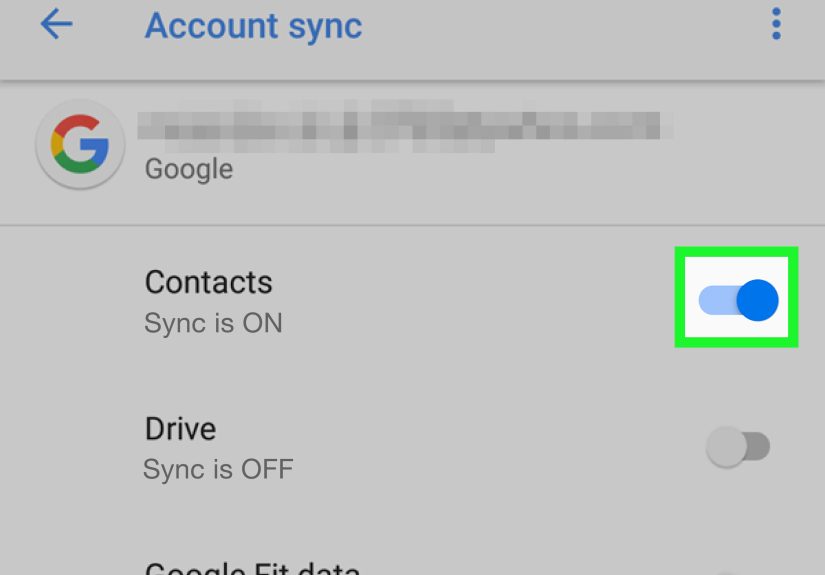
- Turn on Contacts sync (sometimes labeled “Sync Contacts”).
- Open the Contacts app and give it a minute or two. (This is the rare time “wait a second” is actually good advice.)
Now on your Samsung:
- Sign into the same Google account during setup (or add it later in Settings).
- Ensure Contacts sync is enabled.
- Open the Samsung/Google Contacts app and confirm your contacts appear.
Why it works: Google becomes your contact “home base,” so any phone (including your Samsung) can pull the same list.
It’s also the easiest long-term solution if you upgrade devices often.
Option B: Import a Contacts File into Google Contacts (VCF or CSV)
If your Nokia can export contacts to a file (common formats are .VCF / vCard or .CSV), you can upload that file to Google Contacts
on a computer. This is the best route for Lumia/Windows Phone users and many older Nokia setups.
-
Get your contacts file:
- From Nokia Android: Contacts app → Fix & manage (or similar) → Export → export to a .VCF.
- From Lumia/Windows Phone: export contacts from your Microsoft/Outlook account (typically as .CSV).
- On a computer, open Google Contacts and choose Import.
- Select your .VCF or .CSV file and import it.
- On your Samsung, sign into that same Google account and enable contacts sync.
Pro tip: After importing, take 30 seconds to scan for duplicates. Google often groups imported contacts under a label like “Imported on…”
so you can spot-check easily before you let your new Samsung become a duplicate factory.
Common “Google Contacts” gotchas (and how to fix them)
- Contacts not showing on Samsung: Open the Contacts app → manage display settings → ensure you’re viewing the right account (Google, not “Phone” only).
- Duplicates everywhere: Use a “Merge & fix” or “Manage contacts” option in Google Contacts or Samsung Contacts.
- Only some contacts transferred: Older phones sometimes store contacts in multiple places (SIM + Phone memory + account). Export/sync each source.
Method 2: Samsung Smart Switch (The “Moving Truck” for Your Data)
Samsung Smart Switch is designed to move your stuffcontacts includedto your new Galaxy. If your Nokia is an Android smartphone,
Smart Switch is often the fastest way to transfer contacts and other basics like photos and calendars in one shot.
When Smart Switch is the best choice
- You have a Nokia Android phone (or another smartphone) and want a direct phone-to-phone transfer.
- You want more than contacts (photos, calendar, etc.) without juggling files and accounts.
- You’d rather tap “Transfer” than play detective with export menus.
How to transfer contacts with Smart Switch (wireless)
- Install/open Smart Switch on both phones (Samsung usually has it built in).
- On your Samsung, choose Receive data. On your Nokia, choose Send data.
- Select Wireless (recommended for non-Samsung Android phones).
- Follow the prompts to connect the devices and choose what to transfer. Make sure Contacts is selected.
- Start the transfer and keep both phones nearby (think “close friends,” not “long-distance relationship”).
How to transfer contacts with Smart Switch (cable or PC/Mac)
Wired transfers can be lightning fast, but compatibility varies by device type. If your old phone isn’t supported for a wired direct transfer,
Smart Switch often still works wirelesslyor through a PC/Mac setup.
- Cable transfer: Great when supported; often requires the right adapter/cable and supported device types.
- Smart Switch for PC/Mac: Useful if you’re moving data via a computer, or if wireless is being dramatic.
Reality check (said lovingly): If Smart Switch doesn’t detect the Nokia the way you want, don’t panic.
That’s not a you-problem; it’s a “phones are picky” problem. Use Method 1 (Google) or Method 3 (SIM/VCF) and you’ll still win.
What Smart Switch typically transfers (contacts-focused)
- Names + numbers: yes, that’s the main event.
- Multiple numbers per contact: usually yes.
- Extra fields (emails, notes, addresses): often, but depends on how they’re stored and the phone OS.
Method 3: SIM Card or Contact File (The Classic, “No Wi-Fi Needed” Approach)
This is the method your tech-savvy cousin uses while saying, “Back in my day…” and honestly? It works.
If your Nokia is a feature phoneor if you just want a low-friction planuse a SIM card transfer or a vCard file.
Option A: Transfer contacts via SIM card
If your contacts are stored in your Nokia’s phone memory, you can often copy them to the SIM card, then import them into your Samsung.
This is especially common with basic phones and some KaiOS devices.
- On your Nokia, open Contacts → Options → look for Copy or Move contacts.
- Choose Phone → SIM (or similar).
- Put that SIM into your Samsung.
- On Samsung, go to Contacts → Manage contacts → Import or export contacts → Import from SIM.
Heads up: SIM cards can be a little… minimalist. Often they store just name + number.
Long names may get cut off, and details like email addresses, contact photos, and notes might not come along for the ride.
Think of SIM transfer as moving your contacts in “economy mode.”
Option B: Transfer contacts via a VCF (vCard) file
If you can export a .VCF file on your Nokia (common on Android Nokias), this is a clean, modern “file-based” transfer.
The move looks like this: export → send the file to your Samsung (email/Drive/USB) → import.
- On Nokia (Android), open Contacts → Export → export as .VCF.
-
Send the VCF file to yourself:
- Email it as an attachment
- Upload to Google Drive
- Copy via USB to a computer, then to your Samsung
- On Samsung, open the VCF file (from Downloads/Drive/email) and choose to import it into Contacts, or use Contacts → Manage contacts → Import/Export.
Why VCF is great: It usually preserves richer contact details than SIM transfer, and you can keep a backup copy.
It’s like having a spare key for your address book.
Quick Troubleshooting Cheatsheet (Because Something Will Try You)
1) “My contacts transferred, but half the names look weird”
This can happen with older devices or certain export formats. If possible, export as VCF instead of relying on SIM,
or use Google Contacts import (Method 1) which tends to handle formatting better.
2) “I only got phone numbers, not emails/notes”
That’s usually a SIM limitation. Use Google sync or a VCF export to preserve additional fields.
3) “I have duplicates… so many duplicates”
Use merge tools in either Google Contacts or Samsung Contacts. Fixing duplicates is way easier after you’ve got everything
in one place (Google is usually the easiest place to do the cleanup).
4) “Smart Switch won’t connect”
Try wireless instead of cable, confirm both phones are on the same Wi-Fi, and restart the apps. If it still refuses to cooperate,
switch to Method 1 or 3. The goal is your contactsnot proving a point to Smart Switch.
Security & Cleanup: Don’t Leave Your Contacts Hanging Around
- If you emailed yourself a VCF/CSV file, consider deleting it from your inbox and downloads after the transfer.
- If you used a public computer to import contacts, sign out of Google Contacts and clear downloaded files.
- If you’re selling or gifting the Nokia, remove accounts and factory reset after confirming your contacts are safely on your Samsung.
Conclusion
Transferring contacts from a Nokia to a Samsung doesn’t have to feel like defusing a tiny digital bomb. If your Nokia is modern Android,
Google sync is the cleanest long-term solution, and Smart Switch is the fastest “move everything” option.
If your Nokia is more old-school, SIM transfer or a VCF file gets the job done with minimal drama.
Pick the method that matches your Nokia, follow the steps, and you’ll have your full contact list on your Samsungready for calls, texts,
and the occasional “Who is this?” message that could have been avoided if someone would just save your number properly.
Real-World Experiences: What This Transfer Looks Like Outside the Tutorial (500+ Words)
Here’s the part nobody warns you about: transferring contacts is rarely “hard,” but it’s often weird in extremely predictable ways.
If you’ve ever moved apartments, you know the feelingeverything technically fits in boxes, but you still lose one spoon, a sock,
and your will to live somewhere around Box #17. Contacts transfers can be like that. Not tragic. Just… quirky.
Scenario #1: The Great Duplicate Invasion. You sync to Google, then you import a VCF “just to be safe,” and suddenly your phone
insists you know three different people named “Chris,” all with the same number. You don’t. It’s the same Chris, cloned like a low-budget sci-fi movie.
The fix is usually simpleuse a merge tool in Google Contacts or Samsung Contactsbut the emotional damage is real. The trick is choosing
one system of record (Google is great) and sticking with it. Do your transfer first, then clean duplicates once everything is in one place.
Scenario #2: SIM card transfer “works,” but your contacts come out… diet. You do the SIM shuffle and think, “Nice, done.”
Then you open a contact and notice it’s missing the email, the company, and the address. Sometimes even the last name gets trimmed like it ran out of room
on the bus. That’s not your Samsung being rudeit’s the SIM card living in a simpler era, back when a phone number and a dream were enough.
If you need richer details, VCF or Google sync is the upgrade.
Scenario #3: The “Where did those contacts go?” mystery. On older phones, contacts might be split across “Phone,” “SIM,” and “Account.”
So you export from the wrong place and only 40 of your 300 contacts make it over. The solution is to check where contacts are stored before exporting:
look for options like “Contacts to display” or “Manage contacts,” and export/sync each source if needed. It’s annoying, but it’s not uncommon.
Scenario #4: Smart Switch is having a mood. Sometimes Smart Switch connects instantly and you feel like a genius.
Other times, it stares at your Nokia like it’s never seen a phone before. When that happens, wireless usually works better than cable for non-Samsung Android devices.
If it still fails, don’t spend your afternoon negotiating with an app. Switch to Google sync or export a VCF. You’re allowed to take the easy win.
Scenario #5: You remember the people you forgot. This is the oddly wholesome part. During a contact transfer, you’ll scroll past names
you haven’t thought about in yearsold coworkers, that one neighbor who loaned you a ladder, “Pizza Place (Good One),” and “Mechanic (Don’t Mention the Scratch).”
Moving contacts is like flipping through a tiny history book of your life, except the author is your past self and they were very inconsistent with capitalization.
Bottom line: almost everyone hits a hiccupduplicates, missing fields, or an app that refuses to cooperate. But every one of those problems has a practical fix,
and none of them require you to abandon civilization and become a person who “doesn’t really do phones.” Pick a method, stay calm, and remember:
your contacts want to move. They’re just waiting for you to pick the door they like.