Table of Contents >> Show >> Hide
- 1) Turn on Strong 2-Step Verification (and Prefer Passkeys or Security Keys)
- 2) Use a Password Manager + a Long Passphrase (Yes, Spaces Are Allowed)
- 3) Do a Monthly Google Security Checkup and Kick Out Mystery Devices
- 4) Treat Every “Google” Message Like a Suspicious Mushroom
- 5) Lock Down Account Recovery: Backup Codes, Recovery Email/Phone, and Recovery Contacts
- 6) Audit Third-Party App Access (and Unfriend Random Apps From 2016)
- Quick Checklist: Your 15-Minute Google Account Lockdown
- Conclusion
- Experiences and Real-World Lessons: 6 “Oops” Stories (and the Fix)
Your Google Account isn’t “just email.” It’s the master key to your Gmail, Google Drive, Photos, YouTube channel,
saved passwords, devices, and a whole constellation of “Sign in with Google” logins. If someone gets in, they don’t
just read your messagesthey can reset passwords elsewhere, snoop your files, and pretend to be you with terrifying
confidence.
The good news: you don’t need to be a cybersecurity wizard to lock things down. You just need to do a few
high-impact moves that shut down the most common attack paths: stolen passwords, phishing, sketchy third-party apps,
and weak account recovery settings.
Below are six practical, real-world ways to protect your Google Accountwritten for humans who have better things to
do than memorize 37-character passwords (no judgment, fellow human).
1) Turn on Strong 2-Step Verification (and Prefer Passkeys or Security Keys)
Why this matters
Passwords leak. People reuse them. And hackers love “credential stuffing” (trying leaked passwords on lots of sites).
Multi-factor authentication (MFA) adds a second “proof” so a stolen password alone isn’t enough. Security agencies
routinely recommend MFA because it blocks a huge portion of account takeovers.
What to do
- Enable 2-Step Verification (2SV) in your Google Account security settings.
- Use a passkey if you can (fingerprint/face/PIN on your device). Passkeys are designed to be
phishing-resistant and don’t rely on you typing a password into a potentially fake site. - Consider a physical security key (FIDO/WebAuthn) for your most important accounts, especially if
you’re at higher risk (journalist, creator, business owner, activist, or you just have enemies in your group chat).
SMS codes: okay in a pinch, but not your best option
Text-message codes are better than nothing, but they’re not the “gold standard.” Security guidance notes that SMS
can be intercepted or abused through telecom weaknesses and SIM-swapping. If you have the choice, prefer passkeys,
an authenticator app, or a security key.
A quick example
Imagine someone buys a leaked password list and finds your email + password combo. If you only use a password,
they’re in. If you use 2SV with a passkey or security key, they hit a wallbecause they’d need your actual device
(and a way to unlock it).
2) Use a Password Manager + a Long Passphrase (Yes, Spaces Are Allowed)
Why this matters
“Strong password” doesn’t mean “P@ssw0rd!2026.” It means unique and hard to guess. A long passphrase
(think: several unrelated words) is typically easier to remember and harder to crack than a short, complex-looking
string. Security standards emphasize longer passwords/passphrases and allowing long lengths.
What to do
- Use a password manager to generate and store unique passwords (so you’re not reusing the same one
everywhere like it’s a family heirloom). Google Password Manager can help you create, store, and check passwords,
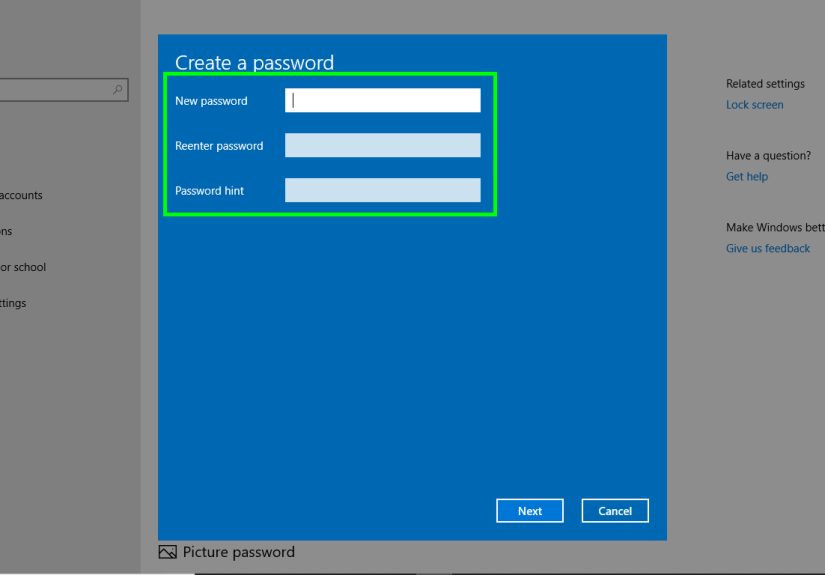
and it can flag compromised ones. - Upgrade your Google password to a long passphrase you’ve never used anywhere else.
Example: orchid-bicycle-lantern-salsa (long, weird, memorable). - Don’t “decorate” your password with personal facts (pet name + birthday = hacker candy).
A quick reality check
If your Google password is reused on another site and that site gets breached, attackers may try the same password
on Google. A password manager breaks that chain by making every account unique, so one leak doesn’t become a domino
disaster.
3) Do a Monthly Google Security Checkup and Kick Out Mystery Devices
Why this matters
Some account takeovers aren’t dramatic. They’re quiet. A hacker logs in once, adds a device, and checks your inbox
like they pay rent. Google’s Security Checkup is designed to help you review recent security events, devices, and
protections in one place.
What to do
- Run Google Security Checkup and review:
- Devices signed into your account
- Recent security events
- Sign-in methods (2SV, passkeys, etc.)
- Remove devices you don’t recognize (especially “Windows PC” you’ve never met).
- Respond to Google security alerts immediatelythey’re meant to stop abuse fast.
Pro tip: if it feels even slightly “off,” investigate
Common red flags include unusual sign-in notifications, unexpected changes to your password or security settings, or
any activity you don’t recognize. Don’t overthink itcheck your device activity and security events and act fast.
4) Treat Every “Google” Message Like a Suspicious Mushroom
Why this matters
Phishing is still the undefeated champion of account theft. Instead of “hacking,” attackers often just trick people
into typing credentials into a fake login page or sharing verification codes. Even smart, careful people get caught
when they’re rushed, tired, or multitasking.
What to do
- Don’t click sign-in links in emails or texts. Go directly to
myaccount.google.com by typing it yourself, then check alerts or settings from there. - Never share verification codes with anyoneespecially someone who contacted you first with a
dramatic story. Legit support will not ask for your one-time codes. - Slow down and verify: check the sender address carefully, look for odd domains, and be wary of
urgent “act now” language. - Be cautious with attachments and unexpected downloads.
A quick example
You get a text: “Google: Suspicious sign-in detected. Verify now.” The link looks convincing. Your pulse rises.
That’s the trap. Instead, open your browser, go to your Google Account manually, and check security notifications.
If it’s real, you’ll see it there. If it’s fake, you just dodged a spear.
5) Lock Down Account Recovery: Backup Codes, Recovery Email/Phone, and Recovery Contacts
Why this matters
Account security is a two-sided coin:
keep attackers out, and keep yourself from getting locked out.
Ironically, people sometimes disable strong protections because recovery feels scary. Don’t do that. Set recovery
up properly so you can keep security high without sweating every phone upgrade.
What to do
- Add/confirm recovery methods (recovery email and phone number) so Google can reach you if there’s
unusual activity or you lose access. - Generate backup codes for 2-Step Verification and store them somewhere safe (offline is best).
Backup codes can help you sign in when your usual second step isn’t available. - Consider Recovery Contacts (trusted people who can help you recover access, if available to your
account). Choose humans you trust with your lifeor at least your email.
How to store recovery info without creating new risks
Don’t save backup codes in the same Google Drive you’re trying to protect. That’s like hiding your spare house key
under the doormatand then labeling the doormat “SPARE KEY HERE.” Keep backup codes offline (printed and stored
securely) or in a separate secure vault.
6) Audit Third-Party App Access (and Unfriend Random Apps From 2016)
Why this matters
Third-party apps and services can be convenient… and also a sneaky way for data to leak or for attackers to maintain
access. Sometimes you granted access years ago, forgot about it, and the app is now abandoned, sold, or just
“vibes-based secure.” Your Google Account lets you review and remove these connections.
What to do
- Review third-party connections and remove anything you don’t recognize or no longer use.
- Be picky about what you approve: before granting access, check what data the app requests and
whether it truly needs it. - For high-risk accounts: consider Advanced Protection, which is designed to provide stronger
defenses (including phishing-resistant sign-in with a passkey or security key) and tighter controls.
A quick example
You installed a “PDF Converter Deluxe Pro Max” browser extension in 2019. It asked for access “to make things
easier.” Today it’s owned by… who knows. If it has Google access, it’s time to revoke it. Your future self will
thank you.
Quick Checklist: Your 15-Minute Google Account Lockdown
- Turn on 2-Step Verification and set up a passkey (or security key if you want maximum protection).
- Switch your Google password to a unique, long passphrase and store it in a password manager.
- Run Google Security Checkup and remove unknown devices.
- Make phishing harder: don’t click sign-in links; never share verification codes.
- Add recovery email/phone, create backup codes, and choose Recovery Contacts if available.
- Audit third-party access and remove anything unnecessary.
Conclusion
Keeping your Google Account safe from hackers isn’t about paranoiait’s about friction. You’re adding just enough
friction to stop the most common attacks, while keeping your own access smooth and recoverable.
If you only do one thing today, turn on 2-Step Verification and set up a passkey. If you do two things, add a
password manager and run Security Checkup. And if you do all six, you’ll be in that rare, elite category of internet
users who are both secure and not living in fear of losing access to their own accounts.
Hackers love easy targets. Make your Google Account the opposite of easy.
Experiences and Real-World Lessons: 6 “Oops” Stories (and the Fix)
Security advice hits different when you can picture how things actually go sideways. Here are six realistic “field
notes” style scenariosbased on common patterns in real account takeoversand exactly how the six tips above prevent
them.
1) The “I only logged in for a second” coffee shop moment
Someone uses public Wi-Fi, gets a “Google needs you to confirm your account” pop-up, and taps through it. The page
looks real. The coffee smells amazing. The login was fake. The attacker immediately uses the password to try other
accounts.
The fix: Tip #4 (don’t click sign-in links; type your destination) stops the fake page from ever
getting your credentials. Tip #1 (2-Step Verification with passkeys) blocks the attacker even if they somehow get
the password.
2) The “verification code” panic call
A person gets a call: “This is support. We detected suspicious activity. We just sent you a code to verify it’s you.”
A code arrives. They read it out loud. The attacker uses it to sign in and locks them out.
The fix: Tip #4 is the golden rule: never share verification codes. Pair that with Tip #5 (backup
codes + recovery methods) so you don’t feel pressured by “urgent” strangers. Real support won’t need your one-time
code to “help” you.
3) The reused password domino effect
A small shopping site gets breached. A reused password gets dumped online. Attackers run the email/password combo
against Google and other major services automatically. It’s not personalit’s industrial.
The fix: Tip #2 breaks the domino chain: unique passwords everywhere, generated and stored by a
password manager. Tip #1 adds the second lock so even a leaked password can’t open the door.
4) The “mystery device” that wasn’t a mystery
Someone notices “Windows PC” in their Google devices list and assumes it’s an old laptop. Weeks later, weird emails
appear in Sent, filters are created, and important alerts are quietly auto-archived.
The fix: Tip #3 (Security Checkup) turns this into a monthly habit: if you don’t recognize the
device, remove it. Tip #3 plus Tip #4 also helps you spot suspicious rules, sign-in events, and alerts before the
attacker settles in like an unwanted roommate.
5) The lost phone spiral
A phone is lost or damaged. The person can’t receive the usual second-factor prompt, can’t remember where recovery
options were set, and starts disabling security features the moment they regain accessbecause the experience was
stressful.
The fix: Tip #5 is your stress insurance: set recovery email/phone, create backup codes, and choose
Recovery Contacts if available. When recovery is planned, strong security stops feeling risky.
6) The “harmless” app that aged poorly
Years ago, someone connected a third-party app to “organize email” or “boost productivity.” The app later changes
ownership, gets sloppy with security, or starts requesting more access. The person never checks because everything
“still works.”
The fix: Tip #6 is cleanup with benefits: audit third-party access and remove what you don’t need.
If the account is high-risk, Tip #6 also points you toward Advanced Protection for stronger safeguards and tighter
controls.
The theme in every story is the same: most account takeovers succeed because the path of least resistance is wide
open. Your goal isn’t perfectionit’s closing the biggest doors hackers walk through every day.