Table of Contents >> Show >> Hide
- What Is the Command Line on a Mac, Anyway?
- Way 1: Use Spotlight to Open Terminal (Fastest for Most People)
- Way 2: Open Terminal from Launchpad
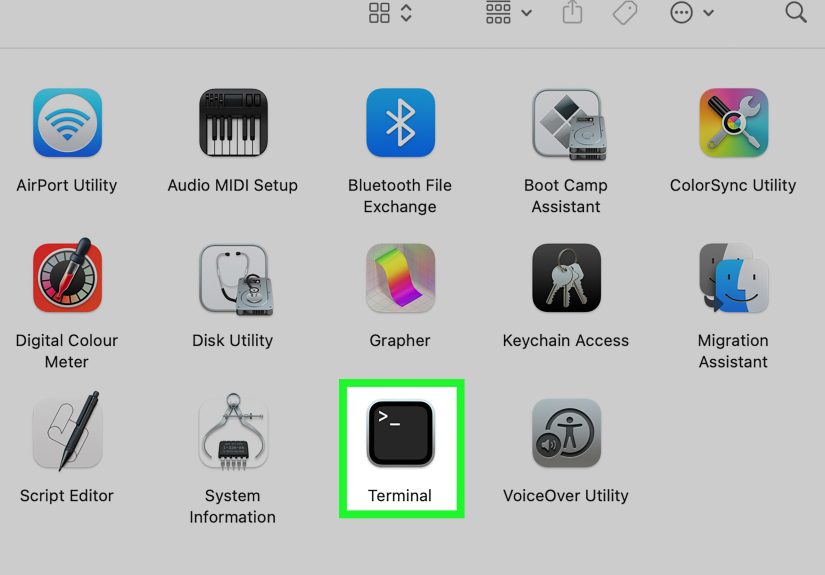
- Way 3: Open Terminal from Finder (Applications & Utilities)
- Way 4: Use the Integrated Terminal in a Code Editor (Developer-Friendly)
- Common Questions About Using the Mac Command Line
- Putting It All Together: Which Method Should You Use?
- Real-World Experiences: Living with the Mac Command Line
- Conclusion: Your Mac’s Command Line Is One Shortcut Away
If you’ve used a Mac for years but never opened the command line, you’re not alone. Most people live entirely in the world of icons, windows, and Dock bouncing. But under that friendly interface is a powerful text-based environmentthe command linethat can help you work faster, automate boring tasks, and feel just a tiny bit like a movie hacker (minus the dramatic zooms).
On macOS, the command line lives in apps like Terminal and other terminal emulators. The good news: you don’t need to be a developer to open it, and there are several easy ways to get there. In this guide, you’ll learn four practical ways to get to the command line on a Mac, plus real-world tips on when and why you might use each one.
What Is the Command Line on a Mac, Anyway?
The command line is a text-based interface where you type commands instead of clicking buttons. On a Mac, you usually access it through an app called Terminal, which gives you a shell such as zsh (the default) or bash. From there, you can:
- Navigate folders and files with commands like
cd,ls, andpwd. - Install developer tools and package managers like Homebrew.
- Run scripts that automate repetitive tasks.
- Use version control tools like Git.
Even if you never write a line of code, knowing how to open the command line on a Mac is a handy skill. Let’s walk through four user-friendly ways to get there.
Way 1: Use Spotlight to Open Terminal (Fastest for Most People)
If you remember only one method, make it this one. Spotlight search is built into macOS and gives you a quick way to launch anything, including Terminal.
Step-by-step: Open Terminal with Spotlight
- Press Command (⌘) + Spacebar to open Spotlight search.
- Start typing “Terminal”.
- When you see the Terminal app in the results, press Return.
That’s it. A Terminal window pops open, and you’re at the command line.
Why this method is great
- It works from anywherewhether you’re in Safari, Mail, or a random game.
- It’s extremely fast once you build the habit of using the shortcut.
- You don’t need to remember where Terminal lives in the file system.
This is the best method for beginners because it feels like searching the web, but you’re simply searching your Mac. Once you’ve opened the command line this way a few times, it becomes second nature.
Way 2: Open Terminal from Launchpad
If you’re more visual and like to click icons, Launchpad is another easy way to open the command line. Think of Launchpad as your Mac’s app home screen, similar to an iPhone or iPad.
Step-by-step: Launch Terminal via Launchpad
- Click the Launchpad icon in the Dock (the grid of squares).
- In the search field at the top, type “Terminal”.
- Click the Terminal icon when it appears.
If you’re not into typing, you can also swipe between Launchpad pages until you find the Utilities folder and then click Terminal there.
Why this method is great
- Perfect for mouse or trackpad users who are still getting comfortable with keyboard shortcuts.
- Easy to discover other tools in the Utilities folder, like Activity Monitor and Disk Utility.
- Feels natural if you’re used to mobile-style app grids.
This method is ideal if you’re just starting out and like to visually confirm what you’re opening. Once you’re more comfortable, you might switch to Spotlight for speed, but Launchpad is a great stepping stone.
Way 3: Open Terminal from Finder (Applications & Utilities)
Sometimes you want to know where things “live” on your Mac. For that, you can go the classic route using Finder to open Terminal from the Applications folder.
Method A: Open Terminal from Utilities
- Click the Finder icon in the Dock.
- In the left sidebar, click Applications.
- Scroll down and open the Utilities folder.
- Double-click Terminal.
Once you’ve found it, you can even drag the Terminal icon to the Dock so it’s always one click away.
Method B: Open a Terminal window directly from a folder
This one is especially useful if you work with projects in specific folders (like code projects or website files).
- Open Finder and navigate to the folder you want.
- Make sure the path bar is visible by choosing View > Show Path Bar in the menu bar (you only need to do this once).
- At the bottom of the window, Control-click the folder you want in the path bar.
- Choose Open in Terminal (or similar wording, depending on your macOS version).
A Terminal window opens with the working directory set to that folder. No need for extra cd commandsvery handy if you live in project-based directories.
Why this method is great
- Gives you a mental map of where Terminal actually is on your system.
- Useful for project work when you want Terminal to start in a specific folder.
- Makes it easy to pin Terminal to the Dock for future use.
Way 4: Use the Integrated Terminal in a Code Editor (Developer-Friendly)
If you write code or work with development tools, you might spend a lot of time in an editor like Visual Studio Code or another IDE. Many of these tools include a built-in terminal so you can stay in one window while using the command line.
Example: Command line in Visual Studio Code
In Visual Studio Code on Mac, you can open the integrated terminal in several ways:
- From the menu bar, choose Terminal > New Terminal.
- Use the keyboard shortcut Control (⌃) + ` (backtick, usually above Tab).
- Right-click a folder in the Explorer panel and choose something like “Open in Integrated Terminal” (depending on your version and settings).
The terminal opens in a panel at the bottom of the VS Code window, usually using your default shell (like zsh). From there, you can run Git commands, start development servers, or run scripts without leaving your editor.
Other options: iTerm2 and alternative terminals
If you get serious about the command line, you might want a more customizable terminal app like iTerm2. Apps like this:
- Offer advanced features like split panes, search, and profiles.
- Integrate with your shell to track history and working directories.
- Can be opened from Launchpad, Spotlight, or the Applications folder just like Terminal.
While Terminal is perfectly fine for most users, integrated terminals in editors and advanced apps like iTerm2 are great for developers and power users who live at the command line all day.
Common Questions About Using the Mac Command Line
Do I need to be a programmer to use the command line?
Not at all. Many simple commands are useful even for non-developers: listing files, checking disk usage, or quickly moving groups of files around. You can start small and learn just a handful of commands to save time.
What if I break something?
The command line is powerful, but you won’t accidentally erase your system by typing basic commands like ls, cd, or pwd. As a rule of thumb, be extra careful with commands that modify or delete filesespecially ones you find online. If you don’t fully understand a command, look it up before pressing Enter.
Why are there different shells (zsh, bash, etc.)?
macOS uses zsh as the default shell in current versions, but you might see bash mentioned in older tutorials. For basic tasks, they feel very similar. Over time, you might customize your shell with aliases, functions, and prompts, but you don’t need to worry about that just to open the command line.
Putting It All Together: Which Method Should You Use?
You now know four different ways to get to the command line on a Mac:
- Spotlight: Fast, keyboard-driven, works from anywhere.
- Launchpad: Visual, click-based, familiar if you like app grids.
- Finder / Applications / Utilities: Classic method, great for pinning Terminal to the Dock and opening from specific folders.
- Integrated terminals in editors and alternative apps: Ideal for developers and power users who want everything in one place.
You don’t have to pick only one. Many people use Spotlight for quick access, Finder when working with specific folders, and an integrated terminal when coding. The best method is the one that feels natural to you and fits how you already use your Mac.
Real-World Experiences: Living with the Mac Command Line
Knowing how to open the command line is one thing. Actually using it in real life is where it gets interestingand often surprisingly fun.
From “accidental Terminal” to everyday tool
A lot of Mac users first meet Terminal by accident. Maybe they clicked the wrong icon in Utilities, saw a black-and-white window full of text, panicked, and closed it immediately. Later, they pick up a tutorial for installing a developer tool or fixing a stubborn setting, and suddenly, the command line becomes less mysterious and more like a secret control panel.
One common experience: opening the command line via Spotlight for a single tasksay, installing a package manager or running a one-line command from a help articleand then realizing, “Hey, that wasn’t so bad.” Over time, that one command turns into a small toolkit of favorites.
Speed you can feel
Once you get comfortable, the command line can feel dramatically faster than pointing and clicking, especially for repetitive tasks. For example:
- Renaming a bunch of files at once with a short loop instead of doing it manually.
- Using
grepto search inside files more quickly than a GUI search. - Jumping directly into a project folder with one
cdcommand instead of clicking through multiple Finder levels.
Many users start opening Terminal through Spotlight multiple times a day, not because they’re trying to be “advanced,” but simply because it gets things done faster. The moment you catch yourself hitting Command + Space and typing “ter” on autopilot, you’ve joined the club.
Developers and integrated terminals
For developers, the experience is a little different. The command line isn’t a side quest; it’s home base. Opening an integrated terminal inside an editor like VS Code becomes second nature:
- They open a project folder in VS Code.
- Tap a shortcut to open the terminal at the project root.
- Run commands to install dependencies, run tests, or start a dev server.
For these users, the command line isn’t isolated in a separate window. It’s woven into their daily workflow. The key experience here is flow: no context switching, no hunting for the right window, just code and commands in the same place.
Customization and comfort
As people spend more time at the command line, they often start customizing it to feel less intimidating and more personal:
- Changing the color scheme or font size in Terminal or iTerm2.
- Customizing the shell prompt to show the current folder or Git branch.
- Adding aliases like
gsforgit statusorprojforcd ~/Projects.
These little tweaks are not required, but they turn the command line from a “scary black box” into a familiar workspace. Many users report that once they’ve made the environment feel like “theirs,” they’re much more willing to experiment and learn new commands.
Balancing power and safety
Most real-world experiences at the Mac command line fall into a simple pattern: people start with safe, read-only commands, then gradually move into commands that change things. Along the way, they learn a few practical habits:
- Reading commands carefully before pressing Enter.
- Testing potentially risky commands on unimportant files first.
- Keeping a backup or version control for important work.
In other words, you don’t need to be afraid of the command linejust respectful. With the methods in this article, you can open it confidently, use it for realistic tasks, and grow your skills at your own pace.
Conclusion: Your Mac’s Command Line Is One Shortcut Away
The command line on a Mac isn’t just for experts. It’s a powerful, flexible tool that you can reach in a few seconds using Spotlight, Launchpad, Finder, or an integrated terminal. Start by learning one way to open itprobably Spotlightand use it the next time a tutorial mentions “open Terminal.” Then try the other methods and see which fits your workflow best.
Over time, getting to the command line on your Mac will feel as normal as opening a browser. And once you’re comfortable there, a whole new set of shortcuts, tools, and superpowers opens up with it.