Table of Contents >> Show >> Hide
- Before You Start: What “Chrome Background” Actually Means
- Option 1: Use Chrome’s Built-In “Customize Chrome” Tool (Fastest)
- Option 2: Install a Chrome Theme (Full Makeover)
- Mobile Note: What You Can (and Can’t) Change on Android & iPhone
- Troubleshooting FAQ
- Wrap-Up: Pick Your Style and Get Back to Browsing
- Extra: Real-World Experiences and Tips from Everyday Chrome Users
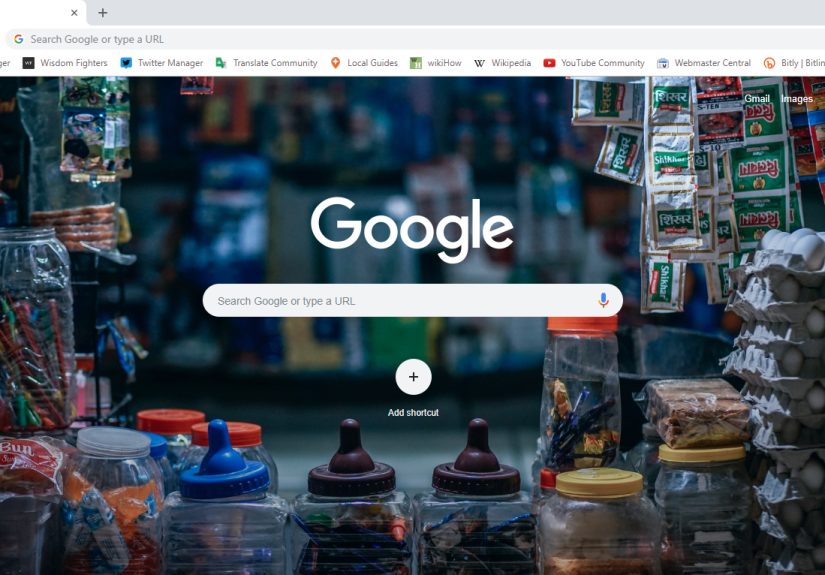
Your Chrome New Tab page doesn’t have to look like the digital equivalent of a beige office cubicle. With a couple of clicks, you can turn that bland background into a calming landscape, a bold pattern, or your favorite photo (yes, even the one of your dog wearing sunglasses).
This guide covers two easy, official options to change your Chrome background: (1) Chrome’s built-in customization tool, and (2) installing a theme for a full browser makeover. Along the way, we’ll tackle the common “Wait… why can’t I find that button?” moments and show you how to undo everything if you accidentally pick a theme that looks like it was designed during a sugar rush.
Before You Start: What “Chrome Background” Actually Means
When most people say “Chrome background,” they usually mean the image behind the search box and shortcuts on the New Tab page (the page that appears when you open a new tab). That’s what we’re changing here.
Quick reality check (because Chrome loves to keep us humble):
- This changes the New Tab page backgroundnot every website you visit.
- Google.com is separate from the Chrome New Tab page. If you’re trying to change the Google homepage background, that’s a different setting.
- Homepage and startup pages are also different. Your “Home” button and “On startup” settings control what loads when you click Home or launch Chromenot the New Tab wallpaper.
If what you want is a prettier New Tab page (the most common goal), you’re in the right place. Let’s do the fun part.
Option 1: Use Chrome’s Built-In “Customize Chrome” Tool (Fastest)
This is the simplest method because it uses Chrome’s own settingsno extra downloads, no surprise toolbars, no mysterious “bonus search engine” you didn’t ask for.
Step-by-step: Choose a background from Chrome’s gallery
- Open Chrome on your computer (Windows, Mac, Linux, or Chromebook).
- Open a New Tab (click the + button or press Ctrl + T on Windows/Chromebook or Command + T on Mac).
- Look at the bottom-right corner of the New Tab page and click Customize Chrome.
- Under Appearance, choose Change theme.
- Select a collection (think: landscapes, textures, art, and other “my browser has taste” vibes).
- Pick an image thumbnail, then click Done (or close the panelChrome typically applies it instantly).
That’s it. You’ve officially upgraded your browser from “plain oatmeal” to “oatmeal with cinnamon and a decent attitude.”
Step-by-step: Upload your own image (photo, logo, memeno judgment)
Want your own wallpaper instead of a curated gallery? Chrome can handle that too.
- Open a New Tab.
- Click Customize Chrome (bottom-right).
- Go to Appearance → Change theme.
- Select Upload an image.
- Choose an image from your computer and click Open.
Pro tip: If your image looks oddly cropped, try a wider photo (a landscape shot works beautifully) or pick something with “safe space” around the edges so important details don’t get swallowed by shortcuts and the search box.
Make it look intentional: color, light/dark mode, and daily refresh
A background image is great, but Chrome also lets you coordinate the rest of the look so your tabs don’t clash like socks in a dark laundry room.
- Pick an accent color: In the same customization panel, you can choose a browser color so the toolbar and tab strip match your background.
- Try Light, Dark, or Device mode: Chrome can follow your system theme or stick to a light/dark look, depending on your preference.
- Let Chrome rotate backgrounds: Some theme collections include an option to refresh the background dailyperfect if commitment scares you (no shame).
Common hiccups (and quick fixes)
If this felt too easy, don’t worryChrome still has opportunities to be confusing. Here are the top issues and how to fix them.
- You don’t see “Customize Chrome”: Make sure you’re on the New Tab page (not a website). If your New Tab page looks replaced or branded, an extension or managed setting may be controlling it.
- You’re on a work/school device: Admin policies can disable New Tab customization. If Chrome says it’s managed, you may need to use a personal profile/device or ask your admin.
- A theme is overriding your background: Some themes change the entire look and can replace the New Tab background behavior. If you want your own photo, remove the theme (we’ll cover that below).
- Your image looks blurry: Use a higher-resolution image. Small images stretched across a big monitor will look like they were expanded using 2004 technology.
Option 2: Install a Chrome Theme (Full Makeover)
If Option 1 is “change the wallpaper,” Option 2 is “renovate the whole room.” A theme typically updates Chrome’s colors, tab styling, and sometimes the New Tab background look too.
When a theme is the better choice
- You want the toolbar, tabs, and UI colors to changenot just the New Tab background.
- You prefer one-click design packs rather than building your own look.
- You want something consistent across a profile (especially helpful if multiple people use the same computer).
Step-by-step: Install a theme
- Click the three-dot menu in the top-right corner of Chrome.
- Go to Settings.
- Find Appearance.
- Click Themes (this takes you to the theme gallery).
- Browse themes, click one you like, and choose Add to Chrome.
Once installed, Chrome applies the theme immediately. If your browser suddenly looks like it’s auditioning for a cyberpunk movie, congratsyou successfully changed it.
How to remove or reset a theme (aka “I regret everything”)
Themes are easy to undo. No long-term emotional commitment required.
- Open Chrome Settings.
- Go to Appearance.
- Click Reset to default to return to the classic Chrome look.
Theme vs custom background: who wins?
Here’s the practical truth: themes and custom New Tab backgrounds can sometimes compete. If you install a theme and your custom background disappears, it’s not youit’s the theme.
If your priority is a specific photo (your brand logo, your travel shot, your cat’s dramatic close-up), you’ll usually get the smoothest result by:
- Resetting to the default theme first, then
- Using Customize Chrome to upload your image and pick an accent color.
If your priority is the overall interface design (tabs, toolbar, and a cohesive style), install a theme and enjoy the full makeover. There’s no wrong answeronly vibes.
Mobile Note: What You Can (and Can’t) Change on Android & iPhone
On desktop Chrome, customizing the New Tab background is straightforward. On mobile, it’s… more limited.
- Android: You can customize parts of the New Tab page (like shortcuts and content cards), but changing the New Tab background image isn’t generally a standard option the way it is on desktop.
- iPhone/iPad: Chrome on iOS focuses more on browser settings and theme mode (light/dark) rather than full New Tab wallpaper customization.
If your goal is specifically a wallpaper-style New Tab background, you’ll have the best luck on a computer. On mobile, consider focusing on dark mode, shortcut organization, and a cleaner New Tab layout.
Troubleshooting FAQ
Why is my background zoomed in or cropped weird?
Most New Tab backgrounds behave like wallpapers: they scale to fill your screen. That means: wide images work better, faces near the edges may get cropped, and tiny images may look soft. Try a higher-resolution photo with the subject centered, or choose a more abstract image (patterns are very forgiving).
Why did my background disappear?
The usual suspects:
- You installed a theme that overrides the New Tab look.
- An extension replaced your New Tab page.
- Your Chrome profile changed (signed out, switched profiles, or sync behavior changed).
Quick fix: reset the theme to default, disable any New Tab extensions temporarily, then reapply your background using Customize Chrome.
Can I set different backgrounds for different Chrome profiles?
Yeseach Chrome profile can have its own look. That’s actually one of the best uses of profiles: “Work Chrome” can be clean and minimal, while “Personal Chrome” can be whatever your soul needs that day.
One caveat: if multiple profiles are signed into the same account and sync behavior is involved, appearance settings may sometimes travel further than you expect. If you want totally separate aesthetics, keep profiles clearly separated and review what’s being synced.
Is it safe to use extensions to change the background?
Chrome’s built-in customization is the safest and simplest option. If you do use an extension, pick one with a strong reputation, minimal permissions, and a clear purpose. If an extension that “changes your wallpaper” asks for permission to “read and change all data on all websites,” that’s your cue to back away slowly.
Wrap-Up: Pick Your Style and Get Back to Browsing
To change your Chrome background, you really only need to remember two paths:
- Option 1: Open a New Tab → click Customize Chrome → pick a gallery background or upload your own image.
- Option 2: Go to Settings → Appearance → Themes → install a theme (and reset anytime).
Whether you want calm, bold, professional, or “this sparks joy,” Chrome can match your moodwithout turning your browser into a science project.
Extra: Real-World Experiences and Tips from Everyday Chrome Users
Once people start customizing Chrome, they tend to fall into two camps: the “set it and forget it” crowd and the “seasonal décor” enthusiasts. Both are valid. The trick is choosing a setup that actually helps younot one that looks cool for 10 minutes and then becomes visual noise.
One common experience: someone picks a gorgeous high-contrast photo (think neon city at night), then realizes their shortcuts and search box become harder to read. The fix is simpleeither choose a softer image with more negative space, or lean into a theme color that improves contrast. If you’re frequently opening new tabs during work, readability beats drama. Save the dramatic wallpaper for when you’re not racing a deadline.
Another classic: “I installed a theme and now my custom background is gone.” This happens a lot because themes like to take over the whole vibe. If your goal is your photo (a family picture, a brand logo, or a motivational quote you totally won’t ignore after day three), use Chrome’s built-in background upload and then pick an accent color. If your goal is a complete UI makeover, themes are perfectjust know they can override the New Tab look. When in doubt, reset to default and rebuild from Customize Chrome in under a minute.
People who use Chrome profiles often develop a surprisingly useful habit: they give each profile a distinct visual identity. For example, a “Work” profile might have a neutral background and a calm color palette, while a “Personal” profile might rotate daily artwork. That tiny difference can reduce tab chaos because your brain instantly recognizes which profile you’re in. (It’s the browser version of putting your keys in the same spot every dayboring, but weirdly life-improving.)
There’s also the “screenshare effect.” If you present in meetings, your New Tab background is going to show up eventually. A scenic wallpaper is harmless. A chaotic meme collage is… a bold choice. Many people keep a clean, professional background for work profiles and reserve the fun stuff for personal browsing. It’s not about being boring; it’s about avoiding the moment where you realize your New Tab page is basically a personality test.
Finally, don’t underestimate the value of a quick reset. Customization should feel playful, not permanent. If you try a theme and suddenly your tabs are unreadable, or your toolbar color clashes with everything you love, hit reset and move on. The best Chrome background is the one that makes opening a new tab feel a little nicerwithout slowing you down or distracting you. Think of it like decorating a workspace: a small upgrade that makes the day smoother, not a full-time hobby.