Table of Contents >> Show >> Hide
- What Are Administrative Tools?
- Administrative Tools vs. Windows Tools (Windows 10 vs. Windows 11)
- Where to Find Administrative Tools (and the Fastest Ways to Open Them)
- How These Tools Actually Work: MMC Snap-ins and .MSC Files
- The Most Useful Administrative Tools (and How to Use Them Like You Mean It)
- Event Viewer: “Why did Windows do that?”
- Task Scheduler: Automation without a “productivity influencer” subscription
- Services: The “background workers” you shouldn’t randomly fire
- Computer Management: A greatest-hits album of admin consoles
- Disk Management: Storage surgery with a blunt instrument (handle carefully)
- Performance Monitor + Resource Monitor: Measuring beats guessing
- System Information + System Configuration: Quick snapshots and safe-boot lifelines
- Windows Firewall with Advanced Security: Rules, profiles, and the “why can’t it connect?” detective kit
- Best Practices: Use Administrative Tools Without Breaking Things
- Bonus: When “Administrative Tools” Is Missing (or Looks Different)
- Real-World Lessons From Administrative Tools ( of Practical “Experience”)
- Conclusion
- SEO Tags
Windows has a “back room” where the real work happens. It’s not secret, exactlymore like it’s politely hidden so the average person
doesn’t accidentally turn their laptop into a very expensive desk ornament.
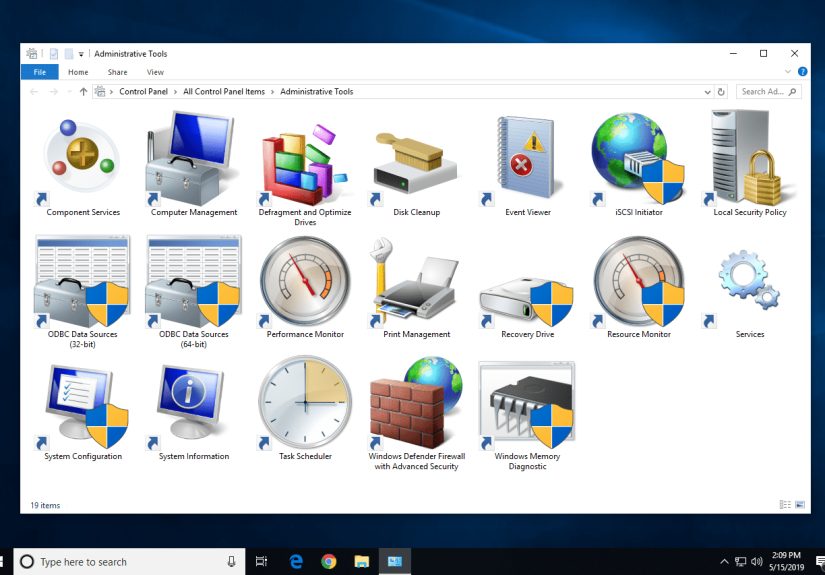
That back room is Administrative Tools (Windows 10) or Windows Tools (Windows 11): a collection of shortcuts to
advanced utilities used for system management, troubleshooting, monitoring, and configuration. If you’ve ever thought, “I wish my computer
would just tell me why it did that,” these tools are where Windows starts confessing.
What Are Administrative Tools?
Administrative Tools is a folder of built-in Windows utilities designed mainly for system administrators and power users.
They help you do things like:
- Inspect system and application logs (so you can stop guessing).
- Manage background services (the stuff that runs whether you asked for it or not).
- Schedule automation (because clicking the same thing every day is a cry for help).
- View hardware and disk layouts (useful before you “clean up storage” and regret it).
- Tune security policies and firewall rules (with great power comes great responsibility…and more dialog boxes).
A key point: the folder mainly contains shortcuts. The tools themselves are separate components of Windowsmany of them are
Microsoft Management Console (MMC) snap-ins (more on that soon). And yes, what you see can vary by Windows edition (Home vs Pro vs Enterprise)
and what features are installed.
Administrative Tools vs. Windows Tools (Windows 10 vs. Windows 11)
The concept is the same; the label changed:
- Windows 10: the Control Panel folder is called Administrative Tools.
- Windows 11: the Control Panel folder is called Windows Tools.
If you’re on Windows 11 and you keep searching for “Administrative Tools” like it’s 2019, don’t worryyou’re not lost.
You’re just using the old map. The treasure is still there; the sign out front changed.
Where to Find Administrative Tools (and the Fastest Ways to Open Them)
1) Control Panel route (the classic)
If you like your Windows with a side of nostalgia:
- Open Control Panel.
- Go to System and Security.
- Open Windows Tools (Windows 11) or Administrative Tools (Windows 10).
2) Start menu search (the modern)
Press the Windows key and search for the tool by name:
Event Viewer, Task Scheduler, Computer Management, Disk Management, etc.
3) Run commands (the power-user handshake)
Press Win + R, then type a command. Many admin tools have short “.msc” launchers (MMC console files).
Here’s a practical cheat sheet:
| Tool | Run command | What it’s great for |
|---|---|---|
| Event Viewer | eventvwr.msc |
Diagnosing crashes, driver errors, security events, and weird restarts |
| Task Scheduler | taskschd.msc |
Automating scripts/apps on a schedule or on system events |
| Services | services.msc |
Starting/stopping services, changing startup type, checking dependencies |
| Computer Management | compmgmt.msc |
One console for logs, disks, local users, shared folders, and more |
| Disk Management | diskmgmt.msc |
Initializing drives, creating partitions, extending/shrinking volumes |
| Performance Monitor | perfmon or perfmon.msc |
Performance counters, data collector sets, long-term diagnostics |
| Resource Monitor | resmon |
Process-level CPU/memory/disk/network usage (great for “what’s hogging my PC?”) |
| Local Security Policy* | secpol.msc |
Local security settings (audit policies, user rights, password policies) |
| Windows Firewall with Advanced Security | wf.msc |
Granular inbound/outbound rules, profiles, logging |
| System Information | msinfo32 |
Hardware/software inventory for troubleshooting and support |
| System Configuration | msconfig |
Boot troubleshooting, Safe boot, diagnostic startup |
*Note: Some tools (like Local Security Policy, Group Policy Editor, Print Management, Local Users and Groups) may not exist on Windows Home editions.
If a command opens an error like “Windows cannot find…” or the snap-in won’t load, it’s often an edition/feature availability issuenot you typing with
“too much confidence.”
How These Tools Actually Work: MMC Snap-ins and .MSC Files
Many Administrative Tools are built on the Microsoft Management Console (MMC). Think of MMC as the frame, and “snap-ins” as the tools you hang inside it.
Snap-ins can manage different parts of Windows (services, event logs, local users, firewall rules, and more).
This matters because once you understand MMC, you can build your own custom admin console. For example, you can open mmc, add the snap-ins you use most,
and save it as a personalized consolelike a “tool belt” instead of rummaging through a junk drawer.
The Most Useful Administrative Tools (and How to Use Them Like You Mean It)
Event Viewer: “Why did Windows do that?”
Event Viewer is where Windows logs what it’s been up toapplication crashes, driver issues, security events, services failing to start, and more.
You’ll mainly live in:
- Windows Logs (Application, Security, System)
- Applications and Services Logs (component-specific logs)
Practical example: Your PC rebooted overnight and you want the truth.
- Open Event Viewer (
eventvwr.msc). - Go to Windows Logs > System.
- Use Filter Current Log… to narrow to Critical, Error, and Warning.
- Look for patterns around the reboot time (power events, unexpected shutdowns, driver timeouts).
Pro tip: Don’t panic when you see “Error” everywhere. Windows logs many recoverable issues. The trick is spotting repeating errors
tied to the symptom you’re investigating.
Task Scheduler: Automation without a “productivity influencer” subscription
Task Scheduler lets Windows run tasks automatically based on triggers (time schedules, system startup, user logon, or specific events).
A task typically has:
- Triggers (when it runs)
- Actions (what it does)
- Conditions (only run if…)
- Settings (retry behavior, time limits, etc.)
Practical example: Run a weekly cleanup script every Sunday at 2:00 AM.
- Open Task Scheduler (
taskschd.msc). - Click Create Basic Task…
- Name it (be descriptiveFuture You will send Past You a thank-you note).
- Set trigger: Weekly, choose Sunday, pick time.
- Set action: Start a program → select your script or executable.
- Finish, then test by right-clicking the task and choosing Run.
Security note: Task Scheduler is powerful enough that attackers sometimes abuse it for persistence. Keep tasks tidy,
review unknown tasks, and avoid running scripts from shady locations.
Services: The “background workers” you shouldn’t randomly fire
Windows services are long-running background processes that support networking, updates, security, device functions, and apps.
The Services console helps you start/stop services and adjust how they launch.
Practical example: A service keeps crashing and spamming errors.
- Open Services (
services.msc). - Find the service by name (use the “Name” column and alphabetical scrolling).
- Double-click → check Service status and Startup type.
- Use Dependencies tab before changing anythingsome services are required by others.
Good habit: Before disabling a service, ask: “Is this core Windows functionality, security, networking, or updates?”
When in doubt, set to Manual (or “Automatic (Delayed Start)”) instead of “Disabled,” and document what you changed.
Computer Management: A greatest-hits album of admin consoles
Computer Management (compmgmt.msc) bundles multiple snap-ins into one place. Common sections include:
- System Tools (Event Viewer, Task Scheduler, Device Manager, local users/groups where available)
- Storage (Disk Management)
- Services and Applications (Services, WMI control in some editions)
If you’re supporting a PC and want a single command to open “the useful stuff,” this is the one.
Disk Management: Storage surgery with a blunt instrument (handle carefully)
Disk Management helps you perform advanced storage tasks like initializing a disk, creating partitions,
and extending/shrinking volumes. It’s extremely usefuland extremely unforgiving if you click the wrong drive.
Practical example: Extend a volume after adding space (when it’s possible).
- Open Disk Management (
diskmgmt.msc). - Find the volume you want to extend.
- If there’s unallocated space directly after that volume, right-click the volume → Extend Volume…
- Follow the wizard and confirm sizes.
Reality check: Disk Management has rules (like adjacent unallocated space for some operations). If your layout doesn’t match the rules,
the button you want may be grayed out. That’s not Windows being pettyit’s Windows avoiding chaos.
Performance Monitor + Resource Monitor: Measuring beats guessing
If your system is “slow,” that’s not a diagnosis. It’s a vibe. Performance tools help you turn that vibe into data:
- Resource Monitor (
resmon) is great for real-time “what process is chewing my CPU/disk/network?” - Performance Monitor (
perfmon) is better for tracking performance counters over time, building reports, and creating data collector sets.
Practical example: Find what’s causing constant disk activity.
- Open Resource Monitor (
resmon). - Go to the Disk tab.
- Sort by Total (B/sec) to find top disk users.
- Check file paths to see what’s being read/written repeatedly.
For deeper dives (like diagnosing intermittent spikes), use Performance Monitor to log counters and review reports later.
System Information + System Configuration: Quick snapshots and safe-boot lifelines
System Information (msinfo32) gives you a clean inventory of hardware, drivers, running components, and environment details.
It’s a favorite tool for tech support because it answers questions like “What BIOS version?” and “What driver is installed?” without a scavenger hunt.
System Configuration (msconfig) is often used for startup troubleshooting (diagnostic startup, safe boot options, boot logging).
It’s especially helpful when you’re trying to isolate whether a problem is caused by third-party services or startup behavior.
Windows Firewall with Advanced Security: Rules, profiles, and the “why can’t it connect?” detective kit
The standard firewall screen is fine for casual toggling. But Windows Firewall with Advanced Security (wf.msc) is where the real controls live:
- Inbound rules
- Outbound rules
- Connection security rules
- Per-profile behavior (Domain/Private/Public)
- Firewall logging options
Practical example: Temporarily troubleshoot a blocked outbound connection.
- Open
wf.msc. - Check Outbound Rules for rules targeting the app or port.
- Use rule properties to confirm profiles and scope.
- Prefer adjusting a specific rule over disabling the firewall entirely (your future self, your IT team, and your router will all appreciate it).
Best Practices: Use Administrative Tools Without Breaking Things
1) Start with “read-only” tools
Event Viewer, System Information, Resource Monitor, and Performance Monitor are great first stops because they focus on observation.
Observe first. Change second. Panic never.
2) Make reversible changes
- Prefer Manual over Disabled for services when testing.
- Document what you changed (even a quick note in Notepad is better than “I’ll remember”).
- Change one variable at a timeotherwise you’ll “fix” it and never know why.
3) Respect Windows editions
If a tool doesn’t exist on Windows Home, you may need an alternative approach (Settings, PowerShell, or different admin workflows).
Don’t spend an hour trying to summon a snap-in that’s simply not included.
4) Learn three “anchor tools” and branch out
If you’re overwhelmed, master these first:
- Computer Management for broad navigation
- Event Viewer for diagnosing
- Task Scheduler for automation
Once those feel natural, add Services, Disk Management, and Performance Monitor.
Bonus: When “Administrative Tools” Is Missing (or Looks Different)
If you can’t find the folder or a specific snap-in:
- On Windows 11, look for Windows Tools instead of “Administrative Tools.”
- Use Start search for the tool name (e.g., “Event Viewer”).
- Try the Run command (e.g.,
eventvwr.msc,compmgmt.msc). - Check whether your Windows edition supports the snap-in (Home vs Pro/Enterprise).
Real-World Lessons From Administrative Tools ( of Practical “Experience”)
In real environmentshome labs, small businesses, and enterprise ITthe biggest win from Administrative Tools isn’t “having more controls.”
It’s reducing mystery. Most computer problems feel dramatic because they’re invisible: something “just happens,” and the user is left
with vibes, frustration, and a vague belief that their PC is haunted.
The first lesson many admins learn is that Event Viewer is a time machine. A user reports a crash “yesterday,” but yesterday is not a technical unit.
Event logs are. Once you get in the habit of checking the System and Application logs around a specific timestamp, troubleshooting becomes less like
fortune-telling and more like detective work. You start noticing patterns: the same driver failing after wake-from-sleep, the same app throwing the same fault
when a plug-in updates, or recurring warnings that show up long before the “big” failure. The humor here is that Windows often tells you what’s wrongyou just
have to know where it’s leaving the sticky notes.
The second lesson is that Services are not a “speed booster” menu. People sometimes disable services because a random forum post said it would make
Windows “faster.” In practice, the service you disabled might be handling updates, networking, printing, security scanning, or device discovery. The best “experience”
rule is: change services only with a goal (“this service is crashing” or “this service conflicts with X”), and always note the original setting so you can revert.
The number of issues solved by “put it back the way it was” is…not small.
Next: Task Scheduler is both a lifesaver and a liability. On the good side, it’s fantastic for maintenance tasks (log cleanup, script runs,
periodic restarts for a test machine, report generation). On the bad side, it’s also where you can accidentally create a task that runs too often, runs forever,
runs with the wrong privileges, or launches a script from a path that later changes. A practical habit is to name tasks clearly (“Weekly Cleanup – Runs cleanup.ps1”),
add comments, and test-run them. Also, if you’re troubleshooting odd behavior, a quick glance at the Task Scheduler Library can reveal surprises
(“Why is this script launching at logon?” is a fun question to answer before coffee).
Finally, Disk Management teaches humility. Even experienced admins take a breath before resizing partitions. The “experience” takeaway is to slow down:
verify the disk number, verify the volume label, double-check which drive letter you’re touching, and never assume “Disk 1” is the external drive.
When used carefully, Disk Management is a clean way to initialize drives and adjust volumes. When used carelessly, it’s a fast route to a data recovery story
you’ll tell at parties (and by “parties,” we mean “meetings with IT”).
Conclusion
Administrative Tools (or Windows Tools on Windows 11) aren’t just “extra settings.” They’re Windows’ built-in toolkit for understanding and managing a PC
with confidence. Start with observation tools like Event Viewer and System Information, move into controlled change tools like Services and Task Scheduler,
and treat Disk Management and security policies like power tools: incredibly useful, but not something you swing around indoors.
Once you’re comfortable, you’ll stop Googling “why is my computer doing this” and start answering itoften in minutes. And if nothing else, you’ll be able to say,
with evidence, “It wasn’t me. It was the driver.”