Table of Contents >> Show >> Hide
- What Google Actually Announced (and Why It Matters)
- How “Ask Photos to Edit” Works Under the Hood (No Lab Coat Required)
- What You Can Ask Google Photos to Do: Practical Examples
- How to Use “Help me edit” in Google Photos
- Availability and Eligibility: The Fine Print That Actually Matters
- Trust, Watermarks, and the “Is This Even Real?” Problem
- Tips to Get Better Results (Because “Make It Better” Is a Bold Strategy)
- Why This Feature Is Bigger Than Photo Editing
- Conclusion
- Experiences: What It Feels Like to “Talk” Your Way to a Better Photo (500+ Words)
Remember when “editing a photo” meant squinting at a dozen sliders like you’re defusing a bombexcept the bomb is your aunt’s birthday party picture and the timer is your patience?
At Made by Google, Google basically said: “Yeah… let’s not do that anymore.”
The headline feature is simple (and slightly magical): inside Google Photos, you can describe what you wantby voice or textand the app edits the image for you.
No hunting for the right tool. No pretending you know what “highlights” vs. “whites” means. Just: ask.
What Google Actually Announced (and Why It Matters)
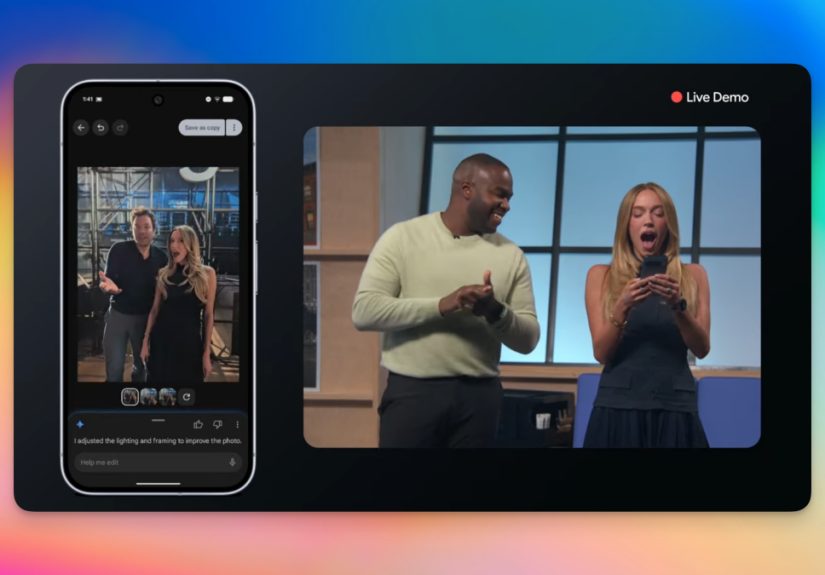
At Made by Google, Google introduced conversational photo editing in Google Photosoften surfaced as a button like “Help me edit”powered by Gemini’s multimodal AI.
In plain English: you tell Photos what you want changed, and it tries to make that change happen in seconds.
This isn’t just “apply a filter.” It’s intent-based editing. You can ask for a specific fix (“remove the cars in the background”) or a more general improvement (“make it better,” “restore this old photo”).
The important shift is that the user interface becomes a conversation instead of a toolbox.
If that sounds small, it’s not. Tool-driven editing assumes you already know how to get to your goal.
Asking Photos to edit assumes you only know what you wantand lets the system figure out the “how.”
That’s a big deal for everyday users (and, frankly, for everyone who’s ever rage-quit a crop tool).
How “Ask Photos to Edit” Works Under the Hood (No Lab Coat Required)
Google Photos has had AI editing features for yearsthink Magic Eraser, Photo Unblur, and Magic Editor.
The Made by Google twist is that Gemini becomes the “director” who interprets your request, chooses the right editing operations, and strings them together.
Step 1: You describe the goal, not the method
Instead of selecting “Remove,” brushing over an object, adjusting feathering, and praying, you might say:
“Remove the trash can on the floor,” or “Make the sky look like a sunny day.”
Step 2: Gemini interprets your photo + your words
Because the model is multimodal, it can connect language to visual contextunderstanding what “the glare,” “that guy in the background,” or “the gloomy sky” refers to.
In many cases, Photos will also offer suggestion chips (quick actions) so you can choose a direction without writing the perfect prompt.
Step 3: Google Photos applies AI tools (sometimes generative ones)
Some edits are corrective (remove an object, reduce blur, adjust lighting). Others can be generative (filling missing areas, changing backgrounds, “reimagining” selected regions).
The result is typically a new edited copyso your original stays intact, which is great for both your memories and your dignity.
Step 4: Conversation continues (because your first request won’t be perfect)
The best part about “asking” is iteration. If the result is close but not quite, you can follow up:
“Less dramatic,” “Keep the sky but brighten the faces,” or “Only remove the motorcycle, not the whole street.”
In other words: you don’t need to start overyou just refine the request.
What You Can Ask Google Photos to Do: Practical Examples
The most useful edits tend to fall into three buckets: cleanup, enhancement, and composition. Here’s what that looks like in the real world.
1) Cleanup edits (a.k.a. “Please erase my regrets”)
- Remove objects: “Remove the cars in the background.”
- Remove distractions: “Get rid of the reflection on the window.”
- Simplify backgrounds: “Remove the clutter behind us.”
2) Enhancement edits (lighting, color, clarity)
- Improve lighting: “Brighten the photo and make skin tones warmer.”
- Fix mood: “Make the sky bluer and the colors more vibrant.”
- Reduce blur: “Reduce the background blur,” or “Sharpen the subject.”
- Restore older shots: “Restore this old photo,” or “Reduce noise and improve clarity.”
3) Composition edits (the photo you meant to take)
- Reframe: “Crop closer to the people,” or “Center the subject.”
- Expand the scene: “Widen the photo so the whole building fits,” which may use generative fill for missing edges.
- Background changes: “Make the background look like a beach,” or “Replace the gray sky with a sunset.”
Some updates also lean into “people edits,” where Photos can attempt more personalized changes (like fixing expressions) using information such as Face Groups.
That’s powerfuland it’s exactly why eligibility, privacy controls, and regional limitations matter (we’ll get there).
How to Use “Help me edit” in Google Photos
Google is rolling this out through Google Photos’ editor experience. The basics look like this:
- Open Google Photos and pick the image you want to edit.
- Tap Edit.
- Look for Help me edit (or an Ask entry point, depending on your version/region).
- Type or speak your request in natural language.
- Review the result, then refine with a follow-up request if needed.
If you don’t see the option, it may be because of device eligibility, account settings (language/age), rollout timing, or region restrictions.
This is still a feature that appears in stages, not an instant “everyone gets it” switch.
Availability and Eligibility: The Fine Print That Actually Matters
Google positioned “edit by asking” as launching first on specific Pixel hardware in the U.S., and then expanding.
In practice, availability depends on a mix of device, account settings, and geography.
Common requirements you’ll see mentioned
- Region: Early access often starts in the United States, then expands to additional countries over time.
- Age: These generative AI features commonly require adult eligibility (often 18+).
- Language and settings: U.S. English can be required, and some features ask for Face Groups and location estimates to be enabled.
- Rollout reality: Even if you meet requirements, staged rollouts mean your friend may get it first. Yes, it’s annoying. No, you’re not alone.
There are also noteworthy edge cases. For example, some reporting has highlighted that certain AI Photos features may be restricted in specific U.S. states,
which has fueled speculation about biometric and privacy compliance. The key takeaway: availability isn’t purely technicalit can be legal and policy-driven, too.
Trust, Watermarks, and the “Is This Even Real?” Problem
When an app can change a photo by request, the next question is obvious: how will anyone know what changed?
Google’s answer is to improve transparency around AI edits in a few ways.
C2PA Content Credentials
Google has discussed adding support for C2PA Content Credentials in Google Photos to help indicate how images were edited and whether AI was involved.
In theory, this creates a standardized “nutrition label” for mediaespecially important as generative editing becomes mainstream.
SynthID and watermarking
Separately, Google has also used SynthID for imperceptible watermarking on certain AI-edited images (notably around generative edits like “Reimagine”).
This won’t stop every form of misuse, but it signals a recognition that AI editing needs provenance, not just wow-factor.
Tips to Get Better Results (Because “Make It Better” Is a Bold Strategy)
Conversational editing feels like magic, but it still behaves like software: it follows instructions, it sometimes misunderstands, and it loves specificity.
These tips help:
Be concrete about the subject
- Instead of: “Fix the background.”
- Try: “Remove the people behind us and blur the street slightly.”
Describe the style you want, not just the change
- “Brighten the photo” is okay.
- “Brighten the photo, keep natural skin tones, and don’t oversaturate the sky” is better.
Iterate in small steps
If you ask for ten changes at once, you’ll get a result that’s… adventurous.
Ask for one or two changes, then follow up. Conversational editing is built for back-and-forth.
Watch the edges and the tiny details
Generative edits can be impressively clean, but seams, shadows, and repeated textures can still give things away.
Zoom in before you share that “perfect” photo to a group chat full of people who live to roast you.
Why This Feature Is Bigger Than Photo Editing
Asking Google Photos to edit images is part of a broader UI shift: from “apps as toolboxes” to “apps as assistants.”
We’re moving toward software that takes goals (“make this look professional,” “remove distractions,” “restore this memory”) and executes the steps automatically.
That’s great for accessibility and speed. It also raises new questions:
When does “editing” become “rewriting reality”? How do we keep provenance intact?
And how do we prevent a helpful assistant from turning into a misinformation machine with great lighting?
Google is clearly trying to balance the wow factor with guardrails, transparency standards, and controlled rollouts.
Whether that balance holds as the feature scales will be the story to watchnot just the pixels.
Conclusion
Made by Google didn’t just announce a new button in Google Photosit introduced a new way of interacting with your memories.
Instead of editing like a technician, you edit like a human: you describe what you want, and the system does the fiddly work.
For casual photographers, that’s a time-saver and a confidence boost.
For power users, it’s a fast first passan assistant that can handle the boring fixes while you focus on the creative choices.
Either way, “Help me edit” is one of the most practical uses of consumer AI we’ve seen so far… which is exactly why it’s worth paying attention to how it rolls out.
Experiences: What It Feels Like to “Talk” Your Way to a Better Photo (500+ Words)
The first time you use conversational editing in Google Photos, it feels a little like you’ve hired a tiny, tireless intern who only knows two emotions:
“helpful” and “overconfident.” You ask for something simplesay, “remove the cars in the background”and within seconds the scene looks cleaner,
like you somehow scheduled a private photoshoot on a public street. You’ll probably grin, zoom in, and do that classic user ritual:
try to find where the AI messed up. Sometimes you won’t. Sometimes you will, and it’ll be in the one place your eye can’t unsee.
A common experience is realizing how much editing is really just “micro-annoyance management.”
You weren’t trying to become a professional retoucher; you just didn’t want a trash can photobombing your family picture.
In the old world, you might have skipped editing entirely because the effort wasn’t worth it.
With “Help me edit,” that friction drops so low that you start fixing things you used to tolerate.
The result is a subtle shift: your photo library begins to look the way your brain remembers the moment, not necessarily how the sensor captured it.
Another very real moment: you’ll test how far you can push it. You’ll start politely (“brighten the photo”), then get bolder
(“make the sky a dramatic sunset”), then fully unhinged (“give this a cozy fall vibe with warm light and soft background blur”).
That’s where you discover the difference between corrective edits and creative edits.
Corrective requests tend to be dependableremove distractions, improve lighting, reduce blur.
Creative restyles can be fantastic, but they’re also where you’ll see the AI’s personality come out: sometimes cinematic, sometimes a little too “Instagram poster.”
It’s like asking for “casual” and getting “business casual… but for a fashion week afterparty.”
People also notice how conversational editing changes their willingness to experiment.
With sliders, every adjustment feels like a commitment because you don’t know how to get back to “good.”
With a prompt, you can treat editing like brainstorming:
“Make it warmer.” “Okay, less warm.” “Keep the warmth but reduce saturation.” “Now sharpen just the subject.”
That back-and-forth feels natural, and it teaches you (quietly) what edits you actually prefer.
Over time, users develop their own “prompt voice”a style of describing photos that reliably gets the outcome they want.
There’s also a practical, slightly awkward experience: deciding what you’re comfortable changing.
Removing a stranger from the background? Most people shrugfine.
Swapping a gray sky for a blue one? Also common.
But the moment you start altering meaningful context (changing signs, adding objects, adjusting expressions), some users pause.
Not because the tech can’t do it, but because the photo stops being a record and starts being an interpretation.
That’s where transparency features (like content credentials and watermarking approaches) matternot as buzzwords,
but as tools that help the world keep a shared understanding of what “edited” means.
The most relatable experience might be this: you’ll use it once for a “serious” photo, then you’ll use it a hundred times for everyday stuff.
Fixing vacation shots, cleaning up pet photos, rescuing a dim restaurant picturethese are the edits people actually want.
Conversational editing turns those from a chore into a habit. And once that happens, going back to sliders feels like writing checks with a quill pen.
Technically possible, historically interesting, and absolutely not the vibe.