Table of Contents >> Show >> Hide
- What Does "Cannot Verify Server Identity" Mean on iPhone?
- Why This Error Happens on iPhone
- Is It Safe to Tap Continue?
- How to Fix "Cannot Verify Server Identity" on iPhone
- 1. Restart your iPhone
- 2. Check your internet connection
- 3. Turn on automatic date and time
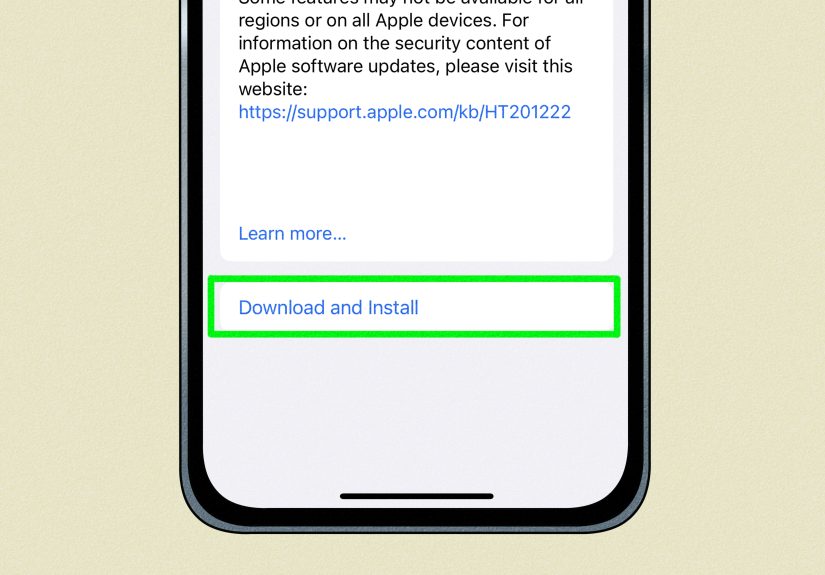
- 4. Update iOS
- 5. Remove the email account and add it again
- 6. Verify the incoming and outgoing mail server settings
- 7. Re-enter your password or use the correct authentication method
- 8. Turn off VPN temporarily
- 9. Reset network settings
- 10. Contact your email provider or IT administrator
- Provider-Specific Tips That Save Time
- How to Prevent the Error From Coming Back
- Final Takeaway
- Real-World Experiences With the "Cannot Verify Server Identity" Alert
- SEO Tags
Few iPhone alerts are as wonderfully vague and instantly annoying as “Cannot Verify Server Identity.” It sounds dramatic, looks suspicious, and tends to pop up when you just wanted to check email before coffee. Instead, your iPhone hits you with a trust issue.
The good news is that this warning usually has a very specific cause. In plain English, your iPhone is saying, “I expected this server to prove who it is, but something about its digital ID looks off.” That could mean the mail server name does not match the security certificate, the certificate is expired, the account settings are outdated, or your network is interfering with the secure connection.
In most cases, this iPhone mail error is fixable without doing anything extreme. You usually do not need a factory reset, a new phone, or a stress ball shaped like Tim Cook. You just need to figure out whether the problem is your account settings, your provider, or the server itself.
This guide explains what the Cannot Verify Server Identity meaning really is, why it appears on iPhone, and the fastest ways to fix it safely.
What Does “Cannot Verify Server Identity” Mean on iPhone?
This alert appears when your iPhone tries to make a secure connection to a server, usually for email, and the server’s certificate cannot be trusted or matched correctly. A certificate is basically the server’s digital ID card. Your iPhone checks that ID before sending passwords, syncing mail, or loading data.
If that check fails, iPhone throws the warning. The message may mention a server name such as:
- imap.gmail.com
- smtp.mail.yahoo.com
- imap.mail.att.net
- imap.comcast.net
- mail.twc.com
- imap.aol.com
That does not automatically mean your iPhone is hacked. It means the secure identity check failed for one of several reasons. Sometimes the issue is harmless, like an old saved server name. Other times it is a real security red flag, such as a certificate mismatch or a network that is getting in the way.
Why This Error Happens on iPhone
1. The server name and certificate do not match
This is one of the biggest causes. If your account is set to connect to one hostname, but the certificate was issued for a different hostname, iPhone refuses to trust it. Think of it as your phone expecting “John Smith” and getting an ID for “Steve from Accounting.” Close is not good enough.
This can happen when an email provider changes server names, when a hosting company uses the wrong certificate, or when a custom domain email account is set up with an old mail server.
2. The certificate is expired, self-signed, or incomplete
If the certificate has expired, is missing part of its trust chain, or was self-signed without proper trust, iPhone may reject it. Apple devices are picky about certificate trust, and honestly, that is a good thing. You want your phone to be suspicious when a server cannot prove itself.
3. Your date and time are wrong
Certificates depend on valid dates. If your iPhone’s clock is way off, a perfectly good certificate can look expired or not yet valid. It is a tiny setting that causes giant confusion.
4. Your email settings are outdated or incorrect
Manual mail settings can go stale. A provider may switch ports, require SSL, move from POP to IMAP, require modern authentication, or change how third-party apps connect. When that happens, the Mail app may keep trying to use old settings and throw certificate warnings.
5. Your account needs re-authentication
Some providers now require app passwords, OAuth, or modern sign-in methods. Yahoo, AOL, Microsoft, and AT&T accounts are especially known for cases where old-style sign-ins stop working correctly. If authentication changes behind the scenes, the result can look like a server identity problem even though the real issue is an outdated login path.
6. Your Wi-Fi, VPN, or security software is interfering
Public Wi-Fi, captive portal networks, VPNs, and some network filtering tools can interrupt secure connections. Hotel and airport Wi-Fi are famous for creating weird behavior because they want you to sign in through a portal first. Until that happens, secure connections can fail in strange ways.
Is It Safe to Tap Continue?
Usually, no. If you do not recognize the server, do not know exactly why the warning appeared, or suspect the server settings are wrong, tap Cancel instead of blindly trusting it.
You should only continue if you are absolutely sure the certificate belongs to the correct server and your provider or IT team has confirmed the warning is expected. For most everyday iPhone users, the smarter move is to fix the root problem instead of muscling past the warning like a movie villain clicking “I accept the risk.”
How to Fix “Cannot Verify Server Identity” on iPhone
1. Restart your iPhone
Yes, the classic move still matters. A restart can clear temporary Mail glitches, network hiccups, and stale certificate checks. It is not glamorous, but neither is flossing, and both still help.
2. Check your internet connection
Switch from Wi-Fi to cellular, or from cellular to a trusted Wi-Fi network. If the problem disappears on another network, the original network may be the issue. On public Wi-Fi, open Safari and make sure you have completed any required sign-in page.
3. Turn on automatic date and time
Go to Settings > General > Date & Time and enable Set Automatically. If it is already on, turn it off, wait a few seconds, and turn it back on. This quick fix solves more certificate problems than people expect.
4. Update iOS
Install the latest iPhone software update available for your device. Updates can refresh trust stores, fix mail bugs, and improve compatibility with modern security standards.
5. Remove the email account and add it again
This is one of the best fixes for the Cannot Verify Server Identity iPhone error. Go to:
Settings > Apps > Mail > Mail Accounts
Select the affected account, remove it, restart your iPhone, then add the account again using the provider’s official option if available. Re-adding the account forces the Mail app to fetch fresh settings and often removes outdated server entries.
Before deleting the account, make sure your messages are stored on the provider’s server and not only on the phone. That is especially important for older POP setups.
6. Verify the incoming and outgoing mail server settings
If you use manual setup, check the hostname, port, encryption, and username carefully. One wrong field can trigger certificate errors.
Common examples include:
- Gmail: imap.gmail.com / smtp.gmail.com
- Yahoo: imap.mail.yahoo.com / smtp.mail.yahoo.com
- AOL: imap.aol.com / smtp.aol.com
- Outlook.com: outlook.office365.com or Outlook setup via provider sign-in, with smtp-mail.outlook.com for SMTP in manual cases
- AT&T: imap.mail.att.net / smtp.mail.att.net
- Xfinity: imap.comcast.net / smtp.comcast.net
- Spectrum: mail.twc.com for many legacy Spectrum domains
- Verizon/AOL: imap.aol.com with smtp.verizon.net in certain Verizon.net AOL configurations
Also make sure SSL or TLS is enabled if your provider requires it. If the server name saved on your iPhone does not match the certificate served by your provider, the warning will keep coming back like a sequel nobody requested.
7. Re-enter your password or use the correct authentication method
Some accounts need more than your main password. Yahoo may require an app password for third-party mail apps. AOL and Verizon/AOL setups may need OAuth or an app password. Microsoft accounts increasingly rely on modern authentication. AT&T also flags security upgrades that may require updated settings or a secure mail key.
If your provider mentions reauthentication, app passwords, or secure mail keys, follow that route instead of forcing old credentials to keep working.
8. Turn off VPN temporarily
If you use a VPN, ad blocker, or mobile security app that filters traffic, disable it briefly and test Mail again. If the warning disappears, the issue may be with the filtering layer rather than the mail provider.
9. Reset network settings
If nothing else works, try:
Settings > General > Transfer or Reset iPhone > Reset > Reset Network Settings
This clears Wi-Fi networks, VPN settings, and related network configurations. It can fix stubborn mail connection issues, but it also removes saved network details, so have your Wi-Fi passwords ready.
10. Contact your email provider or IT administrator
If the certificate on the server is actually wrong, there may be nothing you can fix on the iPhone side. In that case, your provider, web host, or company IT team needs to repair the certificate, correct the hostname, or update the mail server configuration.
Provider-Specific Tips That Save Time
Gmail
For personal Gmail accounts, using Sign in with Google is the cleanest option. If you use manual setup, double-check IMAP and SMTP settings. If you recently changed your Google password, re-adding the account often works better than editing the old one.
Yahoo and AOL
These are frequent stars of the “Why is my iPhone yelling at me?” show. If the account is in the iPhone Mail app, try deleting and re-adding it. If you use a third-party mail client, app passwords may be required.
Outlook or Microsoft 365
Use the built-in Outlook.com or Microsoft Exchange setup option instead of forcing generic IMAP unless your provider specifically tells you to. If Microsoft warns about modern authentication, remove the account and add it back with the current sign-in flow.
AT&T, Xfinity, Spectrum, and Verizon legacy email
These accounts can be especially sensitive to old saved server names. If you have had the account for years, your phone may still be trying to use settings from another technological era. Verify the server names with the provider, then re-add the account from scratch.
How to Prevent the Error From Coming Back
- Use the provider’s automatic setup option whenever possible.
- Keep iOS updated.
- Avoid random manual mail settings copied from old forum posts.
- Use trusted Wi-Fi networks for account setup.
- Turn on automatic date and time.
- Re-add older email accounts instead of endlessly editing broken ones.
- Contact your provider when the certificate itself is wrong.
Final Takeaway
The “Cannot Verify Server Identity” warning on iPhone is basically a security checkpoint. Your phone is saying it cannot confidently prove that the server it is talking to is the server it expected. Annoying? Absolutely. Useful? Also yes.
Most of the time, the fix is straightforward: check your date and time, confirm your internet connection, remove and re-add the affected email account, and verify the correct IMAP, SMTP, SSL, and authentication settings. If the provider changed security requirements or the certificate on the server is misconfigured, the final fix may need to happen on the provider side.
So no, your iPhone is not being overly dramatic. It is doing its job. It is just doing it in the least calming way possible.
Real-World Experiences With the “Cannot Verify Server Identity” Alert
One of the most common experiences people report is seeing the alert right after changing an email password. Everything seems fine at first, then the iPhone Mail app starts popping up the message every few minutes. The natural reaction is to think the account was hacked, but often the real cause is much less scary. The phone is still trying to connect with outdated credentials or an old authentication method, and the secure connection process falls apart halfway through. Re-adding the account usually fixes it faster than poking around random menus for half an hour.
Another very familiar scenario happens with older custom-domain email accounts. Someone has used the same address for years, the account works fine on a laptop, and then suddenly the iPhone throws a certificate warning for a strange hostname they barely recognize. That usually happens because the mailbox is tied to a hosting company, and the hosting company changed servers, certificates, or hostnames behind the scenes. The user did nothing wrong. The phone is simply noticing that the server identity no longer matches the saved configuration. It feels like the phone broke overnight, but in reality the relationship between the mailbox and the server changed.
Public Wi-Fi creates another classic headache. A person joins hotel Wi-Fi, opens Mail, and gets the warning. Panic levels rise. Then they open Safari, finish the hotel sign-in page, and suddenly Mail starts working again. It is a perfect example of how the error can look like a mail problem when the real issue is the network blocking secure traffic until the captive portal step is completed. Airports, dorms, coffee shops, and corporate guest networks all love this little plot twist.
Work email accounts can be even more interesting. Someone’s company updates Exchange, changes a certificate, or tightens sign-in rules, and employees start seeing the warning on their personal iPhones. In that case, the phone is often innocent. The user may need updated server settings, a company profile refresh, or IT confirmation that the new certificate is correct. This is why work accounts should never be “fixed” by random guessing if the device is managed by a school or business.
There is also a very human pattern that happens with this alert: people tap Continue because they want the pop-up to go away, then forget what server name was listed, then regret everything. That is understandable. Nobody enjoys playing detective with SSL certificates before breakfast. But when users slow down, read the hostname carefully, and compare it with their provider’s real settings, the mystery usually clears up quickly.
In other words, the experience is frustrating, but it is rarely random. Behind the annoying message is usually a specific mismatch: a wrong hostname, outdated mail settings, a provider security change, bad network conditions, or a certificate problem that needs to be corrected. Once you treat it like a clue instead of a catastrophe, it becomes much easier to solve.