Table of Contents >> Show >> Hide
- What Is Universal USB Installer?
- Is Universal USB Installer Really Free and Safe?
- System Requirements and Compatibility
- How to Download Universal USB Installer from Gizmodo
- Step-by-Step: Create a Bootable USB with Universal USB Installer
- What Can You Do with Your New Bootable USB?
- Universal USB Installer vs. Other Bootable USB Tools
- Common Errors and How to Fix Them
- Who Should Download Universal USB Installer?
- Conclusion: A Tiny Download with Big Utility
- Real-World Experiences with Universal USB Installer
If you’ve ever tried to install a new operating system from a scratched DVD, you already know this pain:
noisy drive, slow install, and the lurking fear that the disc will give up at 92%. That’s why most people
now install operating systems from USBand why a tiny Windows tool called Universal USB Installer
(often shortened to UUI) has become a go-to download for techs, tinkerers, and anyone who likes
to rescue “dead” PCs for fun.
On Gizmodo’s download hub, Universal USB Installer is listed as a free Windows utility that lets you turn ISO
files into bootable USB drives with just a few clicks. Version 2.0.2.8, developed by PenDriveLinux, supports
a wide range of Linux distributions, Windows installers, antivirus rescue disks, and other bootable tools.
It’s lightweight, portable, and very beginner friendly – basically the opposite of those intimidating,
command-line-only tutorials.
What Is Universal USB Installer?
Universal USB Installer is a Windows-based bootable USB creator. You pick a supported operating system
or tool from a drop-down list, point the program at the corresponding ISO file on your computer, select
your USB flash drive, and UUI turns that drive into a bootable installer or live environment.
The tool was originally built around Linux distributions, but current versions support many other ISO types,
including Windows installers, popular security and recovery utilities, and even some system diagnostic tools.
It’s designed to be:
- Simple: a wizard-style interface walks you through each step.
- Fast: the core executable is only around 19–20 MB and runs without a full “setup” install.
- Flexible: supports dozens of Linux distros plus other bootable ISOs.
- Free: distributed as freeware, with no subscription or activation required.
Key Features at a Glance
- Drop-down distro list: Choose from many popular Linux distributions, including Ubuntu, Debian, Linux Mint, and more.
- Windows support: Can write Microsoft Windows installer ISOs (such as Windows 10 or 11) to USB for clean installs.
- Antivirus & rescue tools: Build bootable USBs for malware cleanup and data recovery utilities.
- Persistence for select distros: For some Linux ISOs, you can allocate persistent storage (up to tens of gigabytes) so changes and files survive reboot.
- Portable executable: UUI runs as a standalone EXE, so there’s no full installation package cluttering your Start menu.
- Automatic USB detection: Scans for connected drives and helps you target the right one.
- Built-in formatting: Can format the USB as FAT32 or similar before copying files, ensuring a clean, bootable structure.
Is Universal USB Installer Really Free and Safe?
Short answer: yes, as long as you download it from reputable sources. Universal USB Installer is offered
as freeware, and major download sites test the installer with multi-engine antivirus scanners before
publishing it. Some even provide hash values (like MD5 or SHA-256) so you can verify your download hasn’t
been tampered with.
Of course, all the usual safety rules still apply:
- Only download UUI from well-known software hubs or the official developer page.
- Avoid suspicious “cracked” or repackaged versionsthere’s no reason to “unlock” a free tool.
- If a site lists checksums, compare them to your downloaded EXE using a hashing utility in Windows.
Also remember that the tool itself is safe, but what you do with it matters. If you write a
compromised or unofficial ISO to USB, that problem will travel straight onto any machine you boot from it.
System Requirements and Compatibility
Universal USB Installer is intentionally lightweight. You don’t need a NASA workstation to run it:
- Operating system: Works on modern Windows versions such as Windows 7, 8, 10, and 11 (32-bit and 64-bit).
- Storage: A USB flash drive with enough capacity for your chosen ISO. For most Linux distros, 4–8 GB works; for Windows installers, 8–16 GB is safer.
- Permissions: In most cases you’ll need administrator rights to format USB drives and write boot sectors.
- Internet connection: Needed to download ISOs and the UUI executable, but once you’ve got both, the actual writing process is offline.
Because UUI is portable, you can copy the executable to an external drive and run it from there on different
Windows PCshandy for technicians and power users. Just remember: the machine you run it on still needs the
correct permissions to access USB hardware.
How to Download Universal USB Installer from Gizmodo
Gizmodo maintains a curated download catalog for popular utilities, including Universal USB Installer. If
you want an easy, trustworthy route to the latest version, here’s how to grab it:
-
Open Gizmodo’s download section. Navigate to the operating system tools category, then
look for the Universal USB Installer entry. -
Confirm the details. You should see Universal USB Installer listed as freeware for Windows,
with the developer name (PenDriveLinux) and the current version number (for example, 2.0.2.8). -
Click “Download for Windows.” Gizmodo may either serve the file directly or redirect you to
a trusted mirror. Save the EXE to a folder you can easily findlikeDownloadsor your Desktop. -
Run the executable. Double-click the downloaded file. Windows may display a SmartScreen warning;
as long as the publisher and checksums look legitimate, choose to run the app.
That’s itno complex setup, no toolbars, no weird “bonus offers.” Once the main window appears, you’re
ready to build your first bootable USB drive.
Step-by-Step: Create a Bootable USB with Universal USB Installer
The basic workflow is almost always the same, whether you’re creating a Linux live USB, a Windows installer,
or a rescue disk:
-
Download your ISO. Grab the official ISO for the operating system or tool you want to use
for example, Ubuntu, Linux Mint, or the Windows 11 installation media. - Plug in your USB drive. Use a dedicated flash drive if possible; this process will erase its contents.
- Launch Universal USB Installer. No installation wizardjust run the EXE and accept any UAC prompt.
-
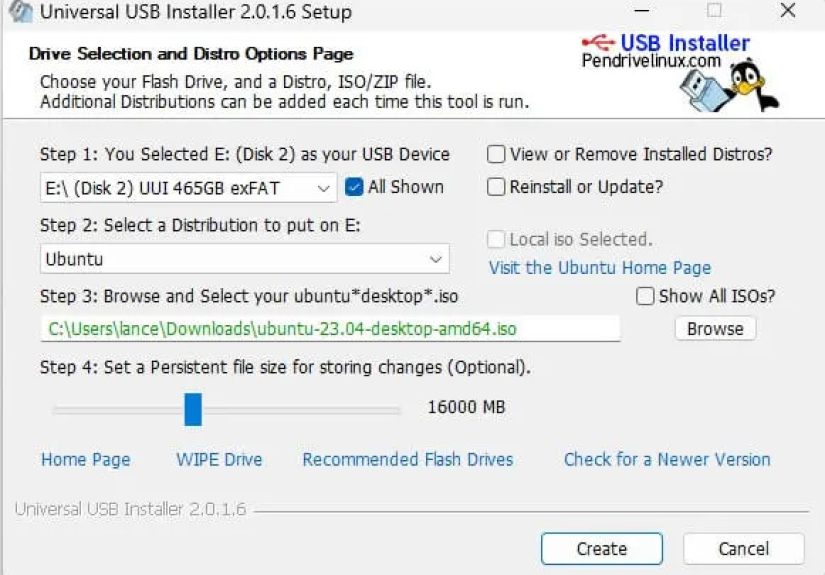
Select the distribution. In Step 1, choose your desired OS or tool from the drop-down list. If
you’re using a generic ISO, there’s usually an option that fits. - Browse to the ISO file. In Step 2, click “Browse” and select the ISO you downloaded.
-
Choose the USB drive. In Step 3, select the correct USB device. Double-check thischoosing
the wrong drive can wipe the wrong disk. -
Enable formatting (optional but recommended for clean installs). Tick the box to format the
USB before writing. This helps avoid boot problems caused by old files. -
Set persistence (if supported). For some Linux distributions, a slider lets you assign a
persistence file size (for example, a few gigabytes). This space is used to save files and settings across reboots. -
Click “Create.” UUI will warn you that the drive will be formatted. If you’re sure, confirm
and let the tool do its work. -
Safely eject and test. Once the progress bar hits 100%, eject the USB drive, plug it into
the target PC, and adjust that system’s boot order (BIOS or UEFI) to boot from USB.
If everything went well, you’ll see your chosen installer or live environment appear when the system starts.
Congratulationsyou’ve just upgraded from “person who googles how to burn an ISO” to “person other people ask
for help.”
Tips for Smoother Installs
- Use USB 3.0 or better: On compatible ports, installs will be noticeably faster.
- Don’t multitask heavily: While UUI writes the ISO, avoid copying huge files or stressing the same drive.
- Verify your ISO: If your new OS behaves strangely, re-check the ISO download or compare its hash with the official site.
- Keep a dedicated “installer” drive: Using the same USB only for bootable media helps prevent accidental data loss.
What Can You Do with Your New Bootable USB?
Once you’ve created a bootable USB, the fun really starts. A few practical (and slightly heroic) uses:
- Test-drive Linux: Boot into a live environment without installing anything to your hard drive.
- Install or reinstall Windows: Use a USB installer instead of hunting down old DVDs.
- Clean malware from stubborn systems: Boot into an antivirus rescue disk to scan infected machines without loading the compromised OS.
- Recover data: Use a live system with disk utilities to copy important files off failing drives.
- Experiment safely: Try out new distributions or tools without touching your main OS install.
All of this can be done with one small executable and a handful of USB sticksa nice return on a free download.
Universal USB Installer vs. Other Bootable USB Tools
Universal USB Installer isn’t the only game in town. It competes with other popular tools like Rufus, Ventoy,
ISO to USB, and YUMI. Each has its own strengths:
- Universal USB Installer (UUI)
- Great for single-boot USBs, especially Linux and some Windows installers. Simple interface, persistence support for select distros, portable, and very beginner-friendly.
- Rufus
- Excellent for Windows installs, UEFI/Legacy support, and advanced partition options. It’s very fast and highly configurable, but slightly more technical.
- Ventoy
- Designed for multiple ISOs on a single USB. Copy a bunch of ISOs onto the drive and choose one from a boot menuno need to rewrite the drive each time.
- ISO to USB
- A straightforward ISO-to-USB writer that focuses on simplicity for Windows installs. Fewer options than UUI but easy to use.
- YUMI
- A multiboot tool from the same developer ecosystem as UUI, ideal if you want to store multiple distros and tools on one USB stick.
If your main goal is “quickly create a bootable USB for a single OS or rescue tool,” Universal USB Installer
is a fantastic balance of power and simplicity. If you want advanced partitioning or multi-ISO setups,
Rufus, Ventoy, or YUMI might be better companions.
Common Errors and How to Fix Them
1. The USB Drive Doesn’t Show Up
First, unplug and reinsert the drive. Then, inside Universal USB Installer, look for an option to re-detect
or refresh the list of drives. If Windows still doesn’t see it, open Disk Management and check whether the
drive needs to be initialized or assigned a drive letter.
2. The PC Won’t Boot from USB
This is usually a BIOS or UEFI setting issue. Restart the machine, enter the firmware setup (often by hitting
F2, F12, Del, or Esc), and:
- Move the USB drive higher in the boot order.
- Enable “USB boot” or similar options if they’re disabled.
- On newer systems, temporarily disable Secure Boot if your chosen distro doesn’t support it.
3. Persistence Isn’t Working
Not every ISO supports persistence, and some distros need specific kernel parameters or configurations to make
it work. If your changes aren’t being saved:
- Make sure you selected a distribution that UUI lists as supporting persistence.
- Verify that you allocated enough persistent storage when creating the USB.
- Consider recreating the USB with a fresh ISO in case the image was corrupted.
Who Should Download Universal USB Installer?
Universal USB Installer is ideal for:
- Curious beginners who want to try Linux without committing to a full install.
- IT students and hobbyists experimenting with multiple operating systems.
- Support technicians who regularly reinstall systems or recover data.
- Remote workers and travelers who like having a portable OS or rescue toolkit in their pocket.
If you fall into any of those groupsor you’re just the “family tech support” persondownloading Universal USB
Installer from Gizmodo’s catalog is an easy win.
Conclusion: A Tiny Download with Big Utility
Universal USB Installer proves that you don’t need a massive installer or a complicated interface to do serious
work. With a single portable EXE, you can turn almost any compatible ISO into a bootable USB drive, test-drive
new operating systems, install Windows from scratch, and rescue seemingly hopeless machines.
Is it the only bootable USB tool you’ll ever need? Maybe notRufus, Ventoy, and other utilities all earn their
place in a power user’s toolbox. But if you want a friendly, flexible, and free starting point that works great
on Windows, downloading Universal USB Installer via Gizmodo is a smart move. Think of it as your
digital Swiss Army knife for bootable USB drives: small, reliable, and surprisingly powerful.
sapo:
Universal USB Installer is a small but powerful Windows utility that turns ISO files into bootable USB drives with just a few clicks. From Linux live environments and Windows installers to antivirus rescue disks, it lets you carry an entire toolbox of operating systems and recovery tools in your pocket. This in-depth guide walks you through downloading Universal USB Installer from Gizmodo, explains its key features, compares it with alternatives like Rufus and Ventoy, and shares troubleshooting tips for common boot issues. Whether you’re rescuing an old laptop, setting up a fresh Windows install, or experimenting with Linux for the first time, this free USB installer tool makes the process fast, flexible, and surprisingly beginner-friendly.
Real-World Experiences with Universal USB Installer
Theory is great, but bootable USB tools really earn their reputation in the chaotic mess of real life
the overheating laptops, the forgotten passwords, the friend who swears “it just stopped working” for no reason.
Universal USB Installer shows up in a lot of those stories, usually right before the happy ending.
Take the classic “old laptop rescue” scenario. Someone digs a 10-year-old machine out of a closet. Windows
crawls, the hard drive is full of mystery toolbars, and the owner is ready to toss it. A quick download of
Universal USB Installer, a fresh Linux ISO, and a spare 8 GB flash drive can turn that fossil into a usable
web and office machine in under an hour. Many users describe this as the moment they stopped being afraid of
“installing an operating system” and started seeing it as a fun weekend project.
Another common experience involves Windows reinstallations. Instead of hunting for lost DVDs or relying on
glitchy third-party installers, people grab an official Windows ISO, fire up UUI, and build a clean bootable
installer in a few minutes. For home users, this often means the difference between paying someone to “fix” a
PC and doing it themselves with a little patience and a USB drive. For IT students, it becomes a training tool:
install, break, reinstall, repeatwithout wasting discs or fighting with unreliable media.
Universal USB Installer also shows its value when things go really wrong. Think ransomware infections,
boot-looping systems, or drives that refuse to load the main OS. In those moments, having a ready-made
Linux live USB or an antivirus rescue disk is incredibly comforting. Users often talk about how reassuring it
feels to plug in a flash drive, boot from USB, and see a clean environment where they can scan for malware,
copy important files, or run disk checks. The process isn’t always glamorous, but it’s practicaland UUI helps
make that practicality accessible to non-experts.
In classrooms and labs, instructors sometimes rely on tools like Universal USB Installer to standardize student
environments. Instead of fighting with whatever OS happens to be on a school computer, they create live USBs
with a pre-configured Linux environment. Students boot from USB, work in a consistent setup with the same tools,
and shut down without altering the host PC. From coding classes to cybersecurity labs, this approach keeps
things clean and reproducible while staying budget-friendly.
Finally, there’s the traveler’s perspective. People who spend a lot of time on the road sometimes build a
“personal OS” USB stick using distributions that support persistent storage. While Universal USB Installer
isn’t marketed as a full “portable OS platform,” it can create live USBs that remember files and settings
on supported systems. For frequent travelers, that means they can sit down at a random computer, boot from USB,
and have access to a familiar environment with their favorite apps, bookmarks, and toolswithout leaving traces
on the host machine.
These experiences share a common thread: Universal USB Installer lowers the barrier to doing “serious” things
with your computer. Instead of requiring deep terminal knowledge or complex partitioning, it hides the hard
work behind a few simple steps. Whether you’re reviving old hardware, recovering critical files, teaching a class,
or carrying a pocket-sized OS, the tool proves that a free, lightweight download can have an outsized impact
on how confident you feel around technology.