Table of Contents >> Show >> Hide
- Why Add a GIF to a Gmail Email?
- Before You Start
- How to Add an Animated GIF to a Gmail Email in 13 Steps
- Step 1: Choose a GIF That Actually Fits the Email
- Step 2: Download the GIF to Your Computer
- Step 3: Check the File Size and Dimensions
- Step 4: Open Gmail in Your Web Browser
- Step 5: Click Compose to Start a New Message
- Step 6: Make Sure Plain Text Mode Is Off
- Step 7: Write the Main Part of Your Email First
- Step 8: Place Your Cursor Exactly Where the GIF Should Appear
- Step 9: Click the Insert Photo Icon, Not the Paperclip
- Step 10: Upload and Select Your GIF File
- Step 11: Keep the GIF Inline and Resize It if Needed
- Step 12: Send a Test Email to Yourself
- Step 13: Add the Real Recipient and Send
- Common Mistakes to Avoid
- Troubleshooting When the GIF Does Not Look Right
- Real-World Experiences and Lessons From Sending GIFs in Gmail
- Conclusion
- SEO Tags
Want to make your Gmail message feel a little less “spreadsheet attached” and a little more alive? An animated GIF can do that in seconds. It can show a quick reaction, demo a product, explain a process, or simply keep your email from looking like it was written by a very tired printer. The trick is adding it the right way so it appears inside the email body instead of sulking off to the side as a lonely attachment.
This guide walks you through exactly how to add an animated GIF to a Gmail email in 13 simple steps. Along the way, you will also learn how to keep your GIF from becoming too heavy, too distracting, or too awkward for the moment. Because yes, there is a difference between “smart visual touch” and “why is there a dancing llama in a budget update?”
If you use Gmail on a desktop browser, this process is straightforward and gives you the most control. By the end, you will know how to insert the GIF inline, test it before sending, and avoid the common mistakes that make emails look messy or unprofessional.
Why Add a GIF to a Gmail Email?
An animated GIF adds motion without requiring your reader to click play, download a file, or open a separate page. That makes it useful for more than jokes and memes. You can use a GIF to show how a product works, highlight a sale, celebrate a team win, give visual instructions, or make a personal email feel more expressive. In other words, it can be decoration, communication, or both.
That said, a GIF works best when it supports your message instead of hijacking it. A good GIF reinforces tone, adds clarity, or directs attention. A bad GIF eats bandwidth, clutters the email, and makes your message feel like a carnival flyer. So before you add one, decide what job it needs to do. If the answer is “exist aggressively,” choose another GIF.
Before You Start
First, use Gmail in a desktop browser if possible. That version gives you the clearest control over inline images. Second, save the GIF to your computer before composing the email. Third, keep the file reasonably small so it loads quickly. Even though Gmail allows more generous attachment limits, a smaller GIF usually performs better in real inboxes and on phones.
Also remember this: if you add a GIF with the paperclip attachment button, it may arrive as an attachment rather than appear inside the message body. If your goal is to have the animation show up right inside the email, you want the inline image route, not the attachment route. That one distinction saves a lot of frustration.
How to Add an Animated GIF to a Gmail Email in 13 Steps
-
Step 1: Choose a GIF That Actually Fits the Email
Start with purpose. Are you sending a playful note to a friend, a team celebration email, a quick tutorial, or a lightweight marketing message? Your GIF should match that situation. For personal emails, humor can work beautifully. For business emails, subtle animation is usually safer than full meme chaos. A looping product demo or a simple celebratory graphic often lands better than a reaction GIF that screams louder than your subject line.
-
Step 2: Download the GIF to Your Computer
Once you pick the right animated GIF, save it somewhere easy to find, such as your Downloads folder or desktop. Do not rely on having to hunt for it later in a maze of mystery filenames like final_final_reallyfinal2.gif. If the GIF comes from a third-party site, make sure you have permission to use it, especially for business or commercial messages. The internet may feel like a free buffet, but copyright is still very much awake.
-
Step 3: Check the File Size and Dimensions
Before you even open Gmail, look at the GIF file size. Smaller is usually better. A giant GIF may technically send, but it can load slowly, chew through mobile data, and test your recipient’s patience. If the GIF is huge, compress it or resize it with an image editor. A cleaner, lighter animation almost always beats a massive file that arrives like a digital piano falling through the ceiling.
-
Step 4: Open Gmail in Your Web Browser
Go to Gmail in Chrome, Safari, Edge, or another modern browser and sign in. This browser-based method is the most dependable way to add an animated GIF inline. The Gmail mobile app can behave differently depending on what you attach and how many images you choose, so desktop is your best bet when you want precise placement and a more predictable result.
-
Step 5: Click Compose to Start a New Message
At the top left of Gmail, click Compose. A new message window will open. At this point, you can leave the recipient field blank if you want to test the email first. That is often the smartest move. It is much easier to catch a broken or oversized GIF before it reaches your boss, your client, or your aunt who still prints every email “just in case.”
-
Step 6: Make Sure Plain Text Mode Is Off
Look for the three-dot menu in the lower-right area of the compose window. Click it and confirm that Plain text mode is not enabled. If plain text is on, Gmail strips away rich formatting features, which is not what you want when you are trying to insert an animated image into the body of an email. This is one of the sneakiest reasons inline visuals do not behave the way people expect.
-
Step 7: Write the Main Part of Your Email First
Before you drop in the GIF, write your subject line and most of the email text. This helps you decide the best location for the animation. Maybe it belongs right after the greeting, between two short paragraphs, or near a call to action. Planning the copy first keeps the email from turning into a design accident. It also ensures the message still makes sense if the GIF loads slowly or does not animate for one of your readers.
-
Step 8: Place Your Cursor Exactly Where the GIF Should Appear
Click inside the message body where you want the GIF to show up. This matters more than people think. Gmail inserts images wherever your cursor is sitting at that moment, not wherever your heart believes it should go. If you want the animation between paragraphs, make sure the cursor is there. If you want it under a headline or sentence, click that spot first and save yourself a bunch of awkward dragging later.
-
Step 9: Click the Insert Photo Icon, Not the Paperclip
At the bottom of the compose window, click the small image icon for inserting a photo. This is the key move. If you use the paperclip instead, Gmail treats the file like a standard attachment. That is fine if you want the recipient to download the GIF, but not if you want it visible inside the message. Inline image insertion is the difference between “look at this” and “please open this extra thing manually.”
-
Step 10: Upload and Select Your GIF File
Choose the upload option and locate the GIF file you saved earlier. Select it and let Gmail load it into the message. Depending on your connection speed and the file size, this may happen quickly or take a moment. If it feels slow, that is already a clue your GIF may be heavier than ideal. A message should feel smooth to build and smooth to receive.
-
Step 11: Keep the GIF Inline and Resize It if Needed
Once the GIF appears inside the email body, click it to adjust its size if Gmail gives you display options such as small, best fit, or original size. Choose the one that fits your email layout without overwhelming the text. You want the GIF to support the message, not body-slam it. A good rule is simple: if the animation is so large that the reader forgets what the email is about, it is too large.
-
Step 12: Send a Test Email to Yourself
Before the final send, test the message. Send it to your own Gmail address first, then open it on both desktop and mobile if possible. Check whether the GIF animates, how fast it loads, whether it looks too large, and whether the surrounding text still works. This step is boring in the same way seat belts are boring: you appreciate it most when it saves you from regret.
-
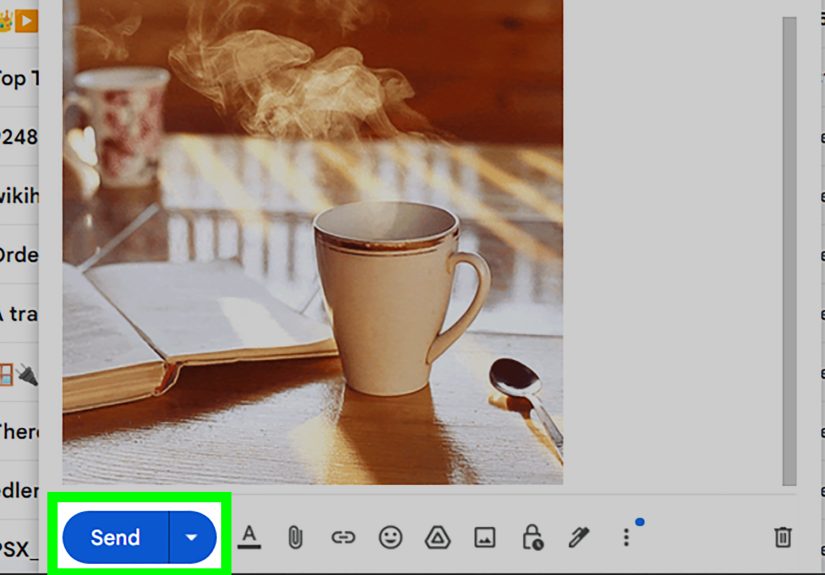
Step 13: Add the Real Recipient and Send
Once your test looks good, return to the draft, add the actual recipient, give the message one final read, and send it. Make sure the tone is right, the GIF feels intentional, and the email is not too busy. Then hit send with confidence. Congratulations: your Gmail email now has motion, personality, and at least a slightly better chance of being remembered than another gray slab of text.
Common Mistakes to Avoid
Using the Attachment Button Instead of the Image Button
This is the classic mix-up. The paperclip attaches the GIF as a file. The image icon places it inside the message body. If your GIF is showing up as a separate attachment, this is the first thing to check.
Choosing a Massive GIF
A giant file may send, but it can load slowly and make your email feel clunky. Keep it lean. Faster-loading visuals are usually better for user experience, especially on mobile.
Relying on the GIF to Carry the Whole Message
Do not bury essential information inside the animation alone. Some email apps may display the first frame differently, and some readers will skim before the GIF fully loads. Put the critical information in real text too.
Using a GIF That Is Too Loud for the Context
A birthday email to a friend can handle more drama than a client follow-up. Read the room. Or in this case, read the inbox.
Troubleshooting When the GIF Does Not Look Right
If the GIF shows as an attachment, remove it and reinsert it using the image icon instead of the paperclip. If it looks too big, click the image and reduce the display size. If Gmail behaves strangely, confirm plain text mode is off and try refreshing the browser. If the upload stalls, reduce the file size and try again. And if the GIF seems to lose impact on a phone, simplify it. The best email GIFs are easy to understand at a glance, even on a small screen during a rushed subway ride or while someone pretends to listen in a meeting.
Real-World Experiences and Lessons From Sending GIFs in Gmail
In real use, the biggest lesson people learn is that a GIF works best when it feels like part of the email rather than a stunt. A lot of first-time senders get excited, choose the funniest animation they can find, and then realize the message itself has quietly disappeared behind it. The email turns into “look at this moving thing” instead of “here is the point.” The strongest Gmail emails use a GIF the way a good presenter uses a slide: to support the message, not replace it.
Another common experience is discovering that tone changes everything. A looping confetti GIF in an internal team email can feel warm, celebratory, and human. The exact same GIF in a serious project update can feel wildly out of place, like someone brought a party horn to a tax audit. People who use GIFs well usually start matching the animation to the relationship and the purpose of the message. Friendly update? Great. Product demo? Also great. Legal clarification? Maybe let the GIF sit this one out.
File size is another lesson that shows up fast. On your own laptop with strong Wi-Fi, a heavier GIF may seem fine. Then you send a test email to your phone and suddenly the animation takes forever to load, or the message feels sluggish. That is why experienced senders often become ruthless editors. They crop extra frames, reduce dimensions, shorten loops, and remove anything that is not doing real work. The result is usually a GIF that feels cleaner, more polished, and less likely to annoy the recipient.
People also learn that placement matters more than expected. Drop a GIF at the very top of the email and it can dominate the whole experience. Place it after one clear sentence, though, and it often feels purposeful. For example, if you are writing, “Here is a quick look at how the feature works,” and then place a short looping demo beneath that line, the email feels smooth and easy to follow. The reader understands why the GIF is there and what to pay attention to.
Testing becomes a habit after one or two bad surprises. Many users have had the experience of seeing the draft look perfect in Gmail, only to open the sent version and notice the GIF is awkwardly large, off-center, or emotionally much louder than intended. After that, sending a test email to yourself stops feeling optional. It becomes part of the process. Test on desktop. Test on mobile. Glance at load time. Read the email quickly as if you were the recipient. That little routine prevents a lot of preventable embarrassment.
There is also a practical emotional lesson here: a GIF can make email feel more human. Inboxes are crowded, repetitive, and often a bit joyless. A well-chosen animation can soften a cold exchange, celebrate progress, or make a simple message feel more alive. That does not mean every email needs movement. It means the right email can benefit from a little motion and personality. Used thoughtfully, a GIF can make your message feel less like a form and more like communication between actual people.
So the long-term experience most people come away with is simple. Start small. Stay tasteful. Keep the file light. Make sure the message still works without the animation. Test before sending. And remember that the best Gmail GIF is not the loudest or the flashiest one. It is the one that helps your message land better, faster, and with a little more charm.
Conclusion
Learning how to add an animated GIF to a Gmail email is not difficult, but doing it well takes a little judgment. The technical side is easy: compose your message, make sure formatting is enabled, place your cursor, and insert the GIF inline. The strategic side is what separates a polished email from a chaotic one. Choose a GIF that fits the message, keep it lightweight, test it before sending, and make sure your text still carries the core meaning.
Do that, and your Gmail email will feel more engaging without becoming distracting. Which is really the sweet spot. A little motion, a little personality, and no accidental attachment drama. That is a good day in email land.