Table of Contents >> Show >> Hide
- What Counts as a Non-Steam Game?
- Why Add Non-Steam Games to Steam in the First Place?
- How to Add Non-Steam Games to Steam on PC
- How to Add Non-Steam Games to Steam Deck
- How Proton Changes the Game on Steam Deck
- Best Types of Apps to Add as Non-Steam Shortcuts
- Common Problems and How to Fix Them
- Tips for a Cleaner Non-Steam Library
- PC vs. Steam Deck: Which Is Easier?
- Real-World Experiences With Non-Steam Games on PC and Steam Deck
- Conclusion
If your game library is spread across launchers, desktop shortcuts, mystery folders, and that one installer you swear you organized last month, welcome to the club. Steam has quietly become the closest thing PC gaming has to a digital living room, and adding non-Steam games is one of the easiest ways to make that room less chaotic. Whether you want faster access to a favorite indie from itch.io, a launcher-installed blockbuster, a cloud gaming app, or a utility like Discord, Steam can pull those odds and ends into one place.
That matters even more on Steam Deck. In Gaming Mode, Steam is the front door. If a game or app is not in your Steam library, it is basically standing outside in the rain, knocking politely. Add it properly, though, and suddenly it feels at home. You can launch it from your library, use controller layouts, access Steam Input, and keep your handheld experience much closer to “pick up and play” than “why am I debugging a launcher on my couch?”
In this guide, you will learn exactly how to add non-Steam games to your library on both PC and Steam Deck, when to add the game itself versus the launcher, how Proton fits into the story on Deck, and how to fix common issues without sacrificing your weekend to trial and error.
What Counts as a Non-Steam Game?
A non-Steam game is any game or app you want to launch through Steam even though you did not buy it directly on Steam. That can include:
- Games installed from Epic Games Store, GOG, Battle.net, EA app, Ubisoft Connect, and other launchers
- Standalone PC games installed from an .exe file
- Browser-based gaming shortcuts, cloud gaming apps, or remote-play tools
- Utilities like Discord, music apps, or emulators you want available inside your gaming setup
On PC, adding these apps mostly gives you convenience. On Steam Deck, it also helps bring non-Steam software into Gaming Mode, where the controls, interface, and handheld workflow are far more comfortable than full desktop tinkering.
Why Add Non-Steam Games to Steam in the First Place?
Because opening five launchers to play one game is a special kind of modern nonsense.
More practically, adding non-Steam games can give you a cleaner library, faster access, and controller-friendly launching. On Steam Deck, it can also make awkward desktop-only apps usable from the handheld interface. Steam Input is another big win. If a game has rough controller support or expects a keyboard and mouse, Steam’s controller tools can sometimes smooth out the experience with remaps, community layouts, trackpad bindings, radial menus, and other quality-of-life tweaks.
That said, adding a shortcut does not magically turn every game into a native Steam release. Some titles work beautifully. Others act like they were offended you invited them. Launchers can update paths, anti-cheat can cause issues on Linux-based SteamOS, and certain games may need manual compatibility settings before they cooperate. The good news is that the basic process is simple, and the most common fixes are manageable.
How to Add Non-Steam Games to Steam on PC
On Windows, adding a non-Steam game is refreshingly easy. This is the low-drama version of the process.
Step 1: Open Steam
Launch the Steam desktop client and sign in if needed. Make sure the game or app you want to add is already installed on your PC. Steam can create a shortcut for software it can see, but it cannot summon an uninstalled game out of thin air.
Step 2: Click “Add a Game”
Look at the bottom-left corner of the Steam client and click Add a Game. Then choose Add a Non-Steam Game.
Step 3: Select the Program
Steam will show a list of detected programs. If your game or launcher appears, check the box next to it. If it does not, click Browse and navigate to the game’s executable file. For many Windows games, that will be an .exe file inside the install folder.
Step 4: Add It to Your Library
Click Add Selected Programs. The shortcut will now appear in your Steam library, usually under a non-Steam section.
Step 5: Clean It Up
Right-click the new shortcut and open Properties. This is where you can rename it, adjust launch behavior, and make it less ugly. If the shortcut has the personality of a tax form, this is your chance to give it a proper title.
You can also use the Properties menu to adjust the target path, working directory, and launch options if needed. This is especially helpful when a game requires extra commands, opens the wrong executable, or launches through a helper app first.
How to Add Non-Steam Games to Steam Deck
Steam Deck can do the same thing, but with one important difference: you will usually need Desktop Mode to set it up properly.
Step 1: Switch to Desktop Mode
Press the Steam button, go to Power, and select Switch to Desktop. After a brief transition, your handheld becomes a tiny Linux desktop with big “I can do real computer things” energy.
Step 2: Open Steam in Desktop Mode
Once you are in Desktop Mode, launch the Steam app. From there, the process looks a lot like the PC version.
Step 3: Add the Game or App
In Steam, open the Games menu and choose Add a Non-Steam Game to My Library. Select the program from the list or browse manually to the file you want to launch.
Step 4: Decide Whether to Add the Game or the Launcher
This is the part that trips people up. If your game comes from a third-party launcher, you usually have two options:
- Add the launcher itself, then open the launcher inside Steam to start the game
- Add the game’s executable directly, if the game can run without needing the launcher every single time
In many cases, adding the launcher is more reliable, especially if the game checks licenses, updates frequently, or depends on a background sign-in process. Adding the game executable directly can feel cleaner, but it is sometimes more fragile after updates.
Step 5: Set Compatibility for Windows Games
Because Steam Deck runs SteamOS, which is Linux-based, many Windows games need Proton to run properly. After adding the shortcut, find it in your library, open Properties, go to Compatibility, and enable Force the use of a specific Steam Play compatibility tool. Then choose a Proton version.
If you are not sure where to start, try the default stable Proton version first. If a game refuses to launch, Proton Experimental is often worth a try next. Think of Proton as the translator at a chaotic family reunion: when it works, everyone suddenly understands each other.
Step 6: Return to Gaming Mode
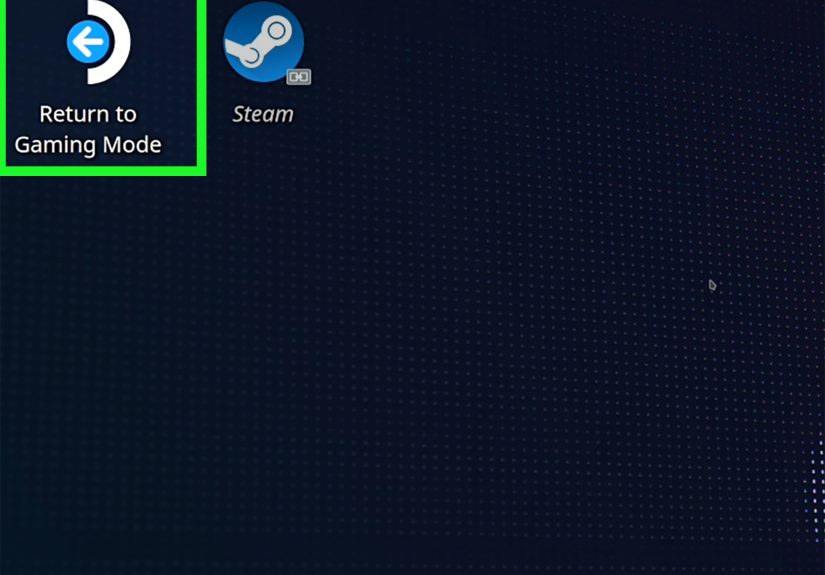
Once the shortcut is added and configured, use the Return to Gaming Mode icon on the desktop. Back in Gaming Mode, head to your library’s Non-Steam section. Your shortcut should be there, ready to launch from the Steam Deck interface like it belongs.
How Proton Changes the Game on Steam Deck
If you only play native Steam releases, Proton can feel invisible. The minute you start adding non-Steam Windows games on Deck, it becomes the star of the show.
Proton is Valve’s compatibility layer that helps Windows games run on Linux-based SteamOS. That is why so many Windows titles work on Steam Deck at all. But it also means compatibility can vary. One non-Steam game may launch immediately. Another may need a specific Proton version, a launch flag, or a little patience. A few will simply refuse to behave, especially if they rely on unsupported anti-cheat or stubborn launcher behavior.
That is why checking compatibility before you spend time tweaking is smart. Steam Deck compatibility ratings are useful for Steam releases, and ProtonDB is a popular extra reference when you want real-world reports from users testing games on Linux and Steam Deck. If you are adding a non-Steam title from another launcher, those community reports can save you a lot of guesswork.
Best Types of Apps to Add as Non-Steam Shortcuts
Games are the obvious choice, but they are not the only ones worth adding.
Launchers
If you play games from Epic, GOG, Battle.net, or similar services, adding the launcher can be the easiest way to keep everything accessible in one place.
Browser Shortcuts
Cloud gaming services, web apps, and streaming tools often work well when added as browser-based non-Steam shortcuts, especially on Steam Deck.
Chat and Social Apps
Discord is a common example. Adding it to Steam Deck as a non-Steam app can make voice chat or quick access much easier while gaming.
Emulators and Utilities
For advanced users, Steam can also act as a front-end for emulators and specialty tools. That is where library organization, controller profiles, and quick launching really start to shine.
Common Problems and How to Fix Them
The Shortcut Launches the Wrong Thing
Open Properties and verify the target path. Sometimes Steam grabs a launcher bootstrapper, uninstall utility, or helper executable instead of the game you actually want. Picking the correct file usually fixes the problem fast.
The Game Works on PC but Not on Steam Deck
This often comes down to compatibility. Try a different Proton version. If that fails, look up whether the title has known anti-cheat or launcher issues on Linux. Some games are not broken because of you. They are broken because they woke up and chose hostility.
The Controls Feel Terrible
One of Steam’s biggest strengths is controller customization. Open the controller settings for the shortcut and browse community layouts if available. Steam Input can rescue games that were clearly designed by someone who assumes every player owns a keyboard welded to their desk.
The App Only Works in Desktop Mode
That usually means the shortcut needs better setup before returning to Gaming Mode. Recheck the executable, compatibility tool, and whether the app expects a separate launcher or sign-in step first.
The Game Starts, Then Crashes
Try these in order:
- Use a different Proton version
- Launch in Desktop Mode once to see whether an error message appears
- Check launch options
- Make sure the game finished installing dependencies or first-run setup
Tips for a Cleaner Non-Steam Library
- Name shortcuts clearly. “Launcher.exe” is not helpful six weeks from now.
- Add only what you actually use. Your library should feel curated, not haunted.
- Test in Desktop Mode first on Steam Deck. It is easier to troubleshoot there.
- Use controller profiles early. A good layout can make a non-Steam game feel far more native.
- Expect occasional maintenance. Third-party launchers update, paths change, and some shortcuts may need refreshing over time.
PC vs. Steam Deck: Which Is Easier?
PC wins for simplicity. You install the game, add the executable, and move on with your life. Steam Deck wins for charm and convenience once everything is configured, but setup can be more technical because of SteamOS, Proton, Linux file paths, and launcher quirks.
Still, the payoff on Steam Deck is huge. Once a non-Steam game is added properly, it becomes part of the handheld rhythm. Tap the power button, jump back into your library, launch the game, and keep going. No hunting through desktop folders. No “which launcher owns this game again?” crisis. No keyboard acrobatics unless something goes sideways.
Real-World Experiences With Non-Steam Games on PC and Steam Deck
In real use, adding non-Steam games is less about one dramatic setup session and more about gradually improving your routine. On a desktop PC, the benefit often feels small at first. You add one launcher game, maybe one old DRM-free favorite, and wonder whether the effort was worth it. Then a week later you realize you have been opening Steam for nearly everything, and suddenly your library feels less fragmented. It is not that Steam replaced every store or service. It just became the dashboard you actually enjoy using.
On Steam Deck, the difference is much more obvious. A game that lives outside Steam can feel awkward until you add it properly. Before that, it is a desktop task. After that, it is a handheld game. That sounds like a tiny distinction, but it changes the whole vibe. Gaming Mode is fast, readable, and controller-friendly. Desktop Mode is useful, but it is not where most people want to hang out for long. Once a shortcut is in your library and launches cleanly, the Deck starts feeling less like a compromise and more like a custom console you built for yourself.
The most satisfying experiences usually come from smaller wins. A cloud gaming shortcut that launches smoothly from the couch. A launcher-based RPG that finally works with a comfortable controller layout. An older Windows game that feels reborn on a handheld because Steam Input patches over its clumsy original control scheme. Those moments make the setup process feel worthwhile.
There are also the less glamorous experiences, and they are part of the story too. Sometimes a launcher updates and breaks the shortcut. Sometimes a game that worked beautifully last month suddenly wants a new sign-in, a new dependency, or a new sacrifice to the compatibility gods. Occasionally you spend twenty minutes fixing a game only to realize the issue was one wrong executable the entire time. PC gaming has always had a little goblin energy, and non-Steam setup does not erase that.
But that is also why the process becomes easier with experience. After you add a few non-Steam titles, you start spotting patterns. Check the path. Check the launcher. Check Proton. Test in Desktop Mode. Try a community controller layout. What seemed intimidating at first turns into a routine. Eventually you stop thinking, “Can I get this running in Steam?” and start thinking, “How do I want to organize it?” That is a nice shift. It means you are no longer fighting the library. You are shaping it.
And honestly, that is the best part of the whole setup. Whether you are on PC or Steam Deck, adding non-Steam games makes your collection feel more personal. It is not just a store shelf anymore. It is your shelf. A little messy, maybe. Slightly overengineered, probably. But yours.
Conclusion
Adding non-Steam games to your library is one of the easiest ways to make Steam more useful on PC and almost essential if you want a smoother Steam Deck life. On desktop, it keeps your library organized and your favorite apps one click away. On Steam Deck, it can turn launcher-based games and extra apps into proper Gaming Mode residents instead of awkward desktop detours.
The process is simple on paper: install the game, add the shortcut, and tweak Properties if needed. The real trick is knowing when to add the launcher instead of the game, when to use Proton, and when a title is simply not worth wrestling for two hours on a Tuesday night. Once you get the hang of it, though, Steam becomes less of a storefront and more of a command center. And that is when your library starts feeling smart, fast, and genuinely fun to use.