Table of Contents >> Show >> Hide
- First, figure out which Apple TV remote you have
- How to charge an Apple TV remote in 4 easy steps
- How to check the Apple TV remote battery level
- How long does it take to charge an Apple TV remote?
- What to do if your Apple TV remote is not charging
- How to pair the Apple TV remote again
- Can you replace the battery in an Apple TV remote?
- Common Apple TV remote charging mistakes
- How often should you charge an Apple TV remote?
- Battery care tips for a longer-lasting Apple TV remote
- Quick answers to common questions
- Conclusion
- Real-world experiences with charging an Apple TV remote
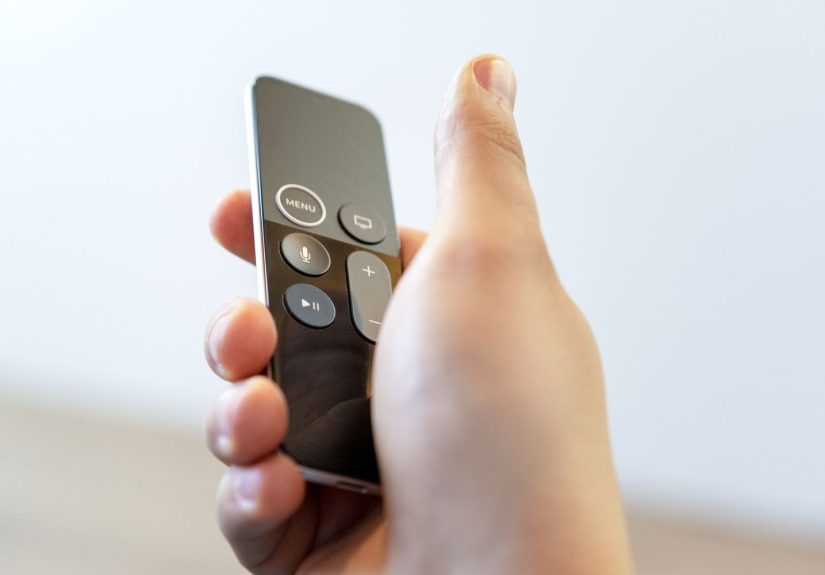
If your Apple TV remote has suddenly gone from “tiny genius wand” to “fancy paperweight,” the good news is that charging it is usually simple. The only catch is that Apple has made several remote models over the years, and they do not all work the same way. Some charge with USB-C, some use Lightning, and the oldest Apple TV remotes do not charge at all because they run on coin-cell batteries.
So before you go jabbing random cables into random ports like a sleep-deprived raccoon, this guide will walk you through exactly how to charge an Apple TV remote, how long it takes, how to check the battery level, and what to do if the remote still refuses to cooperate. We will also cover a few real-world experiences at the end, because sometimes the problem is not the battery. Sometimes the problem is the cable. Or the couch. Usually the couch.
First, figure out which Apple TV remote you have
This is the step most people skip, and it is also the step that saves the most frustration. Apple TV remotes look similar across generations, but their charging methods are not identical.
- Siri Remote (3rd generation): Charges with a USB-C cable.
- Siri Remote or Apple TV Remote (1st and 2nd generation): Charges with a Lightning cable.
- Older Apple Remote (white or aluminum): Does not charge; it uses a replaceable coin battery instead.
If your remote has a charging port on the bottom edge, you have a rechargeable model. If it is one of the older slim white or aluminum remotes with no charging port, stop looking for a charger. That remote wants a battery replacement, not a power nap.
How to charge an Apple TV remote in 4 easy steps
Once you know your model, charging the remote is delightfully boring. In technology, boring is good.
- Find the charging port on the bottom of the remote.
- Choose the correct cable: USB-C for the 3rd-generation Siri Remote, or Lightning for 1st- and 2nd-generation Siri/Apple TV remotes.
- Plug the other end into a power source, such as a USB power adapter or a computer USB port.
- Let it charge until the battery has enough power to use normally again.
That is really it. No secret handshake. No hidden flap. No magical charging dock shaped like minimalist Scandinavian furniture. Just cable in, power on, done.
Can you use the remote while it is charging?
Yes. That is one of the nicest parts of the Apple TV remote setup. If the battery is low but you still want to watch your show, you can keep using the remote while it is plugged in. So your movie night does not have to be interrupted just because the remote decided it was time for a snack.
How to check the Apple TV remote battery level
If you want to know whether the remote actually needs charging, Apple makes it fairly easy to check from the Apple TV itself.
- Open Settings on your Apple TV.
- Go to Remotes and Devices.
- Select Remote.
- Look for the Battery Level information.
This is the best way to avoid unnecessary charging. A lot of people assume the remote is dead whenever it acts weird, but sometimes the battery is fine and the problem is actually pairing, interference, or a moody cable that has seen better days.
How long does it take to charge an Apple TV remote?
In most cases, an Apple TV remote takes about three hours to fully charge. That is the number worth remembering, because it keeps expectations realistic. This is not the sort of device you need to charge overnight every week. Apple says typical use only requires charging a few times a year, which is why the remote can seem immortal until the day it absolutely is not.
If you are in a hurry and the remote is nearly dead, even a shorter charge can help get you back in business. If the remote has become unresponsive, giving it around 30 minutes on a wall charger is a smart first move before trying anything more dramatic.
What to do if your Apple TV remote is not charging
If you plugged it in and nothing seems to happen, do not panic. And do not immediately assume the remote is broken beyond repair and destined for the electronics drawer where gadgets go to be forgotten forever.
1. Make sure you are using the right cable
This sounds obvious, but it is one of the most common mistakes. A 3rd-generation Siri Remote needs USB-C. Earlier rechargeable models need Lightning. If the cable does not fit, do not force it. That is not troubleshooting. That is just becoming a cautionary tale.
2. Check the cable and charging port
If the cable is frayed, loose, or famously unreliable on your other devices, it may be the real villain here. Inspect the remote’s charging port as well. Dust and debris can build up inside, especially on remotes that spend half their lives wedged between couch cushions.
3. Charge it with a wall adapter for at least 30 minutes
When a remote is very low, it may need a little time before it starts acting normal again. Plug it into a proper wall charger and give it at least half an hour. Then try using it again.
4. Restart or re-pair the remote
If the battery is not the real issue, you may need to reset the connection. Apple recommends bringing the remote close to the Apple TV and pressing the appropriate button combination to pair it. On newer Siri Remotes, you can also restart the remote itself by holding the TV/Control Center button and the Volume Down button together for about five seconds, then waiting a few seconds before trying again.
5. Unplug the Apple TV briefly
Another simple fix is to unplug the Apple TV from power, wait at least six seconds, then plug it back in. This can clear up temporary glitches between the box and the remote.
How to pair the Apple TV remote again
If the remote has some charge but still is not responding, pairing may be the missing piece.
- Point the remote at your Apple TV from a short distance.
- Press and hold the Back button (or Menu on some remotes) and the Volume Up button for about five seconds.
- If prompted, place the remote on top of the Apple TV to complete pairing.
This can solve a surprising number of “dead remote” complaints. Sometimes the remote is charged just fine; it is simply not speaking to the Apple TV anymore.
Can you replace the battery in an Apple TV remote?
That depends on the model.
Newer Siri Remote and Apple TV Remote models: These use built-in rechargeable batteries. Apple advises users not to replace these batteries themselves. If the battery is failing, the better route is professional service or replacement.
Older Apple Remote models: These use replaceable coin-cell batteries. The white Apple Remote uses a CR2032 battery, while the aluminum version may use a CR2032 or BR2032 battery depending on the model.
So if you have an older remote and are searching for the charging port, you are not missing it. It simply does not exist.
Common Apple TV remote charging mistakes
- Using the wrong cable: USB-C and Lightning are not interchangeable, no matter how optimistic you feel.
- Assuming every Apple TV remote is rechargeable: The older white and aluminum remotes are battery-powered.
- Ignoring the battery check in Settings: Always confirm the battery level before blaming the charger.
- Using a damaged or dirty cable: A flaky cable can make the remote seem broken when it is not.
- Forgetting that the issue might be pairing: A charged remote still will not work if it has lost its connection.
How often should you charge an Apple TV remote?
Not often. Under typical daily use, Apple says the rechargeable Siri Remote only needs charging a few times each year. That is why many people forget the remote even has a battery until they get a low-battery alert on the TV screen at the worst possible moment, usually right as the opening scene starts or somebody finally agrees on what to watch.
If your remote seems to need frequent charging, that is worth investigating. Battery drain can sometimes point to a cable issue, a software hiccup, repeated reconnecting, or a battery that is starting to age out.
Battery care tips for a longer-lasting Apple TV remote
Apple TV remotes are low-maintenance, but a few habits can help:
- Charge the remote when the battery gets low instead of letting it stay dead for long periods.
- Keep the charging port clean and dry.
- Avoid damaged, counterfeit, or unreliable charging accessories.
- Store the remote away from extreme heat and moisture.
- If the remote behaves strangely, update your Apple TV software and restart the remote before assuming the battery is failing.
In other words, treat the remote like a small piece of electronics and not like a snack tray, a coaster, or a permanent resident of the sofa abyss.
Quick answers to common questions
Can I use an iPhone cable to charge an Apple TV remote?
Yes, if the connector matches your remote. Older rechargeable Apple TV remotes use Lightning, while the newest Siri Remote uses USB-C.
Can I keep using the remote while it charges?
Yes. Apple specifically notes that you can continue using it while it is plugged in.
Do I need a special Apple charger?
No special charger is required, but you should use a good-quality cable and a proper USB power source or computer USB port. For Lightning models, Apple recommends the included Lightning cable or another Made for iPhone cable.
What if I cannot use the remote at all?
Try charging it for 30 minutes, then restart or re-pair it. You can also use the Apple TV Remote feature on an iPhone or iPad as a temporary backup.
How do I know when the remote needs charging?
You may see a low-battery alert on the TV screen, or you can check the battery percentage in Settings under Remotes and Devices.
Conclusion
Charging an Apple TV remote is easy once you know which model you have. If it is a newer Siri Remote, plug it into the correct cable on the bottom, give it some time, and check the battery level in Settings if needed. If it is an older white or aluminum Apple Remote, skip the charger and replace the coin battery instead.
The most important thing is not to overcomplicate it. In most cases, the solution is one of three things: the right cable, a little patience, or a quick re-pairing step. Once you know that, you are already ahead of half the internet and at least three people in every family group chat.
Real-world experiences with charging an Apple TV remote
In real life, Apple TV remote charging problems usually show up in wonderfully inconvenient ways. Nobody notices the battery is low on a calm Tuesday afternoon when there is plenty of time to troubleshoot. No, the remote dies when everyone has snacks, the lights are dim, and somebody has already announced that this movie is “supposed to start strong.” That is why so many users end up searching for how to charge an Apple TV remote in a mild panic.
One of the most common experiences is simple cable confusion. A household upgrades to a newer Apple TV, keeps an older remote in a drawer, and suddenly nobody can remember whether the correct cable is USB-C or Lightning. Someone confidently grabs an iPhone cable. Someone else says, “No, I think it is the other one.” Five minutes later, the remote is being examined like an archaeological artifact. This is exactly why identifying the remote model first saves time. It turns a guessing game into a 10-second fix.
Another very normal experience is assuming the remote is dead when it is actually just unpaired. A lot of people plug the remote in, wait a few minutes, press buttons, and decide the battery must be toast. But in many cases, the remote has enough charge and simply needs to reconnect to the Apple TV. That is why charging and pairing often go hand in hand. You charge it first, then you remember the box itself may need a quick restart or the remote may need to be paired again. Suddenly the “broken” remote is back to life, and everyone pretends they were calm the whole time.
There is also the classic experience of discovering that the remote was never meant to be charged in the first place. This happens most often with older aluminum or white Apple remotes. People search the bottom edge for a port, inspect the sides, rotate it under a lamp, and start wondering whether Apple hid the connector behind some minimalist design trick. It is almost charming. The truth is much less dramatic: those older remotes use coin batteries, so the right solution is a replacement battery, not a charger.
Then there is the “it lives in the couch” problem. Remotes collect lint, crumbs, and microscopic mysteries. Over time, that can affect the charging port or make a perfectly good cable fit badly. Plenty of charging issues are really cleaning issues in disguise. A remote that has spent months sliding between cushions may only need a careful inspection, a clean port, and a reliable cable. Not glamorous, but deeply effective.
Many Apple TV users also learn that the best long-term habit is keeping one compatible charging cable near the TV area. It sounds almost too obvious to count as advice, but it prevents a surprising number of late-night scavenger hunts. When the low-battery alert pops up, you do not want to search three rooms, a backpack, and a junk drawer just to find the right cable. The people who keep one nearby seem wildly organized. The rest of us call them lucky.
The overall experience is usually the same: once you understand your remote model, charging an Apple TV remote becomes one of the easiest tasks in your entertainment setup. The confusion comes from the different generations, the nearly identical names, and the fact that remote batteries last so long that most people forget the process between charges. But after one or two rounds, it becomes second nature. Cable in, charge up, check Settings, and get back to your show before the popcorn gets cold.