Table of Contents >> Show >> Hide
- Why Deleting Word Comments Matters (More Than Your Pride)
- Quick Safety Checklist Before You Hit Delete
- How to Delete a Single Comment in Word (Windows)
- How to Delete Comments in Word (Mac)
- How to Delete Comments in Word for the Web
- How to Delete All Comments in Word (Bulk Cleanup)
- Modern Comments vs. Classic Comments (And Why It Changes What You Click)
- How to Hide Comments Without Deleting Them
- Removing Comments AND Track Changes for a Truly Clean File
- Use Document Inspector to Remove Comments (The “Deep Clean” Option)
- Troubleshooting: When You Can’t Delete Comments in Word
- FAQ: Deleting Comments in Microsoft Word
- Conclusion: Your Document Deserves a Clean Exit
- Real-World Experiences: The Comment Clean-Up Stories Nobody Warned You About (Plus What to Do Instead)
- 1) The “Final Draft” That Wasn’t Final (Because Comments Printed)
- 2) The “Resolved” Comments That Still Caused Confusion
- 3) The “Delete Button Is Grayed Out” Mystery
- 4) The PDF Conversion That Created Fake “Comment-Like” Marks
- 5) The “We Need to Delete Only One Person’s Comments” Situation
- 6) The “We Thought Track Changes Was Off” Surprise
- 7) The “Accidental Overshare” That Document Inspector Prevents
Microsoft Word comments are basically the sticky notes of the digital world: helpful, colorful, and somehow still hanging around long after the meeting where they were created. If you’ve ever emailed a “final_final_REALLYFINAL.docx” and then realized it still contains a comment that says, “This paragraph is… yikes 😬,” welcome. You are among friends.
In this guide, you’ll learn how to delete comments in Word the right waywhether you’re on Windows, Mac, or Word for the web. We’ll also cover the difference between deleting and hiding comments, how modern threaded comments work, and how to do a “clean-room sweep” before sharing or publishing a document.
Why Deleting Word Comments Matters (More Than Your Pride)
Comments are meant for collaboration, but they can become a problem when a document leaves the team bubble. Here’s what’s at stake:
- Privacy: Comments can reveal internal feedback, names, and decision-making.
- Professionalism: “Fix this garbage sentence” hits differently when the client can read it.
- Clarity: Too many comment balloons turn your page into a carnival.
- Publishing readiness: If you’re exporting to PDF or posting online, leftover markup can create confusion.
Quick Safety Checklist Before You Hit Delete
Deleting comments in Microsoft Word is easy. Deleting the wrong comments is also easyso take 30 seconds to avoid future regret.
- Save a copy first: Use “Save As” and create a clean version for sharing.
- Confirm you’re done reviewing: If comments contain decisions, copy key notes into the document.
- Know the difference: Resolve marks a thread as handled; Delete removes it.
- Check permissions: If the file is view-only or protected, you may not be able to delete anything.
How to Delete a Single Comment in Word (Windows)
If you only need to remove one commentlike that spicy note you accidentally left for yourselfthis is the simplest route.
Method 1: Delete from the Review Tab
- Click the comment so it becomes selected (or use Next in the Comments group to jump to it).
- Go to the Review tab.
- Click Delete in the Comments section.
Method 2: Right-Click the Comment Bubble
- Right-click the comment balloon in the margin (or the comment in the Comments pane).
- Select Delete Comment (wording can vary slightly by version).
Tip: If you don’t see the Delete option, make sure you’ve actually clicked into the comment. Word can be picky: the button may be disabled until a comment is actively selected.
How to Delete Comments in Word (Mac)
Word for Mac follows the same logic, but the interface can look a little different depending on your version. The good news: you’re still living on the Review tab.
- Select the comment (click the balloon or open the Comments pane and click the comment).
- Go to Review.
- Choose Delete to remove the selected comment.
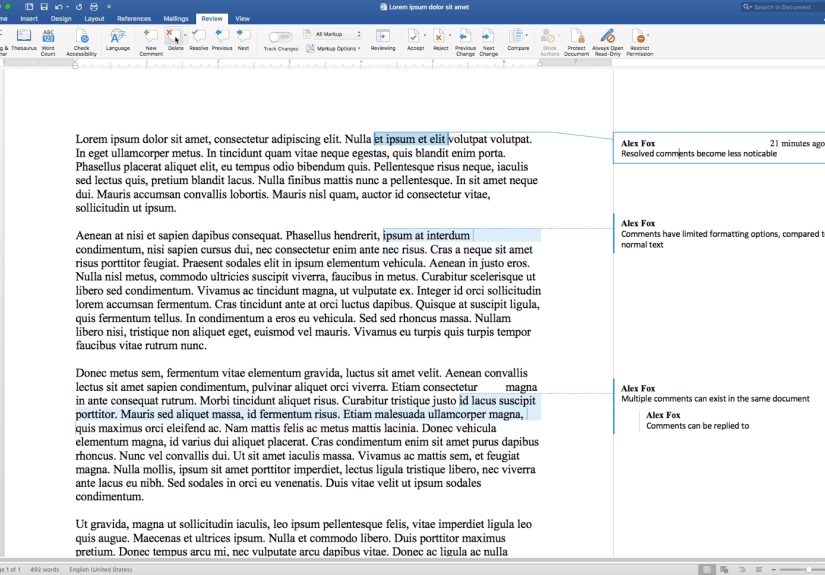
If your document uses threaded (modern) comments, you may see a “More options” menu (often shown as three dots). That menu typically includes Delete thread.
How to Delete Comments in Word for the Web
Word for the web is great for quick collaborationand also great at hiding buttons until you click the exact right spot. Here’s the reliable path:
Delete a Comment Thread (Web)
- Click a comment balloon to open the Comments pane.
- Select the comment thread you want to remove.
- Click the three dots (More thread actions).
- Choose Delete thread.
Note: Word for the web commonly deletes at the thread levelmeaning the original comment and replies go together. If you’re looking for a “delete only this one reply” option, it may be limited depending on how the thread is structured.
How to Delete All Comments in Word (Bulk Cleanup)
If your document looks like it lost a fight with a swarm of sticky notes, you’ll want the bulk option. Word includes a built-in command for deleting all comments at once.
Delete All Comments in the Entire Document
- Go to the Review tab.
- Click the small dropdown arrow under Delete (in the Comments group).
- Select Delete All Comments in Document.
Delete Only the Comments You’re Currently Showing
Word can also delete only the comments currently visible. This is useful if you’re filtering by reviewer or type. Look for a command like Delete All Comments Shown in the same Delete dropdown.
Why this matters: sometimes you want to delete only one reviewer’s comments (or only a subset) without wiping everything. Filtering + “Delete All Comments Shown” is the closest thing Word has to a “selective vacuum cleaner.”
Modern Comments vs. Classic Comments (And Why It Changes What You Click)
Microsoft has been moving many users toward modern comments, which are threaded, more chat-like, and often stored in the cloud with richer collaboration features.
What’s Different About Modern Comments?
- Threads: A comment often has replies, and deleting may remove the entire thread.
- Resolve: You can mark a thread as resolved to show it’s handled without removing it.
- More actions menu: Editing, deleting, and resolving frequently live under the three-dot menu.
- @mentions: Comments can notify teammates directly in shared documents.
Bottom line: if you see a three-dot menu in the comment, don’t panicWord hasn’t broken. It’s just being “modern.”
How to Hide Comments Without Deleting Them
Sometimes you don’t want to delete commentsyou just want to stop looking at them for five minutes so you can finish the actual writing. Hiding comments is also helpful when preparing a cleaner view for a meeting or presentation.
Hide Comments in the Document View
- Go to Review → find Show Markup and uncheck Comments (options vary by version).
- Or switch the display mode to No Markup to hide markup temporarily.
Important: Hiding is not deleting. Comments and tracked changes can still be therejust out of sight, like crumbs under a couch.
Print Without Comments
Printing is a common “oops” moment. Word can print markup if the setting is enabled. Before you hit Print, check whether Print Markup is selected and turn it off if you want a clean printout.
Removing Comments AND Track Changes for a Truly Clean File
Comments often travel with their partner-in-chaos: Track Changes. If your goal is a clean, shareable final, you usually need to deal with both.
Step-by-Step: Clean Final Version Workflow
- Save a copy (so you can keep an annotated version for internal records).
- Go to Review and turn off Track Changes (so new edits aren’t tracked).
- Accept or reject all tracked changes to permanently remove revision markup.
- Delete all comments (or delete them selectively if needed).
- Do a final check in No Markup view and in Print Preview.
Key detail: Simply switching to “No Markup” does not remove tracked changes. It just hides them. For a real cleanup, you must accept or reject changes.
Use Document Inspector to Remove Comments (The “Deep Clean” Option)
If you’re preparing a document for external sharingespecially in legal, academic, or compliance-heavy settings the Document Inspector is your best friend. It can find and remove comments, revisions, and other hidden metadata.
How to Run Document Inspector in Word
- Go to File → Info.
- Select Check for Issues → Inspect Document.
- Choose what you want to inspect (comments, revisions, document properties, and more).
- Run the inspection, review results, then click Remove All for the items you want gone.
Pro tip: Document Inspector is powerful, but it’s not a time machine. Always inspect a copy of your document, because you may not be able to restore what gets removed.
Troubleshooting: When You Can’t Delete Comments in Word
If the Delete button is grayed out or nothing happens, one of these is usually the culprit:
1) The Document Is Protected or Restricted
Some files limit editing or reviewing actions. If Word is in restricted editing mode, you may be able to read comments but not delete them. Check for a banner or restriction notice at the top of the document.
2) You’re in View-Only Mode (Especially Online)
In Word for the web, permissions are strict. If you only have view access, deleting comments won’t be allowed. Request edit permissions or open the file with the correct account.
3) Comments Are Hidden or Filtered
If you “can’t find” the comments you know exist, check the Review settings. Some views hide markup, and filtering by reviewer can make comments disappear (temporarily).
4) The “Comment Bubbles” Aren’t Actually Comments
Sometimes after converting PDFs to Word, you may see shapes or artifacts that look like comment markers. If you can’t click or select them as comments, they may be graphics or conversion leftoversnot real Word comments. In that case, you’ll need to remove the objects, adjust the conversion, or re-export the file.
FAQ: Deleting Comments in Microsoft Word
Does deleting a comment remove replies too?
Often, yes. In threaded (modern) comments, you usually delete the entire threadthe original comment and its replies.
What’s the difference between “Resolve” and “Delete”?
Resolve marks a comment thread as addressed, usually keeping it available for context. Delete removes it from the document.
Can I delete comments from only one reviewer?
In many desktop versions of Word, you can filter markup by reviewer (via Show Markup → Specific People) and then use Delete All Comments Shown. This lets you remove only the comments currently visible after filtering.
Will hidden comments still show up when I share the document?
Potentially. Hiding comments changes what you see, not what’s stored in the file. If you need them truly gone, delete comments or use Document Inspector.
Conclusion: Your Document Deserves a Clean Exit
Deleting comments in Word is simple once you know where to look: the Review tab is home base, the Delete dropdown is your bulk-cleanup tool, and the Document Inspector is your safety net when the stakes are high.
If you take one idea from this article, make it this: hiding isn’t deleting. When you’re ready to share a document publicly (or with someone whose opinion you value), do the final cleanupyour future self will thank you. Quietly. In a comment-free document.
Real-World Experiences: The Comment Clean-Up Stories Nobody Warned You About (Plus What to Do Instead)
The instructions above are the “how.” This section is the “why didn’t anyone tell me this earlier?”a collection of real-world situations that frequently happen in offices, classrooms, and client projects. Think of these as field notes from the land of collaborative documents, where comments multiply like rabbits.
1) The “Final Draft” That Wasn’t Final (Because Comments Printed)
One of the most common mishaps is printing or exporting a PDF with markup still enabled. The author thought comments were hidden, but the document was set to print markupso the output included comment balloons and tracked edits. The fix is simple: before printing, check whether markup printing is enabled and turn it off. Better yet, create a “Clean for Sharing” copy and run a quick scan in Print Preview. If you’re working in a team, make it a habit: clean copy for outsiders, working copy for insiders.
2) The “Resolved” Comments That Still Caused Confusion
Modern comments let you resolve threads, which feels satisfyinglike checking a box on a to-do list. But resolved doesn’t mean removed. In some workflows, resolved threads remain visible (or accessible), and that can confuse recipients: “Wait, did you fix this or not?” The best practice is to resolve during drafting and delete before publishing, especially if the audience is external. If you need a record of discussions, keep a version with comments saved separately.
3) The “Delete Button Is Grayed Out” Mystery
Sometimes Word refuses to cooperate. The delete command is disabled because the comment isn’t truly selected, comments are displayed as icons only, or the document is protected. In team environments, files may be restricted to prevent unauthorized edits. The practical workaround: open the Comments pane, click directly into the comment text, and then try Review → Delete again. If the file is restricted, you’ll need the correct permissions (or an unprotected copy).
4) The PDF Conversion That Created Fake “Comment-Like” Marks
After converting a PDF into a Word document, you might see shapes or markers that resemble comment bubblesbut they aren’t Word comments at all. They can be drawing objects, layered artifacts, or converted annotations. That’s why you can’t click and delete them using the Review tools. If this happens, switch strategies: use the Selection Pane to find objects, try deleting shapes, or consider re-converting with different settings. And if the PDF is annotation-heavy, it can be faster to edit the original Word source (if available) rather than wrestling the conversion output.
5) The “We Need to Delete Only One Person’s Comments” Situation
In multi-reviewer projects, you might need to remove one person’s comments (for example, an internal reviewer) while keeping others. This is where filtering shines: filter by reviewer (Specific People) so only that reviewer’s markup shows, then use “Delete All Comments Shown.” It’s not perfect across every Word version, but in many desktop builds it’s a huge time-saver. The lesson: don’t brute-force delete hundreds of comments one by one when Word can do it in seconds.
6) The “We Thought Track Changes Was Off” Surprise
Turning off Track Changes stops new tracking, but it doesn’t remove what’s already tracked. Teams regularly confuse “No Markup” with “gone.” Then someone opens the document on another computer andsurpriseeverything reappears. The right approach is procedural: accept or reject the tracked changes (preferably in a saved copy), then remove comments, then re-check the file. If you work in a high-stakes environment (legal filings, policy documents, academic submissions), add Document Inspector to your final checklist.
7) The “Accidental Overshare” That Document Inspector Prevents
Comments are obvious. Hidden metadata is sneaky. Files can contain document properties, author names, revision history indicators, and other details you didn’t mean to share. When documents travel outside your organization, this can be a bigger risk than a visible comment. The practical habit: run Document Inspector on the version you’re about to send externally, and remove the categories you don’t want included. It’s the digital equivalent of checking the back seat before you give someone a ridejust because you can’t see the mess from the front doesn’t mean it’s not there.
If there’s a theme across all these experiences, it’s this: comment cleanup works best when it’s part of a repeatable workflow. Save a clean copy, remove comments intentionally, handle tracked changes properly, and inspect before sharing. That’s how you avoid becoming the subject of an office legend that begins with, “Remember when they sent the client the version with all the comments?”