Table of Contents >> Show >> Hide
- First, a Quick Reality Check: What “Location Services in Chrome” Really Means
- Before You Flip Switches: A 60-Second Checklist
- Way 1: Enable Location for One Website (The Fastest Option)
- Way 2: Enable Location Requests in Chrome Settings (The “Default Switch”)
- Way 3: Turn On Device Location Services (Because Chrome Can’t Override Your OS)
- Troubleshooting: When Chrome Still Won’t Share Your Location
- 1) The Website Isn’t Secure (HTTP vs HTTPS)
- 2) You Blocked the Site Earlier (and Chrome Remembers)
- 3) Device Location Services Are Off (Yes, Still)
- 4) You’re Using a VPN (or the Site Uses IP Location)
- 5) You’re on a Managed Device (Work/School Policies)
- 6) Your Wi-Fi Is Off (or You’re on a Desktop With No Location Hardware)
- 7) “It Worked Yesterday” (Cache, Updates, and the Classic Restart)
- Privacy Without Paranoia: Smarter Ways to Share Location
- FAQ: Quick Answers People Actually Search For
- Conclusion (Plus of Real-World “Been There” Tips)
Chrome can be eerily helpful. It can find the nearest coffee shop, drop a pin on a map, and even stop you from ordering delivery to “somewhere in Ohio” when you’re definitely on your couch in California. But when Location Services are off, Chrome turns into that friend who refuses to use GPS and insists, “I know a shortcut.” (Spoiler: you end up in a parking lot behind a closed grocery store.)
In this guide, you’ll learn three practical ways to enable location services in Chromefast, safely, and without turning your privacy into a free sample tray. We’ll cover desktop and mobile, show you exactly where the toggles live, and fix the most common “Why can’t this site find me?!” moments.
First, a Quick Reality Check: What “Location Services in Chrome” Really Means
“Location” isn’t a single switch. It’s more like a three-layer cake (except less delicious and more likely to prompt a permission pop-up):
- Website permission: The specific site must be allowed to request your location.
- Chrome permission setting: Chrome must be set to allow sites to ask (or you must add the site to the Allowed list).
- Device-level location services: Your operating system (Windows/macOS/iOS/Android) must have location enabled for Chrome to use.
If any one of these layers is blocked, you’ll see messages like “Location is turned off” or “We couldn’t determine your location.”
Before You Flip Switches: A 60-Second Checklist
- Refresh the tab after changing a permissionmany sites only re-check location on reload.
- Use a secure site (HTTPS) if the website relies on the browser’s Geolocation API. (More on that in Troubleshooting.)
- Update Chrome if menus look wildly different from screenshots you’ve seen online.
- Know your goal: enable location for one site (best for privacy) or for many sites (best for convenience).
Way 1: Enable Location for One Website (The Fastest Option)
This is the “I only trust this one site” approach. Perfect for maps, delivery services, ride-sharing, travel check-ins, or any site that genuinely needs your location to work.
On Desktop (Windows, Mac, Chromebook): Use the Icon Next to the URL
- Open the website that needs your location.
- Click the icon to the left of the address bar (it may look like a tune/sliders icon or a site info icon).
- Select Site settings (or Permissions).
- Find Location and switch it to Allow.
- Refresh the page and try again.
Small UI note: Chrome’s address bar icon has changed over time, and you might see a tune/sliders icon instead of the classic lock. Don’t panicyour settings are still in the same neighborhood.
On Android: Change Location Permission for a Specific Site
- Open the site in Chrome.
- Tap the site information icon near the address bar.
- Tap Permissions.
- Set Location to Allow.
- Reload the page.
If you previously blocked the site, this is usually the quickest way to undo that choiceno deep menu spelunking required.
On iPhone & iPad: Allow Location When Chrome Asks
On iOS, Chrome typically asks when a site wants your location. When the prompt appears, choose Allow. If you don’t see the promptor you tapped “Don’t Allow” in a moment of existential dreadWay 3 (device-level permissions) is often the fix.
Pro tip: If you only need location once (like confirming your state for a service), choose the least-permanent option available. Your future self will thank you.
Way 2: Enable Location Requests in Chrome Settings (The “Default Switch”)
If Chrome is set to “Don’t allow sites to see your location,” no website can request iteven the ones you trust. This method turns the request system back on, so sites can ask and you can decide case-by-case.
Desktop Chrome: Turn On “Sites Can Ask”
- Open Chrome.
- Go to Settings.
- Click Privacy and security → Site settings.
- Under Permissions, select Location.
- Choose an option like Sites can ask (recommended) or manage allowed/blocked sites.
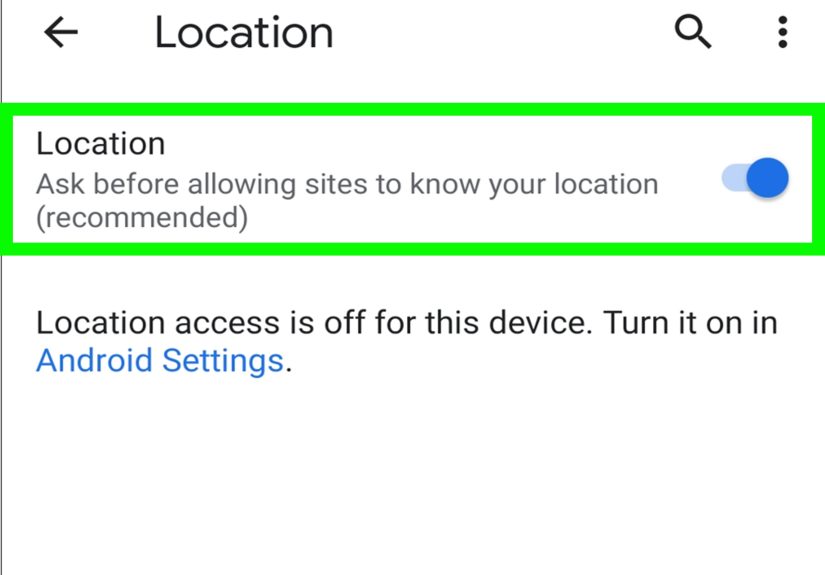
Android Chrome: Settings → Site settings → Location
- Open Chrome on Android.
- Tap the three-dot menu → Settings.
- Tap Site settings → Location.
- Turn Location on (so sites can ask).
iPhone & iPad Chrome: Content Settings
- Open Chrome.
- Tap the three-dot menu → Settings.
- Tap Content Settings.
- Tap Location and set your preference.
iOS can also restrict location at the device level (again: three-layer cake), so if Chrome settings look correct but location still fails, jump to Way 3.
Manage Allowed vs. Blocked Sites (So You Don’t “Enable Everything”)
Inside Chrome’s Location settings you’ll usually see lists for Allowed and Blocked sites. This is where you can:
- Remove a site from Blocked if you accidentally said “No” and meant “Yes.”
- Add a trusted site to Allowed so it stops asking every single time.
- Keep sketchy sites blocked forever, like that “Free Personality Test” page that somehow knows your middle name.
Way 3: Turn On Device Location Services (Because Chrome Can’t Override Your OS)
This is the most overlooked step. Chrome can ask nicely, but your operating system is the bouncer at the club. If the OS says “No location for you,” Chrome can’t argue its way in.
Windows 11 (and Similar on Windows 10): Enable Location Services
- Open Settings.
- Go to Privacy & security → Location.
- Turn Location services On.
- If available, also enable Let apps access your location (so desktop apps can request location).
- Return to Chrome and retry the website.
If your device is managed by a workplace or school, location settings may be locked by policy. In that case, you’ll need an admin or IT to adjust it.
macOS: System Settings → Privacy & Security → Location Services
- Click the Apple menu → System Settings.
- Go to Privacy & Security → Location Services.
- Turn Location Services on.
- Find Google Chrome in the list and allow it (if shown).
- Reopen Chrome and test again.
Android: Turn On “Use location” + Confirm Chrome Permission
- Open Settings → Location.
- Turn Use location On.
- Then check Chrome’s app permission (often under App permissions or Permissions).
- Back in Chrome, ensure Site settings → Location is enabled (Way 2).
iPhone & iPad: Settings → Privacy & Security → Location Services
- Open the iOS Settings app.
- Tap Privacy & Security → Location Services.
- Make sure Location Services is On.
- Scroll down, tap Chrome, and choose While Using the App (or your preferred option).
- If you need accurate results (maps, ride share), turn Precise Location on (if available).
Troubleshooting: When Chrome Still Won’t Share Your Location
If you’ve enabled everything and the site still can’t find you, don’t assume your laptop is “broken.” It’s usually one of these:
1) The Website Isn’t Secure (HTTP vs HTTPS)
Many browsers restrict the Geolocation API to secure contextstypically HTTPS. If a site is still on plain HTTP, it may fail without even giving you a proper prompt. Solution: use the HTTPS version of the site (if available), or ask the site owner to upgrade.
2) You Blocked the Site Earlier (and Chrome Remembers)
Chrome has a long memory for permissions. Go back to Way 1 or Way 2 and remove the site from the Blocked list.
3) Device Location Services Are Off (Yes, Still)
This happens constantly on Macs and iPhones: Chrome settings look fine, but the OS is denying location access. Re-check Way 3.
4) You’re Using a VPN (or the Site Uses IP Location)
Some websites don’t use browser GPS-style location at allthey use your IP address. If you’re on a VPN, the site might think you’re in another state (or another country). Turning on Location Services helps when the site supports it, but some sites still prefer IP-based guesses.
5) You’re on a Managed Device (Work/School Policies)
Managed Windows devices can have location locked down by administrators. If toggles are grayed out, you may need IT help.
6) Your Wi-Fi Is Off (or You’re on a Desktop With No Location Hardware)
Many devices estimate location using Wi-Fi networks and nearby signals. If Wi-Fi is disabled, accuracy can drop. Desktops without Wi-Fi or GPS hardware may only get approximate location.
7) “It Worked Yesterday” (Cache, Updates, and the Classic Restart)
Try: refresh the page → close and reopen Chrome → reboot the device. It’s not glamorous, but it fixes more permission glitches than anyone wants to admit.
Privacy Without Paranoia: Smarter Ways to Share Location
Location access is useful, but it’s also personal. Here’s how to keep it practical:
- Prefer “Ask” over “Always allow” as the default, then whitelist the sites you trust.
- Audit the Allowed list once a monthold travel sites don’t need to know where you live now.
- Turn it on when you need it, off when you don’tespecially on shared or public devices.
- Use Precise Location only when necessary (especially on iPhone/iPad).
FAQ: Quick Answers People Actually Search For
Why does Chrome say “Location is turned off” on my Mac?
Usually because macOS Location Services are off (or Chrome isn’t allowed) under System Settings → Privacy & Security → Location Services.
How do I re-enable location after clicking “Block”?
Use Way 1 (site permission from the address bar) or Way 2 (Chrome settings → Site settings → Location) and remove the site from the Blocked list.
Can I enable location for one site but block everyone else?
Yes. Keep the default set to “Sites can ask,” then block most sites and only allow the ones you trust. This is the best balance for most people.
Why does location work on my phone but not my laptop?
Phones usually have GPS and lots of signal data for accuracy. Laptops often rely on Wi-Fi positioning and can be less preciseespecially if Wi-Fi is off.
Do I need to enable location in both Chrome and my device settings?
Usually, yes. Chrome permissions control which sites can ask; your device controls whether Chrome can access location at all.
Conclusion (Plus of Real-World “Been There” Tips)
Turning on location in Chrome is simple once you know where the power buttons hide. If you remember only one thing, make it this: site permission + Chrome setting + device location services. Fix those three layers, and most location problems disappear.
Bonus: Real-World Experiences & Pro Tips (Because Life Is Messy)
Here’s what tends to happen in the real world: you’re trying to do something normalorder food, check in for a flight, verify a streaming service, or pull up directionswhen the website suddenly acts like you’re writing from the International Space Station. It’s rarely because Chrome “can’t do location.” It’s because some other setting is quietly vetoing it.
The most common story goes like this: you once clicked Block in a hurry (maybe you were multitasking, maybe the prompt appeared right as you went to click something else, maybe you have a personal vendetta against pop-ups). Weeks later, the same site needs location again, but now it doesn’t even askit just fails. That’s Chrome being “helpful” by remembering your decision. In those cases, the fastest fix is Way 1: click the icon near the address bar, jump into Site settings, set Location to Allow, refresh, and watch the site suddenly stop pretending you’re a mystery.
Another frequent one: on iPhone and iPad, people toggle location inside Chrome and still get nowhere. That’s because iOS treats browsers like apps first and browsers second. If iOS Location Services are off for Chromeor set to NeverChrome can’t magically bypass the system. The fix is boring but effective: Settings → Privacy & Security → Location Services → Chrome → “While Using the App.” If a map app is still placing you a few blocks away, enabling Precise Location can tighten accuracy (handy for ride pickups, deliveries, and anything involving “Meet me at the exact entrance” energy).
On Windows, the “I swear I turned it on” problem often comes from system-level privacy controls or device policies. Home computers are usually straightforward: enable Location services, then let apps access location. Work machines can be a different planet. If toggles are grayed out, it may be policy-managed. In that scenario, the best “fix” is diplomacy: ask IT. (Bring snacks. Snacks help.)
Then there’s the HTTPS surprise. Developers and small business site owners run into this: “Why does Chrome refuse to ask for location on my test site?” Because modern browsers treat location as a powerful feature and often require a secure context (HTTPS). If the site is plain HTTP, location requests can fail. For everyday users, the takeaway is simple: if a site looks outdated and insecure, it might not be able to request location properlyand you probably shouldn’t hand it your location anyway. For site owners, the takeaway is even simpler: get HTTPS.
Finally, keep your privacy habits realistic. You don’t need to block location everywhere forever. Use the “ask” default, allow trusted sites, and audit your permission lists occasionally. If a random coupon site wants your location, that’s not a technical requirementit’s a personality trait. And the correct response is a polite, permanent “No.”