Table of Contents >> Show >> Hide
- Why Spotlight Is So Much Faster Than Manual Browsing
- How to Open Spotlight and Start Searching
- The Fastest Spotlight Keyword Searches to Learn First
- Use Slash Filters for Even Faster Narrowing
- Search Within a Specific App
- Search by Location, Including iCloud Drive
- Use Newer Spotlight Browse Modes to Cut Through Clutter
- How to Make Spotlight Searches More Accurate
- When Spotlight Alone Is Not Enough: Jump to Finder
- How to Fix Spotlight When It Stops Finding the Right Files
- Real-World Experiences With Spotlight Keyword Searches
- Final Thoughts
- SEO Metadata
If your Mac has ever swallowed an important file like a magician with a grudge, Spotlight is your escape hatch. Most people use it like a basic launcher: press Command + Space, type a few letters, hit Return, done. That works fine for opening Safari or finding a PDF you named something sensible. But when you are hunting for a document called “final-final-actually-final-v3,” plain searching starts to feel like digital archaeology.
That is where Spotlight keyword searches earn their keep. Instead of hoping your Mac guesses correctly, you can tell it what kind of file you want, where it lives, what app it belongs to, or which metadata should matter. In plain English: less scrolling, less squinting, fewer muttered threats aimed at your Downloads folder.
Once you learn a few Spotlight search tricks, finding files on a Mac becomes dramatically faster. You can narrow results to PDFs, images, folders, emails, presentations, or files tied to a specific app. On newer versions of macOS, you can also switch into dedicated Spotlight browse modes for applications, files, actions, and clipboard history. And if Spotlight acts weird, there are simple fixes for that too.
This guide breaks it all down in a practical way, with examples you can actually use. No jargon fog. No “productivity ninja” speeches. Just the fastest route from Where did that file go? to Oh, there it is.
Why Spotlight Is So Much Faster Than Manual Browsing
Spotlight is powerful because it does not simply rummage through folders one by one every time you search. It indexes your Mac, which allows it to surface results quickly from file names, contents, metadata, apps, contacts, emails, and more. That speed matters when you are bouncing between meetings, deadlines, screenshots, downloads, and whatever mysterious chaos your desktop is currently hosting.
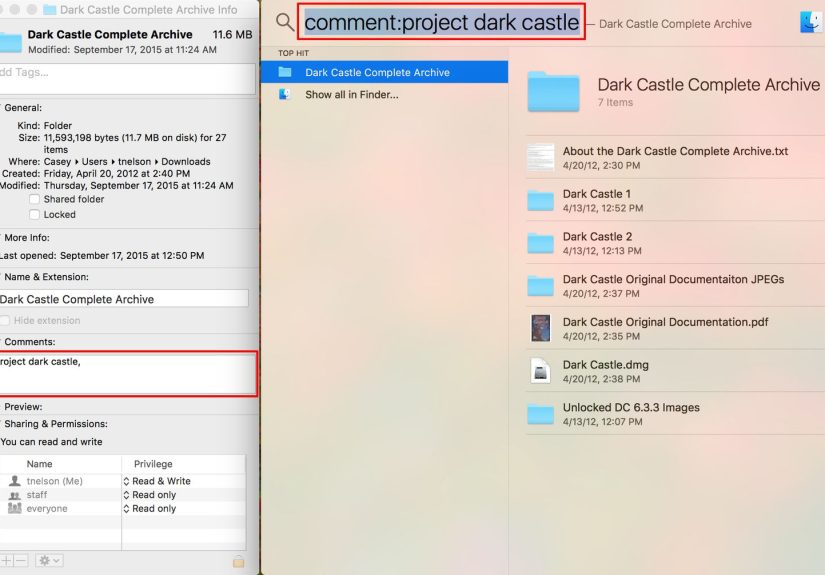
The biggest time-saver, though, is not just speed. It is precision. A normal search for invoice might produce a haystack. A Spotlight keyword search like kind:pdf invoice or tag:tax invoice gives you a much smaller, much saner pile to work with.
Think of Spotlight as a search assistant with decent manners. If you ask vague questions, it does its best. If you ask better questions, it becomes unreasonably helpful.
How to Open Spotlight and Start Searching
The fastest way to open Spotlight is to press Command + Space. You can also click the magnifying glass in the menu bar. Once the search field appears, start typing. Results update as you go, which means you usually do not need to press Return until you are ready to open something.
From there, use the arrow keys to move through results. Press Return to open the selected item. Press Space to preview a result with Quick Look. Hold Command while a file is selected to show its path, and use Command + R to reveal it in Finder. If you want to jump straight into a Finder-based search window, use Option + Command + Space.
That last shortcut matters more than it looks. Spotlight is fantastic for quick access, but Finder gives you extra filtering muscle when you want to get truly picky.
The Fastest Spotlight Keyword Searches to Learn First
If you only memorize a few keyword patterns, make them these. They are simple, flexible, and useful almost every day.
1. Search by file type with kind:
This is the big one. Add kind: before your query to limit results to a specific type of item.
Examples:
kind:pdf contractkind:images vacationkind:folder receiptskind:presentation budgetkind:music jazz
This is much faster than typing a keyword and then mentally sorting through documents, folders, emails, bookmarks, and random items your Mac thinks are somehow emotionally connected.
2. Search by title, name, or contained text
Spotlight also understands keywords such as title:, name:, keyword:, and contains:. These help when you know something about the file, but not enough to remember the exact file name.
Examples:
name:proposaltitle:quarterly reportcontains:reimbursementkeyword:launch
If you are the kind of person who saves files with helpful names, congratulations. Spotlight loves you. If you are not, Spotlight still tries, but the relationship becomes more complicated.
3. Search by author or sender-related metadata
You can also use metadata keywords such as author:, from:, to:, by:, and with:. These are handy when you remember the person connected to a file more clearly than the file itself.
Examples:
author:John kind:pdffrom:Melissa budgetby:design team presentation
This is especially useful for collaborative work, where your brain remembers the coworker, the client, or the panic, but not the document title.
4. Search by tags
If you use Finder tags, Spotlight can search them. That gives you a lightweight organizing system without forcing you to build a perfect folder hierarchy like some kind of filing-cabinet philosopher.
Examples:
tag:urgenttag:taxes kind:pdftag:clientA proposal
Tags are one of the smartest ways to make Spotlight better over time. A file name tells you what something is. A tag tells you why it matters.
Use Slash Filters for Even Faster Narrowing
On newer macOS versions, Spotlight lets you search by kind using a slash shortcut. Type a forward slash followed by a type, then press Return.
Examples:
/PDF/Images/Folders
After that, add your search term. It is quick, clean, and great for keyboard-first users. If you live on shortcuts, this feels less like searching and more like politely bossing your Mac around.
Search Within a Specific App
Another underrated Spotlight feature is app-based searching. Type the app name, press Tab, and then enter your search term. Spotlight will search within that app’s results.
Examples:
Mail+ Tab +invoiceNotes+ Tab +meeting agendaPreview+ Tab +lease
This is great when you already know where the file or content probably lives. Instead of asking Spotlight to search the entire universe, you give it a better map.
Search by Location, Including iCloud Drive
If the file is probably in iCloud Drive, Spotlight can filter by location. Type iCloud Drive, press Tab, and then type the file name or keyword. That narrows your search to a specific storage context.
This is helpful if your Mac has a mix of local files, synced files, and cloud storage clutter. In other words, modern life.
Use Newer Spotlight Browse Modes to Cut Through Clutter
On current macOS releases, Spotlight includes browse modes for Applications, Files, Actions, and Clipboard. You can switch to these directly, including with keyboard shortcuts such as Command + 1 for Applications and Command + 2 for Files.
If your goal is specifically to find a file faster, the Files mode is your friend. It reduces noise from web suggestions, settings, actions, and other extras. That makes it easier to focus on the document you actually need instead of being tempted by unrelated search candy.
You may also see dynamic categories appear below the search field as you type, such as Screenshots, Folders, or System Settings. Click one of those to narrow the results instantly.
How to Make Spotlight Searches More Accurate
Give files better names
This sounds obvious because it is obvious. But it also works. A file called Q4-client-renewal-proposal.pdf is much easier to find than one called Document2.pdf. Spotlight can search contents and metadata, yes, but file names still matter.
Use tags for active projects
Tags like draft, approved, finance, travel, or client names make future searches dramatically easier. One good tag now can save ten annoyed searches later.
Add meaningful metadata when possible
Photos often carry useful metadata such as date, location, and camera details. Documents may contain titles, authors, and searchable text. The richer the metadata, the smarter Spotlight becomes. That is why it can sometimes find a photo you forgot to name, a PDF you barely remember downloading, or a note you only recall by a single phrase.
Turn off categories you never use
If Spotlight feels messy, go to your Spotlight settings and disable result categories you do not care about. Fewer categories can mean cleaner results and a more focused search experience.
When Spotlight Alone Is Not Enough: Jump to Finder
Spotlight is excellent for quick searches, but Finder is where advanced filtering gets serious. Use Option + Command + Space to open a Finder search window, then add criteria such as file kind, creation date, name, and more.
Finder also lets you use Boolean logic with AND, OR, and NOT when you build searches with extra criteria. That is handy when your query needs nuance.
For example, maybe you want:
- PDFs created today
- Images that are not screenshots
- Files whose names start with a certain term
- Only items from one folder instead of your whole Mac
You can even save those searches as Smart Folders, which is fantastic for recurring tasks. If you routinely hunt for contracts, tax files, design assets, or current drafts, Smart Folders can make your future self look weirdly organized.
How to Fix Spotlight When It Stops Finding the Right Files
Sometimes Spotlight is not bad at searching. Sometimes it is just misconfigured, excluded, or reindexing poorly.
Check excluded folders
If a folder or disk has been excluded in Spotlight’s Search Privacy settings, its contents will not appear in results. That is great for private or irrelevant locations, but terrible when you forgot you excluded something six months ago and now think your Mac is gaslighting you.
Review result categories
If categories are turned off, certain kinds of items may not appear. Check the Spotlight settings and re-enable the ones you need.
Rebuild the Spotlight index
If results seem incomplete or inaccurate, rebuild the index. The basic fix is simple: add the affected disk or folder to Spotlight’s privacy list, wait a few seconds, then remove it so macOS reindexes it. That can take some time, but it often resolves weird search behavior.
In short: before blaming your Mac, make sure Spotlight has not been told to ignore the exact place you need it to search.
Real-World Experiences With Spotlight Keyword Searches
In real life, Spotlight keyword searches shine most when your memory is incomplete. That is the sweet spot. You do not remember the exact file name, but you remember a few details: it was a PDF, it mentioned a client name, and it probably lived in iCloud Drive. Suddenly a search like kind:pdf clientname gets you close enough to stop wandering through folders like you are lost in a digital corn maze.
One of the most common experiences is the “I know I saved it somewhere” moment. You download a form, open it once, rename nothing, and then move on with your life. A week later, you need it again. This is where Spotlight beats manual browsing every time. If you search by kind, title fragment, or even a word inside the document, you can often surface the file in seconds. That feels small until you realize how many tiny file hunts happen in a normal workweek.
Another very real use case is photo retrieval. Most people do not lovingly rename every photo they save. Thankfully, Spotlight can lean on metadata and image-related search signals. If you search for a general term, a place, or an image type, you can often recover a photo faster than expected. That is a lifesaver for presentations, family planning, content work, and those moments when someone says, “Didn’t you have a picture of that?” and your soul leaves your body for a second.
Writers, designers, students, and office workers also benefit from project-based keyword habits. When you consistently use a few tags, a shared naming structure, or recurring title words, Spotlight becomes almost suspiciously effective. Searching tag:clientA kind:presentation or name:outline feels less like searching and more like teleportation.
There is also a mental benefit. Once you trust Spotlight, you stop over-engineering your folder structure. Not completely, of course. Chaos is still chaos. But you no longer need a twelve-level filing system worthy of a federal archive just to locate Tuesday’s slide deck. A decent file name, a useful tag, and a search-first habit are often enough.
And perhaps the best experience of all is this: the quiet confidence that comes from knowing you do not need to remember everything perfectly. You just need to remember enough. A keyword. A file type. A person. A place. Spotlight can take it from there. For a built-in tool that many people use only to launch apps, that is a pretty impressive trick.
Final Thoughts
If you want to find files faster on a Mac, Spotlight keyword searches are one of the highest-return habits you can build. Start with the basics: kind:, tag:, name:, and app or location filters. Use Quick Look to preview results, jump into Finder when you need deeper filtering, and clean up your settings if Spotlight starts missing obvious files.
The real secret is not memorizing every operator under the sun. It is learning how to ask better search questions. Once you do that, Spotlight stops being a glorified app launcher and starts acting like the file-finding superpower it was always meant to be.
Which is nice, because your Downloads folder absolutely cannot be trusted.