Table of Contents >> Show >> Hide
- Why Your Computer Volume Stops Working
- Start With the Fastest Fixes First
- Use Windows Sound Settings to Hunt the Problem Down
- Run Windows Built-In Troubleshooting Tools
- Fix Audio Driver Problems
- Fix Special Cases That Steal Audio in Windows 10 and 11
- When the Problem Is Probably Hardware
- Experience: What Actually Solves Volume Problems in Real Life
- Final Thoughts
If your computer suddenly goes silent, starts whispering like it is in a library, or decides only one app deserves sound while the rest live in a digital desert, welcome to one of Windows’ most annoying little adventures. Audio problems in Windows 10 and Windows 11 are common, but the good news is that most of them are fixable without needing a degree in computer science, a magic wand, or a dramatic speech directed at your laptop.
In many cases, the problem is not that your speakers are broken. It is usually something far less exciting: the wrong output device is selected, an app is muted in Volume Mixer, a Bluetooth headset hijacked your audio, a driver went sideways after an update, or Windows is trying very hard to be helpful and ends up being the opposite. In other words, the sound is often still there. It just took a wrong turn.
This guide walks through practical, real-world ways to fix volume issues on Windows 10 and Windows 11. We will start with the quick wins, move into deeper troubleshooting, and finish with the kind of hands-on experience that saves time when the obvious fixes fail. So if your PC has gone mute, crackly, too quiet, or weirdly selective about where sound goes, here is how to get things talking again.
Why Your Computer Volume Stops Working
Before you start clicking every sound setting in sight, it helps to know what usually causes the problem. Most Windows volume issues come down to one of these troublemakers:
- The wrong output device is selected, such as HDMI, a monitor speaker, or a Bluetooth headset.
- The system volume or app-specific volume is muted or turned too low.
- Headphones, speakers, docks, or HDMI cables are loose, damaged, or connected to the wrong port.
- Audio enhancements or sound-processing features are interfering with playback.
- The audio driver is outdated, corrupted, or replaced by a bad update.
- Windows settings were changed by an update, app install, docking station, or accessory.
- The issue is hardware-related, such as a damaged jack, failing speakers, or a bad adapter.
That list may not sound glamorous, but it is actually great news. Most of these issues can be solved in a few minutes if you troubleshoot in the right order.
Start With the Fastest Fixes First
1. Check whether the PC is actually muted
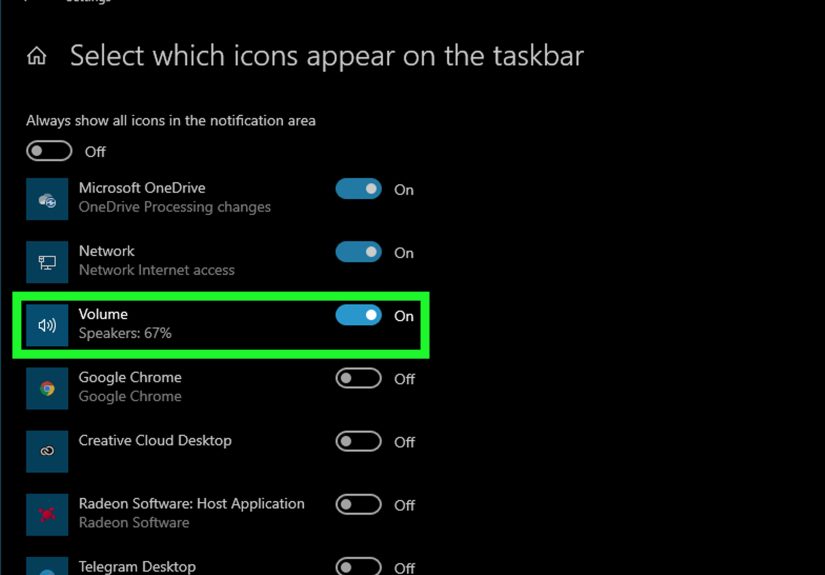
Yes, this sounds obvious. Yes, it is still worth checking. Click the speaker icon on the taskbar and make sure the master volume is turned up. If your keyboard has a mute key or volume buttons, test those too. Plenty of people spend twenty minutes wrestling with drivers only to discover they hit mute during a video call and never noticed. Windows loves a humbling moment.
2. Make sure the correct output device is selected
This is one of the most common causes of “no sound” in both Windows 10 and Windows 11. Your computer may be sending audio to the wrong place, such as a monitor, TV, USB headset, docking station, or Bluetooth earbuds that are sitting three rooms away.
Click the sound icon in the taskbar and open the list of available output devices. Select the speakers, headphones, or external device you actually want to use. In Windows 11, you can also open Settings > System > Sound and confirm the correct output is selected. In Windows 10, you can do the same from Sound settings or the classic Sound Control Panel.
3. Inspect cables, ports, and power
If you use external speakers or wired headphones, check the basics. Make sure the cable is fully plugged in, the speakers are powered on, and the volume knob on the speakers is not turned down. If you are using a 3.5mm jack, try unplugging and reconnecting it. If you use USB audio, switch ports. If you use a dock, bypass it and connect directly to the computer.
Also inspect the audio port for dust, lint, or physical damage. A dirty or damaged port can cause sound to vanish without any fancy software error messages to warn you.
4. Restart the computer
It is not glamorous, but it works more often than people like to admit. A reboot can reload the audio driver, reinitialize audio services, and clear temporary glitches caused by Windows updates, sleep mode, or connected accessories. Sometimes the most advanced repair strategy is still just, “Turn it off and back on again.”
Use Windows Sound Settings to Hunt the Problem Down
5. Open Volume Mixer and check app-specific sound
If sound works in one app but not another, the issue may not be your computer volume at all. It may be the app. Windows can store separate volume levels for different apps and output devices, which is convenient until it becomes ridiculous.
Open Volume Mixer and make sure the app you are using is not muted or set extremely low. In Windows 11, you can also reset Volume Mixer settings to restore recommended defaults. This is especially helpful when a browser, game, meeting app, or media player acts like it has joined a silent retreat.
6. Check the device volume and properties
Inside Settings > System > Sound, select your output device and review its properties. Make sure the device is enabled, the volume slider is high enough, and the balance between left and right channels is normal. In some cases, the device is connected but disabled, muted at the device level, or set to a strange configuration left behind by another accessory.
If you are using a microphone and the problem is low input volume instead of speaker output, do the same thing for the Input device. Windows 10 and 11 let you adjust microphone input volume separately, and that setting loves to wander.
7. Turn off audio enhancements
Audio enhancements sound like a gift. Sometimes they are. Other times they behave like that one friend who keeps “improving” the recipe until dinner tastes like confusion.
If your sound is distorted, too quiet, crackly, or inconsistent, open your device’s advanced sound settings and turn Audio enhancements off. Some systems list this as Disable all enhancements or Disable all sound effects. If the problem disappears, congratulations: the “enhancement” was the problem all along.
Run Windows Built-In Troubleshooting Tools
8. Use the Audio Troubleshooter
Windows includes a built-in audio troubleshooter, and it is worth using before you start uninstalling things. In newer builds, the troubleshooter often launches through the Get Help app. It can detect muted devices, disabled outputs, routing issues, and certain driver problems.
It is not perfect. No troubleshooter has ever been accused of having a sparkling personality. But it can catch easy configuration errors quickly, which makes it a good middle step before you go deeper.
9. Check for Windows updates
If your audio problem started after a system change, make sure Windows is fully updated. Sometimes a later update fixes a bug introduced by an earlier one. On the other hand, if sound disappeared right after an update, that update may have changed your driver or reset your sound settings. Timing matters here. If the audio worked yesterday and died after a big update today, treat that as a clue, not a coincidence.
Fix Audio Driver Problems
10. Update the audio driver
Drivers act as translators between Windows and your hardware. When the translator gets confused, sound problems happen. Open Device Manager, expand Sound, video and game controllers, and update your audio device. You can also check your PC maker’s support site for the latest audio driver designed for your exact model.
This step is especially important if your computer recently installed a Windows update, changed from one driver version to another, or started showing messages like No audio output device is installed.
11. Reinstall the audio driver
If updating does not work, reinstalling often does. In Device Manager, uninstall the audio device, restart the computer, and let Windows reinstall the driver automatically. This can clear corruption, broken settings, and bad installs.
If you are dealing with Intel Display Audio, HDMI audio, or a Realtek-related issue, a clean reinstall can be particularly useful. It is the digital version of removing a jammed drawer and sliding it back in the right way instead of just yanking harder.
12. Roll back the driver if the issue started after an update
If sound broke right after a driver update, the newest driver may not actually be the best driver for your system. In Device Manager, check whether Roll Back Driver is available. If it is, use it. Windows audio problems sometimes begin when a generic or mismatched driver replaces the manufacturer-tuned one that your laptop or desktop originally used.
13. Use the computer manufacturer’s driver when possible
This is a big one. If your PC uses Realtek audio, do not assume the generic Realtek driver is always the best choice. Many manufacturers customize audio packages for specific models. That means the safest source is often your computer maker’s support page, not a general driver page.
So if you have a Dell, HP, Lenovo, ASUS, Acer, or another branded PC, download the audio driver built for your exact machine. It can restore features that a generic package misses, including custom processing, headphone detection, internal speaker behavior, and microphone tuning.
Fix Special Cases That Steal Audio in Windows 10 and 11
14. Bluetooth is connected, but the sound is still missing
Bluetooth devices are notorious for looking connected while doing absolutely nothing useful. If your headphones or speaker are paired but silent, go back into Sound settings and make sure that specific Bluetooth device is selected as the output. Then disconnect and reconnect it.
If the audio is poor, delayed, or flaky, check the device’s format and quality settings, and make sure you are not connected to the wrong Bluetooth profile. In plain English: your headphones may be technically there, but Windows may be treating them like a microphone headset instead of your main audio device.
15. HDMI or DisplayPort is hijacking the sound
Connect your PC to a monitor or TV and Windows may switch the sound output automatically. Sometimes that is helpful. Sometimes it means your laptop speakers go silent and your monitor, which has no speakers at all, becomes the chosen one.
If you are using HDMI or DisplayPort, manually switch the output device back to your preferred speakers or select the monitor or TV if that is where you actually want the sound. If the HDMI device is missing or marked with an error in Device Manager, reinstall or update the related display audio driver.
16. Browser, Zoom, Teams, or game audio is missing
When the problem happens only in one app, check the app’s own audio settings first. Then check Volume Mixer to make sure that app is not muted and is routed to the correct output device. Browsers, meeting apps, and games can all hold onto old audio routes, especially after you connect or disconnect Bluetooth gear, docks, or external monitors.
Also test another app. If YouTube is silent but system sounds work, you are probably dealing with an app-level setting, tab mute, or browser volume issue rather than a system-wide Windows audio failure.
When the Problem Is Probably Hardware
If you have tried the right output device, Volume Mixer, audio enhancements, Windows troubleshooting, driver updates, reinstalls, and direct cable checks, then hardware moves higher on the suspect list.
Common hardware clues include:
- No sound from internal speakers, but headphones work fine.
- The headphone jack feels loose or only works when the plug is held at a weird angle.
- External speakers work on other devices but not on this PC.
- Audio cuts in and out when the laptop lid moves or the cable shifts.
- The sound device is missing entirely even after driver reinstalls.
At that point, the issue may be a damaged jack, failed speaker, motherboard problem, bad dock, or failing external accessory. Software is powerful, but it cannot repair a cracked port with positive thinking.
Experience: What Actually Solves Volume Problems in Real Life
Here is the part people usually appreciate most: what tends to work in the messy, real-world situations where sound problems are not neat and predictable.
One of the most common scenarios happens after someone connects the laptop to a TV, monitor, docking station, or Bluetooth headphones. The user disconnects the device, expects everything to go back to normal, and instead the computer keeps sending audio into the void. In those cases, the fix is often not dramatic. Open the sound menu, change the output device back to the laptop speakers, and suddenly the machine remembers how to be a computer again.
Another extremely common situation happens after a Windows update. Sound was fine yesterday. Today the speaker icon has a warning symbol, the audio device seems to have vanished, or the sound is thin and wrong. In practice, this often points to the driver. Reinstalling the audio driver, rolling back to the previous version, or installing the manufacturer’s original driver package fixes a surprising number of these cases. The reason is simple: Windows sometimes installs a functional driver, but not the best driver for your exact hardware.
Laptops are also famous for fake “hardware failures” that are really settings problems. A user may say, “My speakers are dead,” but when headphones are plugged in, sound works. That often means the headphone jack sensor is stuck, Windows still thinks something is plugged in, or the output device has switched. Before assuming the speakers are broken, test with headphones, then switch outputs manually, then reboot. It can save hours of panic and at least three dramatic sighs.
Business users run into another version of this problem with Zoom, Teams, Slack, browsers, and screen-sharing tools. System sounds work, but the meeting app is silent. Or the meeting app works, but YouTube does not. Usually the culprit is Volume Mixer or the app’s own audio menu. In other words, Windows is not broken; it is just being annoyingly specific.
Then there is the issue of audio enhancements. On paper, enhancements can improve clarity, loudness, or spatial effects. In reality, they sometimes cause echo, low volume, popping, or a muffled sound that makes everyone in a video call seem like they are broadcasting from a cave. Turning enhancements off is one of those fixes that feels too simple, right up until it works immediately.
The best troubleshooting habit is to work from simple to specific. First check mute, volume, and output device. Then check Volume Mixer and cables. Then use Windows troubleshooting tools. Then move to drivers. That order prevents wasted time and keeps you from doing surgery when all you needed was to unmute Chrome.
So yes, Windows audio problems are annoying. But most of them are also beatable. The trick is not to try everything at once. It is to try the right things in the right order.
Final Thoughts
If you need to fix the volume on your computer in Windows 10 or Windows 11, start with the basics and work upward. Check the output device, master volume, app volume, and physical connections. Then review device properties, disable audio enhancements, run the audio troubleshooter, and repair the driver if needed. If the issue appeared after an update or after connecting external hardware, treat that timing as your biggest clue.
Most of the time, the sound is not gone forever. It is just hiding behind a wrong setting, a confused driver, or a monitor that has somehow decided it is the star of the show. Once you track down the real cause, getting your audio back is usually much easier than it first seems.