Table of Contents >> Show >> Hide
- Why Text Looks So Small in Windows
- The Fastest Fix: Use the Windows Magnifier Shortcut
- How to Make Text Bigger in Windows Permanently
- Need Everything Bigger, Not Just Text?
- Text Size vs. Browser Zoom vs. Magnifier
- Best Settings for Different Types of Users
- Common Problems and How to Fix Them
- Tips to Make Reading in Windows More Comfortable
- Common Real-World Experiences With Making Text Bigger in Windows
- Conclusion
If your Windows screen makes you feel like you need detective-grade binoculars just to read a menu, you are not alone. Tiny text is one of the most common annoyances on laptops, high-resolution monitors, and older desktop setups. The good news is that Windows gives you several easy ways to make text bigger without turning your screen into a giant blurry marshmallow.
Whether you need a quick keyboard shortcut, a system-wide text size adjustment, or the built-in Magnifier tool for instant zoom, this guide covers the smartest ways to make Windows easier on your eyes. We will walk through the fastest fixes, explain the difference between text size and display scale, and help you choose the right method for work, school, gaming, or everyday browsing.
If your goal is simple, here is the cheat code: use the Windows Magnifier shortcut for instant zoom, and use Accessibility settings if you want text to stay larger all the time. That is the short version. Now let us do it properly.
Why Text Looks So Small in Windows
Modern Windows PCs often use sharp, high-resolution displays. That sounds great on paper, but it can make menus, labels, icons, and app text look comically tiny in real life. A 13-inch laptop with a high-resolution screen can make perfectly normal text feel like it was designed for ants with excellent vision.
There are usually three different issues hiding under the phrase “make text bigger in Windows.” First, you may want only the text to be larger. Second, you may want everything on screen to look bigger, including icons and apps. Third, you may only need temporary zoom while reading something small. Windows has a different solution for each one, and choosing the right method saves time and frustration.
The Fastest Fix: Use the Windows Magnifier Shortcut
If you need bigger text right now, the fastest option is Windows Magnifier. Think of it as a digital magnifying glass built into the operating system. It is perfect when a webpage, settings menu, PDF, spreadsheet, or dialog box suddenly looks like it was printed for a hummingbird.
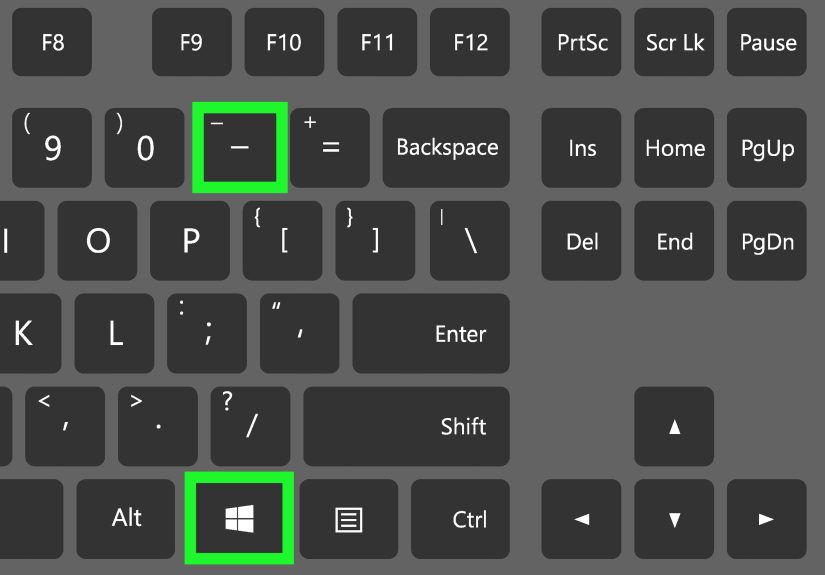
Magnifier keyboard shortcuts you should remember
The most useful Magnifier shortcuts are easy to memorize:
Windows + Plus (+) opens Magnifier and zooms in.
Windows + Minus (-) zooms out.
Windows + Esc closes Magnifier instantly.
That trio alone solves most “I cannot read this” moments. If you use a mouse, you can also zoom using Ctrl + Alt + mouse scroll wheel. That feels natural once you get used to it, especially when you are bouncing between tiny text and normal view during work.
Magnifier modes that actually matter
Windows Magnifier is not just one giant zoom lens. It has a few viewing modes that change how the zoom behaves:
Full Screen mode magnifies the entire display. This is useful when everything looks too small.
Lens mode creates a movable zoom area around your pointer, almost like holding a magnifying glass over the screen.
Docked mode places a magnified strip at the top of your screen while keeping the rest of the desktop normal.
Lens mode is excellent for quick reading. Docked mode is underrated and surprisingly helpful for people who need magnification but still want to keep their bearings. Full Screen mode is the heavy hitter for serious readability problems.
How to Make Text Bigger in Windows Permanently
If you are tired of zooming in every ten minutes, it is better to change the text size in Windows permanently. This increases text across supported parts of the system without forcing you to open Magnifier every time.
Windows 11
On Windows 11, go to Start > Settings > Accessibility > Text size. Move the slider to the right until the preview looks comfortable, then apply the change. This is the cleanest way to make text bigger in Windows 11 without changing everything else on screen.
Windows 10
On Windows 10, go to Start > Settings > Ease of Access > Display, then use the Make text bigger slider. Same mission, slightly older hallway.
This method is great for users who can still work comfortably with their current layout but need menus, labels, and interface text to be more readable. It is especially useful for long workdays, eye strain, or anyone who spends hours in File Explorer, Settings, email, or productivity apps.
Need Everything Bigger, Not Just Text?
Sometimes text is not the only problem. Maybe app buttons are tiny, icons are hard to click, or the entire interface feels cramped. In that case, changing only text size may not go far enough. You may need to adjust display scale.
Display scaling makes text, icons, windows, and many apps appear larger overall. It is more of a full-room renovation than a throw pillow. If only reading is the issue, text size may be enough. If the whole interface feels too small, scale is usually the better fix.
In many Windows setups, you can go to Settings > System > Display > Scale and choose a larger percentage such as 125% or 150%. This is common on high-resolution laptops and external monitors where everything looks crisp but tiny.
The trade-off is simple: bigger scale improves comfort, but it also reduces how much content fits on screen at once. That is a fair exchange if your current setup feels like it was built for eagles.
Text Size vs. Browser Zoom vs. Magnifier
These three tools sound similar, but they solve different problems.
Text Size
Use this when Windows menus and interface text are too small every day. It is the best long-term solution for readability.
Browser Zoom
Use this when websites are the problem, not Windows itself. In most browsers, Ctrl + Plus (+) zooms in and Ctrl + Minus (-) zooms out. This is perfect for reading news, articles, shopping pages, or recipe sites that seem to think everyone has superhero eyesight.
Magnifier
Use this when you need instant, temporary enlargement anywhere on screen. It is the emergency flashlight of Windows accessibility.
A smart setup often combines all three: a comfortable text size for daily use, browser zoom for badly designed websites, and Magnifier when a tiny pop-up or image still refuses to cooperate.
Best Settings for Different Types of Users
For office work
If you spend all day in email, spreadsheets, Word documents, and browser tabs, start by increasing Windows text size. Then raise display scale slightly if buttons and toolbars still feel cramped. Keep Magnifier available for dense spreadsheets and awkward legacy software.
For students
Students often jump between PDFs, slides, browser research, and note-taking apps. Browser zoom and Magnifier are the most useful quick fixes, especially for lecture slides and scanned documents that arrive in microscopic text for mysterious reasons.
For older adults or low-vision users
Use a combination of larger text size, larger scale, and Magnifier. This creates a friendlier desktop experience and reduces the need for constant squinting. Docked Magnifier can be especially helpful because it allows focused reading without losing the rest of the screen.
For designers, editors, and multitaskers
Be more careful with scale changes. Enlarging everything too much can reduce workspace and affect layout-sensitive work. In those cases, increasing text size and using Magnifier as needed may be the better balance.
Common Problems and How to Fix Them
Some apps still look tiny
Not every app responds perfectly to text-size changes. Older software can be stubborn. Try increasing display scale instead, or close and reopen the app after changing settings.
Magnifier opened by accident
This happens more often than people admit. One stray keyboard combo and suddenly the desktop looks like it was attacked by a zoom ray. Just press Windows + Esc to exit.
The screen looks blurry after changing settings
If scaling is too aggressive, some apps may appear softer than usual. Try a more moderate scale level and restart the apps that look blurry. In many cases, clarity improves after reopening them.
Only websites look too small
Do not change your whole operating system for one badly behaved website. Use browser zoom first. It is faster and more targeted.
Tips to Make Reading in Windows More Comfortable
Making text bigger is a great start, but comfort usually improves even more when you combine it with a few other adjustments. Increase your mouse pointer size if it is easy to lose on screen. Make the text cursor thicker if you work with documents. Reduce screen glare, raise brightness only as needed, and sit at a comfortable distance from your monitor. Tiny text is annoying; tiny text plus glare is a villain origin story.
If you work long hours at a PC, test your settings for a full day before deciding. A size that feels dramatic at first often becomes perfectly normal after a few hours. The goal is not to make Windows look huge. The goal is to make it effortless to use.
Common Real-World Experiences With Making Text Bigger in Windows
In real-world use, most people do not discover Windows text settings because they are curious. They discover them because one day they open a laptop, squint at the screen, and think, “There is no way this menu was made for humans.” That moment happens in a lot of different situations.
A common example is the person moving from an older desktop monitor to a newer high-resolution laptop. On paper, the new screen looks better. In practice, the text in File Explorer, Settings, and some apps suddenly feels much smaller. At first, they assume something is broken. Then they learn that the display is sharper, not wrong, and that Windows text size and scaling are what make the experience comfortable again.
Another frequent experience happens in offices. Someone spends the whole day in spreadsheets, email, project tools, and web dashboards. The text is technically readable, but by mid-afternoon their eyes feel tired, their shoulders are tense, and they are leaning toward the screen like it owes them money. For that person, increasing text size a little can make a surprising difference. It does not just help readability. It reduces fatigue over long stretches of work.
Students run into the problem in a different way. They may be fine in normal apps, but then a professor uploads a scanned PDF, a crowded slide deck, or a research article with tiny text and questionable formatting. This is where Magnifier becomes the hero of the hour. Instead of changing system settings for one document, they can zoom in quickly, read what they need, and move on without wrecking the rest of the desktop.
Older adults often have the most dramatic improvement because they benefit from using more than one feature together. A slightly larger text size, a more comfortable display scale, and occasional use of Magnifier can turn Windows from frustrating into approachable. The difference is not cosmetic. It can change whether the computer feels welcoming or exhausting.
Then there are the accidental Magnifier users. They press Windows + Plus without realizing it, the whole screen zooms in, panic begins, and suddenly they are one search query away from believing the computer has gone rogue. Once they learn Windows + Esc, peace returns to the kingdom. It is a small thing, but that shortcut saves a lot of confusion.
The biggest lesson from all these experiences is simple: there is no single best setting for everyone. Some people only need browser zoom. Others need larger system text. Some need Magnifier once a week, and others use it every day. What matters is matching the tool to the problem. When you do that, Windows stops feeling tiny and starts feeling usable again.
Conclusion
If you want to make text bigger in Windows, the best method depends on whether you need a permanent change or a quick temporary fix. For everyday readability, adjust the built-in text size setting. For a larger overall interface, use display scale. For instant zoom anywhere, use the Windows Magnifier shortcut. That combination covers almost every situation, from reading small website text to making Windows easier on the eyes for full-time use.
The good news is that you do not need extra software, expensive tools, or a deep dive into obscure settings. Windows already includes what you need. A few small adjustments can make your screen easier to read, less tiring to use, and far less likely to inspire dramatic squinting at 11:47 p.m.