Table of Contents >> Show >> Hide
- Step 1: Know What Creative Mode Actually Does
- Step 2: Start a New Creative World or Switch an Existing One
- Step 3: Learn the Core Creative Mode Controls
- Step 4: Master the Creative Inventory
- Step 5: Use Flying, Breaking, and Placement Like a Builder
- Step 6: Use Commands and Settings When You Need More Control
- Step 7: Start Small, Then Build Something Ridiculously Fun
- Common Mistakes to Avoid in Creative Mode
- Why Creative Mode Is Still One of the Best Ways to Learn Minecraft
- Experience: What Playing in Creative Mode Feels Like
- Conclusion
Minecraft is already a giant digital toy box, but Creative mode turns that toy box into an all-you-can-build buffet. No hunger bar nagging you. No creeper sneaking up like an uninvited party guest. No desperate search for wood, stone, iron, and emotional stability. Instead, you get unlimited blocks, instant block breaking, the ability to fly, and the freedom to build whatever pops into your wonderfully blocky brain.
If you have ever wanted to make a castle, a roller coaster, a sky village, or a suspiciously oversized chicken statue, Creative mode is where you do it. This guide walks you through how to play Minecraft in Creative mode in 7 simple steps, whether you are starting a brand-new world or switching an old one from Survival. Along the way, you will also learn practical controls, beginner-friendly tricks, and a few habits that will keep your dream build from becoming a cube-shaped disaster.
Step 1: Know What Creative Mode Actually Does
Before you jump in, it helps to understand what makes Creative mode different from Survival. In Creative, you get access to nearly every block and item through the inventory menu, and you can place them without collecting resources first. That means you do not need to mine stone before building a castle wall, chop trees before making planks, or raid a cave for iron just to craft a bucket. The game basically says, “Go ahead, architect, the budget is unlimited.”
Creative mode also makes your life dramatically easier in a few other ways. You can fly, which is a huge deal when building tall structures. You can break most blocks instantly, which makes redesigning much less painful. And because you do not have to worry about health, hunger, or ordinary survival pressure, you can stay focused on building, testing, and exploring ideas instead of spending half your time hiding from monsters in a dirt hut.
This is why Creative mode is perfect for beginners, casual players, redstone experimenters, map makers, and anyone who thinks, “I would like to build a giant lighthouse, but I do not want to die twelve times collecting sand.”
Step 2: Start a New Creative World or Switch an Existing One
Option A: Create a New World in Creative
The simplest way to play in Creative mode is to choose it when making a new world. Open Minecraft, go to the world creation screen, and select Creative as the game mode. On some platforms, this appears as a clear game-mode option during setup. Once you create the world, you will spawn in with Creative mode already enabled, which means you can start building immediately.
This route is ideal if you want a clean slate. Maybe you want a dedicated building world, a testing map for redstone contraptions, or a peaceful place to try design ideas before recreating them in Survival later. Lots of experienced players do exactly that. They sketch the big idea in Creative first, then rebuild the polished version in Survival when they are ready for the real challenge.
Option B: Change an Existing World to Creative
If you already have a world and want to swap over, you usually have two paths. In Bedrock-based versions, you can often open the pause menu, go into Settings, and change the Personal Game Mode or Default Game Mode to Creative. In some cases, you may need to enable cheats first.
In Java Edition, switching an older Survival world may require allowing cheats temporarily. Once cheats are available, you can open chat and use the command /gamemode creative. That is the quick-change method when you do not feel like clicking through menus like you are filling out block-based tax forms.
If you play with friends, remember that switching the default game mode can affect the whole world experience. If you only want to test one build, use care before changing a shared world that everyone expects to be Survival.
Step 3: Learn the Core Creative Mode Controls
Creative mode feels much better once you know the basic controls. On keyboard and mouse, you move with the usual controls and double-tap the jump key to start flying. While flying, jump sends you upward, and sneak sends you downward. On consoles and mobile, the exact buttons vary, but the same basic logic applies: double-tap the jump control to start flying, then use your movement and descend controls to steer.
This matters more than people expect. New players often think Creative mode is just “Survival, but easier.” Not quite. The real magic comes from moving in three dimensions. Once you can hover beside a wall, float above a roofline, and descend neatly into a courtyard, you stop fighting the game and start designing with intention.
There are a few more controls worth learning right away:
- Open inventory: this gives you access to the Creative inventory, where the blocks and items live.
- Use hotbar slots: put your favorite building blocks, tools, and decoration items where you can reach them quickly.
- Pick block: on supported controls, this lets you copy the block you are looking at straight into your hotbar. It is one of the biggest time-savers in the game.
- Sneak while building: useful near edges and when placing tricky blocks with precision.
If you learn only one thing in this step, make it this: flying is not a bonus in Creative mode; it is the whole lifestyle.
Step 4: Master the Creative Inventory
The Creative inventory is where Minecraft stops being a survival game and starts being a giant design catalog. Open it, and you will see tabs or categories for building blocks, decorations, tools, nature items, redstone components, and more. Depending on your edition, the layout may look a little different, but the purpose is the same: everything you need is right there.
Beginners often get overwhelmed here because there are a lot of items. A lot. Enough to make your first inventory search feel like trying to find one sandwich in a warehouse-sized grocery store. The trick is not to browse everything at once. Search for what your project needs.
For example, if you are building a modern house, you might search for concrete, glass, quartz, lanterns, trapdoors, and leaves. If you are making a medieval tower, try stone bricks, stairs, slabs, chains, fences, and banners. Creative mode rewards players who think in palettes, not just in random blocks.
Build a Simple Hotbar Strategy
A smart hotbar makes building smoother. A beginner-friendly setup might look like this:
- Main wall block
- Accent block
- Stairs
- Slabs
- Glass or light source
- Wood detail block
- Landscaping item
- Utility tool
- Empty slot for copied blocks
That last slot is especially useful because you can quickly copy a block from your build and keep moving instead of diving back into the full inventory every ten seconds.
Step 5: Use Flying, Breaking, and Placement Like a Builder
Now that you can move and grab items, it is time to actually build like someone who knows what they are doing. Or at least like someone who can fake it impressively.
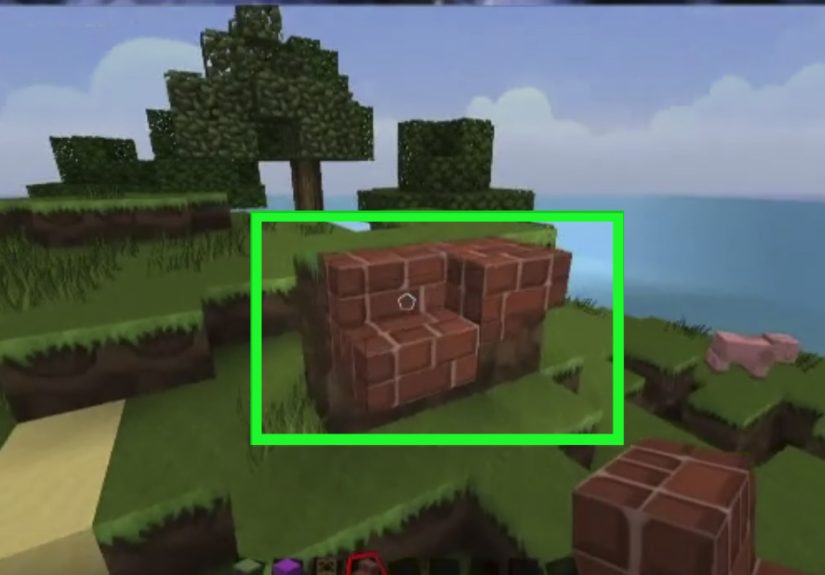
The biggest advantage in Creative mode is control. Flying lets you line up roofs, towers, windows, bridges, and statues from the perfect angle. Instant block breaking means you can fix mistakes immediately. This encourages experimentation, which is one of the best ways to improve in Minecraft.
Say you are building a house. In Survival, you might settle for a plain box because changing it costs time and materials. In Creative, you can test a peaked roof, hate it, replace it with a flat roof, hate that too, and then finally land on a layered roofline with overhangs and skylights. That freedom is how good builders get better.
Three Beginner Habits That Make Builds Look Better
First, avoid giant flat walls. Add depth with stairs, slabs, trapdoors, or pillars. Even a one-block bump-out can make a build look far more polished.
Second, build from the outside in. Shape the silhouette first. A house with a strong roofline and balanced exterior usually looks better than one with a gorgeous couch inside a sad cardboard box shell.
Third, step back often. Fly away from your build and look at it from a distance. Minecraft builds almost always reveal their weak spots when viewed from farther back. That weirdly tall chimney will confess its crimes eventually.
Step 6: Use Commands and Settings When You Need More Control
One of the best parts of Creative mode is how well it pairs with commands and world settings. You do not need commands to enjoy Creative, but they can make your life much easier once you are comfortable with the basics.
The most obvious one is:
/gamemode creative
That command switches you into Creative mode when cheats or proper permissions are enabled. It is useful when testing in an existing world, working on a server, or flipping between modes for different tasks.
You can also use other simple commands to speed up the building process. For example, some players set the time of day to keep lighting consistent while building. Others clear the weather to avoid working in constant rain. Once you start using chat commands, Minecraft usually helps by suggesting available options as you type, which makes the learning curve much less painful than it used to be.
When Commands Are Actually Worth Using
Commands are especially handy when:
- You are testing a build in an older Survival world
- You want to keep daylight steady while decorating
- You are working on a multiplayer map with permissions
- You want quick setup instead of menu-diving every time
If you are totally new, do not worry about learning every command on day one. Start with the game mode switch and a couple of quality-of-life settings. That is enough to make you feel wildly efficient in a very blocky way.
Step 7: Start Small, Then Build Something Ridiculously Fun
The final step is the one that matters most: actually make something. Not “someday.” Not “after I watch 48 building tutorials and earn a minor degree in virtual landscaping.” Right now.
Start with a project that is small enough to finish in one sitting. Good beginner choices include:
- A cozy starter house
- A treehouse
- A watchtower
- A bridge over a river
- A tiny farm with custom paths
- A modern one-room cabin
Finishing a small build teaches more than abandoning a giant castle halfway through. You learn proportions, block combinations, lighting, landscaping, and how to correct mistakes without getting discouraged. Then, once that first build is done, you scale up.
That is the beauty of Creative mode. One project leads to another. A house needs a path. The path needs a garden. The garden needs a pond. The pond needs a bridge. The bridge obviously needs lanterns. Before you know it, you are three hours deep into designing a neighborhood for villagers who do not even pay rent.
Common Mistakes to Avoid in Creative Mode
Building Too Big Too Soon
Huge builds sound exciting, but they can become boring fast if you do not have a plan. Start smaller and learn structure, shape, and detail first.
Using Too Many Random Blocks
Just because Creative mode gives you everything does not mean every build needs seventeen materials fighting for attention. Limit your palette and your build will look more intentional.
Ignoring Terrain
A nice build placed carelessly on ugly ground still looks unfinished. Add paths, trees, lighting, elevation changes, or a little landscaping around your structure.
Forgetting Lighting
Even in Creative mode, lighting changes the mood of a build. Lanterns, glowstone, sea lanterns, candles, and hidden light sources can turn a flat build into something memorable.
Why Creative Mode Is Still One of the Best Ways to Learn Minecraft
Some players treat Creative mode like the “easy” mode, but that misses the point. Creative is not just easier; it is more focused. It removes survival pressure so you can learn design, movement, block combinations, redstone basics, and world planning without interruption. It is a sandbox in the purest sense.
That is why so many players use it to practice before Survival, prototype giant builds, test interior layouts, and experiment with commands. Even if your long-term goal is to survive, explore, and gather resources the old-fashioned way, Creative mode teaches you how Minecraft really fits together.
Experience: What Playing in Creative Mode Feels Like
The first time you really settle into Creative mode, Minecraft feels different in a way that is hard to explain until you experience it. In Survival, the game is always asking something from you. Find food. Avoid danger. Gather wood. Smelt iron. Make tools. Sleep before the mobs get weird. Creative mode removes all of that noise, and suddenly the game becomes quiet in the best possible way. You stop reacting and start inventing.
For a lot of players, that shift is what makes Creative mode addictive. You begin with a simple idea, maybe just a little house on a hill, and then your brain starts stacking possibilities faster than you can place blocks. The roof looks too plain, so you add depth. The front door needs a path. The path looks lonely, so you add lanterns and bushes. Then a pond appears. Then a dock. Then a fishing hut. What started as one small build somehow turns into an entire tiny village before lunch.
There is also a strangely satisfying sense of momentum in Creative mode. Because you can fly, you are no longer limited by ladders, scaffolding, or awkward jumps. You float up to a roofline, adjust a corner, drift backward to inspect it, and fix it instantly. That quick feedback loop makes building feel smooth and playful. Instead of thinking, “Can I do this?” you start thinking, “What happens if I try this?” That is when Minecraft becomes less like a game and more like a sketchbook.
Creative mode is also one of the best ways to develop taste. You start noticing that some block combinations feel warm and cozy, while others feel cold, dramatic, modern, rustic, or magical. You begin to understand why one window shape looks elegant and another looks like your house is permanently surprised. You get better at proportion, symmetry, contrast, and detail, often without even realizing you are learning. It is design practice disguised as entertainment.
And maybe the best part is that Creative mode forgives experimentation. If something looks terrible, you delete it. No wasted materials. No long resource grind. No dramatic speech over lost diamonds. That freedom makes players braver. You try bold shapes, weird color combinations, massive statues, underground bases, floating islands, and redstone machines that may or may not become accidental architectural crimes. Sometimes the build fails. Sometimes it becomes the coolest thing you have made in weeks. Either way, you learned something.
That is why Creative mode stays relevant even for veteran players. It is fast, expressive, flexible, and deeply relaxing. It gives you room to think, mess around, and build ideas that would take forever in Survival. Whether you are making your first tiny cabin or a sprawling fantasy city, Creative mode makes Minecraft feel like possibility with a pause button.
Conclusion
If you want to know how to play Minecraft in Creative mode, the short version is this: choose Creative when creating a world or switch to it in settings or with commands, learn the flying controls, use the Creative inventory wisely, and start building before perfectionism talks you out of it. The mode is simple to access, beginner-friendly, and incredibly powerful once you understand how movement, inventory, and building habits work together.
Most importantly, Creative mode gives you permission to play Minecraft as a builder, designer, tester, and dreamer. So open a world, grab a stack of blocks you did not technically earn, and start constructing something gloriously unnecessary.