Table of Contents >> Show >> Hide
- What “Not Interested” Really Does (and Why It Can Feel Permanent)
- Quick Triage: The 30-Second “Did I Just Break My Feed?” Checklist
- TikTok: How to Undo “Not Interested” (and Fix Your For You Page)
- Option A: If TikTok Shows an “Undo,” Take It (Fast)
- Option B: Re-Train the Algorithm with “Yes” Signals (Best for One Accidental Tap)
- Option C: Refresh Your For You Feed (The “Start Fresh” Button)
- Option D: Use “Manage Topics” to Nudge the Feed (Great for “Less Sports, More Cooking”)
- Option E: Filter Keywords and Hashtags (For Topics You Never Want to See)
- Instagram: Undo “Not Interested” on Reels, Explore, and Suggested Posts
- Option A: Tap “Undo” If It Appears
- Option B: Use “Interested” (When Available) to Send a Strong Counter-Signal
- Option C: Reset Suggested Content (The “Clean Slate” Reset)
- Option D: Tune Your Reels Interests (If You Have the New Controls)
- Option E: Cleanup Moves That Quietly Fix a “Broken” Instagram Algorithm
- YouTube: Undo “Not Interested” and “Don’t Recommend Channel”
- Option A: Use the Immediate “Undo” (If You See It)
- Option B: Clear Your “Not Interested” Feedback in Google My Activity
- Option C: Reset Recommendations by Managing Watch History (Powerful, but Use Carefully)
- Option D: Remove Likes (and Other Signals) That Keep Dragging the Same Topic Back
- A Quick YouTube Example (So This Feels Less Abstract)
- Why Your Feed Didn’t “Undo” Instantly (Even If You Did Everything Right)
- Smarter Ways to Use “Not Interested” (So You Don’t Need This Article Again)
- FAQ
- Conclusion
- Real-World Experiences: What People Commonly Run Into (and How They Recover)
- SEO Tags
You know that feeling: you’re scrolling peacefully, your thumb slips, and suddenly you’ve told an app,
“No thanks, I hate this forever.” The video wasn’t even badyou just meant “not interested in right now,”
or you were trying to tap “Save,” or your cat head-butted your phone like it pays rent.
The good news: you’re usually not doomed. The slightly-annoying news: each platform treats “Not interested”
differently, and “undo” isn’t always a clean, one-tap reversalespecially if you missed the immediate Undo button.
This guide walks you through the fastest fixes (and the “nuclear options”) for TikTok, Instagram, and YouTube,
plus how to retrain your recommendations so the algorithm stops acting like a moody barista.
What “Not Interested” Really Does (and Why It Can Feel Permanent)
On TikTok, Instagram, and YouTube, “Not interested” is a strong negative signal. It typically tells the system:
“Show me less content like this,” which can mean less of that topic, less of that format, or sometimes less of that creator.
Recommendation engines don’t rely on a single signalwatch time, rewatches, likes, follows, shares, comments,
and search behavior all matterso one “Not interested” rarely erases a topic from your life. But it can
nudge the feed enough that you notice the shift (especially if you don’t have many other signals in the opposite direction).
Quick Triage: The 30-Second “Did I Just Break My Feed?” Checklist
- Look for an immediate “Undo” toast/banner at the bottom of the screen. If you see it, tap it.
This is the cleanest fix and often disappears in seconds. - Decide what you actually meant: “Not this video,” “not this creator,” or “not this topic”?
Picking the right fix depends on what you’re trying to reverse. - Don’t overcorrect with panic taps. Rage-marking 25 videos as “Not interested” can train your feed
into a weird content desert. Slow down. Breathe. Hydrate.
TikTok: How to Undo “Not Interested” (and Fix Your For You Page)
TikTok gives you multiple controls to shape the For You feed“Not interested” is one of them. The tricky part:
there isn’t always a reliable “go to this screen and remove one ‘Not interested’ vote” option. So the best approach
is usually counter-signals: tell TikTok what you do want, and it will adjust.
Option A: If TikTok Shows an “Undo,” Take It (Fast)
Sometimes TikTok may surface a quick “Undo” after you mark something as not interesting. If it appears, tap it
immediately. If you don’t see an Undo (or it vanished), move on to the next options.
Option B: Re-Train the Algorithm with “Yes” Signals (Best for One Accidental Tap)
If your “Not interested” was accidental and you still like the topic, you can typically recover by feeding TikTok stronger
positive signals for that same category:
- Search the topic (use keywords you’d normally type).
- Watch several videos all the way through (watch time matters).
- Like, favorite, and comment on a few that genuinely match your taste.
- Follow creators you actually want to see again.
- Use “Manage topics” to boost that category if it exists in your app.
Think of it like telling TikTok: “My badI still enjoy this neighborhood. I just walked into the wrong store.”
Option C: Refresh Your For You Feed (The “Start Fresh” Button)
If your recommendations feel totally offnot just one mistakeTikTok has a built-in “Refresh your For You feed” tool.
This reshapes recommendations by showing more general/popular content and letting your new interactions rebuild the feed.
How to refresh your For You feed (in Settings):
- Open TikTok and go to Profile.
- Tap the Menu (☰).
- Tap Settings and privacy → Content preferences.
- Tap Refresh your For You feed and follow the prompts.
Important: TikTok notes that once you refresh, it can’t be undone. Use it when you want
a broader resetnot just a quick “oops.”
Option D: Use “Manage Topics” to Nudge the Feed (Great for “Less Sports, More Cooking”)
TikTok’s Manage topics feature lets you adjust how often you see content from broad categories.
It won’t eliminate a topic entirely, but it can help correct a drift.
- Go to Profile → Menu (☰) → Settings and privacy.
- Tap Content preferences → Manage topics.
- Move sliders to see more/less of topics you care about.
- Tap Save.
Option E: Filter Keywords and Hashtags (For Topics You Never Want to See)
If your accidental “Not interested” happened because you’re trying to escape a topic entirely (spoilers, drama,
breakup content, or that one sound that haunts your dreams), TikTok lets you filter keywords/hashtags:
- Go to Profile → Menu (☰) → Settings and privacy.
- Tap Content preferences → Filter keywords.
- Tap Add keyword, enter a word or hashtag, and choose which feeds to filter.
- Tap Save.
This is less about undoing one tap and more about building guardrails so you don’t have to play whack-a-mole later.
Instagram: Undo “Not Interested” on Reels, Explore, and Suggested Posts
Instagram’s “Not interested” controls can apply to Reels, Explore, and suggested posts in your feed.
Instagram also introduced a more dramatic option: a full reset of suggested content recommendations.
Option A: Tap “Undo” If It Appears
When you mark a Reel or post as “Not interested,” Instagram may show a quick “Undo” confirmation. If you see it,
tap it right away. If you missed it, you can still steer recommendations back by interacting with the content you
actually want.
Option B: Use “Interested” (When Available) to Send a Strong Counter-Signal
In many recommendation surfaces, Instagram also lets you say Interested. If the goal is to recover a topic
you accidentally downvoted, “Interested” on similar content can help correct course faster than passive scrolling.
Option C: Reset Suggested Content (The “Clean Slate” Reset)
If Instagram’s suggestions feel completely wrongExplore is a mess, Reels is off, your feed is full of stuff you never asked for
Instagram offers a Reset suggested content option. This clears your current suggested content recommendations and
starts rebuilding them based on new interactions over time.
How to reset suggested content:
- Go to your Profile.
- Tap the Menu (three lines / ☰).
- Under “What you see,” tap Content preferences.
- Tap Reset suggested content and follow the on-screen steps.
Heads-up: A reset is meant to be a restart. Expect recommendations to look more generic at first,
then sharpen as you like, save, watch, and follow.
Option D: Tune Your Reels Interests (If You Have the New Controls)
Instagram has been rolling out more algorithm controls for Reels, including the ability to view and adjust topics
it thinks you’re into (and remove ones you’re not). If you see an icon or menu that surfaces your interests/topics,
use it to remove irrelevant topics and add or reinforce the ones you want.
Option E: Cleanup Moves That Quietly Fix a “Broken” Instagram Algorithm
- Unfollow accounts that no longer match your interests (following is a huge signal).
- Stop hate-watching. Watching a Reel to the end “because it’s ridiculous” still counts as engagement.
- Use Hidden Words/phrase filters to reduce unwanted suggested content themes.
- Engage deliberately for a few days: save posts you want more of, watch Reels you like to completion, and search your real interests.
YouTube: Undo “Not Interested” and “Don’t Recommend Channel”
YouTube is the most “undoable” of the threebecause Google provides a documented way to clear the “Not interested”
and “Don’t recommend channel” feedback via your account activity controls. Translation: if you accidentally told YouTube
to stop showing something, you can usually clean it up.
Option A: Use the Immediate “Undo” (If You See It)
On many YouTube surfaces (Home, Watch Next, Shorts), selecting “Not interested” often triggers a temporary Undo option.
Tap it if you see it. It’s the fastest and most precise fix.
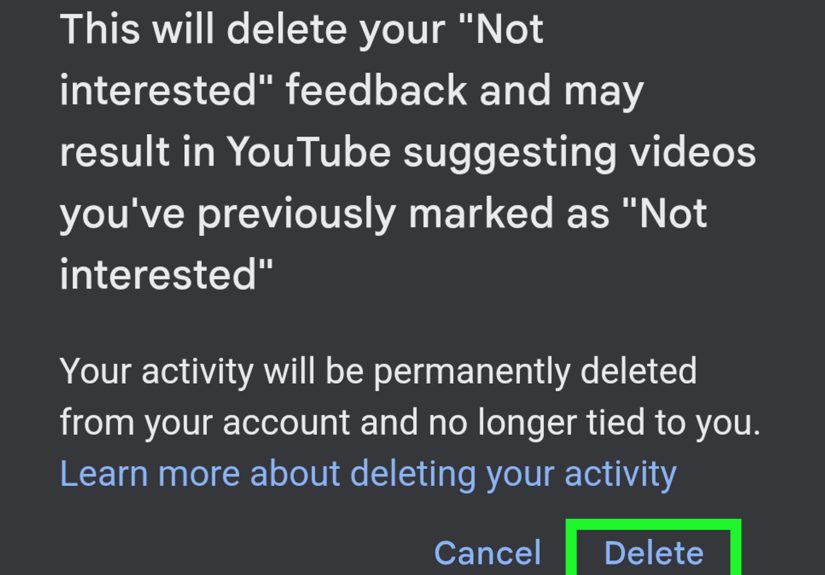
Option B: Clear Your “Not Interested” Feedback in Google My Activity
If the Undo option is gone, YouTube’s official guidance is to clear “Not interested” and “Don’t recommend channel”
feedback via My Activity.
How to clear that feedback:
- Go to My Activity for your Google account (you must be signed in).
- Find Other Google activity.
- Find YouTube “Not interested” feedback (and related feedback sections).
- Select Delete.
Note: Depending on the interface you see, you may be able to view specific items or you may be clearing the category.
Either way, this removes the “downvote” influence from recommendations going forward.
Option C: Reset Recommendations by Managing Watch History (Powerful, but Use Carefully)
If your YouTube homepage has turned into a mystery box you never ordered, watch history is often the main driver.
Clearing or pausing watch history can significantly change recommendations.
- Mobile app: Profile picture → Settings → History & privacy → Clear watch history or Pause watch history.
- Desktop: Go to History and choose Clear all watch history or Pause watch history.
Clearing history can make your home feed temporarily “bland” because YouTube has less to personalize fromso plan to
rebuild with intentional watching afterward.
Option D: Remove Likes (and Other Signals) That Keep Dragging the Same Topic Back
YouTube notes that your recommendations are also influenced by videos you’ve liked. If you liked a bunch of videos in a phase
you’ve moved on from (we’ve all been there), removing those likes can help.
- Go to Liked videos and remove likes from videos that no longer represent your interests.
- Also consider clearing or pausing search history if your searches are steering recommendations.
A Quick YouTube Example (So This Feels Less Abstract)
Let’s say you watched one video about fixing a leaky faucet. Suddenly YouTube thinks you’re auditioning for a full-time plumbing apprenticeship.
You click “Not interested” on a plumbing channel by mistakeeven though you still want DIY home content, just not that creator.
The fix: clear the mistaken feedback in My Activity (or hit Undo if it’s still available), then reinforce what you do want:
watch and like a couple of DIY videos from creators you trust, search for “kitchen remodel tips” or “beginner home repairs,”
and subscribe to the channels you genuinely want. Within a short period, the home feed usually stabilizes.
Why Your Feed Didn’t “Undo” Instantly (Even If You Did Everything Right)
- Algorithms update in batches. Some changes show up quickly; others take time and repeated signals.
- You gave mixed signals. If you marked something “Not interested” but then watched three similar videos to the end, the system is confused (and honestly, so are we).
- You’re signed out on one device. Feedback may apply only to the signed-in experience.
- You corrected the wrong lever. “Don’t recommend channel” is different from “Not interested,” and a full reset is different from a single-video correction.
Smarter Ways to Use “Not Interested” (So You Don’t Need This Article Again)
- Use “Not interested” sparingly. Save it for content you truly want less of, not a one-off mood.
- Prefer “Tell us why” on YouTube when available. It’s often more accurate than a broad downvote.
- Use filters for hard boundaries. Keyword/phrase filters beat endless tapping.
- Train with positives. When you want your feed to change, actively search, watch, like, and follow the content you want more of.
FAQ
Can I undo “Not interested” on TikTok?
Sometimes you may see a temporary Undo option, but TikTok’s most reliable “official” recovery tools are
retraining with positive signals, adjusting Manage topics, using keyword filters,
or using Refresh your For You feed if you want a broader reset.
Will resetting Instagram suggested content delete my followers or posts?
Noresetting suggested content is about recommendation systems (Explore/Reels/suggested content), not your account’s core data.
You’ll keep your followers, posts, messages, and profile. But your suggestions will rebuild over time based on new activity.
Can I undo “Don’t recommend channel” on YouTube?
YouTube’s guidance is to clear your “Not interested” and “Don’t recommend channel” feedback via Google My Activity.
This removes that feedback’s influence on recommendations going forward.
Conclusion
“Not interested” isn’t a life sentenceit’s just a signal. If you catch the Undo button, you’re golden. If you miss it,
you still have options: TikTok gives you feed refresh and topic/keyword controls, Instagram offers a full “reset suggested content”
plus interest tuning, and YouTube lets you clear “Not interested” feedback through your Google activity settings.
The secret sauce is consistency. Pick the right lever (single undo vs. reset), then follow it up with a few days of deliberate
“yes” signalswatching what you like, liking what you mean, and unfollowing what you’ve outgrown. Your feed will get the hint.
Eventually.
Real-World Experiences: What People Commonly Run Into (and How They Recover)
Here’s what “undoing Not interested” usually looks like in the real worldbecause the technical steps are only half the story.
The other half is how these apps behave when you’re a human being with evolving interests and an occasionally chaotic thumb.
1) The Accidental Tap Spiral (a.k.a. “I didn’t mean it!”)
A common experience is tapping “Not interested” while trying to hit a different buttonespecially on short-form video where every UI element
is fighting for the same square inch of screen space. People often notice it immediately because the feed changes tone: fewer videos like that,
fewer creators in that niche, and sometimes an influx of unrelated “generic trending” clips. The fastest recovery is simple: search the topic,
watch a handful of videos you actually like all the way through, then like and save a few. That combination usually overpowers a single negative
signal because it produces multiple “I want this” signals in quick succession.
2) The “I Hate-Watched It” Problem
A surprisingly relatable pattern: someone marks a topic as “Not interested,” but they keep watching the same kind of content anywaymaybe to
roll their eyes, maybe because it’s oddly addictive, maybe because they’re texting a friend, “Look at this nonsense.” Algorithms can’t read sarcasm.
If you keep watching, you’re telling the platform you’re interested no matter what button you pressed. The fix isn’t just undoing the tapit’s
changing the behavior for a short time. People who recover fastest typically stop watching that topic cold turkey for a few days and replace it
with intentional viewing of what they want more of.
3) The “My Explore/Reels/Homepage Got Weird Overnight” Reset Moment
Another common story is the slow drift: you watched one thing out of curiosity (a new hobby, a celebrity rabbit hole, a random news clip),
and suddenly your recommendations overcommit. When the feed becomes unrecognizable, users tend to have the best results with the official
reset toolsTikTok’s For You refresh or Instagram’s reset suggested contentthen rebuilding from scratch by following creators they truly like.
The key mindset shift: a reset isn’t a magic wand; it’s more like moving to a new apartment. You still have to bring furniture (your interests)
back into the space through consistent engagement.
4) The “I Blocked/Downvoted the Wrong Creator” Oops
On YouTube especially, people sometimes hit “Don’t recommend channel” when they only meant “not this one video.” That feels brutal because the creator
vanishes from Home and Watch Next, and it can be hard to remember the channel name later. In these cases, clearing the “Not interested”/feedback history
in Google My Activity is the go-to recovery move. Then, people often search for the channel directly and re-subscribe (or just watch a couple of videos)
to re-establish a positive relationship with that creator in the system.
Bottom line: In most everyday scenarios, the winning combo is (1) undo/clear the feedback if possible, (2) stop sending mixed signals,
and (3) actively “train” the feed with a short burst of intentional engagement. The algorithm isn’t mad at youit’s just literal.