Table of Contents >> Show >> Hide
- What Is Visual Boy Advance?
- Visual Boy Advance vs. VBA-M: Which Version Should You Use?
- How to Download and Install Visual Boy Advance
- How to Load Games the Right Way
- First-Time Setup Checklist
- Default Controls and How to Remap Them
- How to Use Save Files and Save States
- Graphics, Filters, and Performance Tweaks
- How to Use Cheats in Visual Boy Advance
- Common Problems and How to Fix Them
- Best Practices for a Smooth Visual Boy Advance Experience
- Real-World Experiences Using and Setting Up Visual Boy Advance
- Conclusion
Note: This guide covers legal emulator use only. That means homebrew games, backups you created from games you personally own, and other lawful game files. The emulator is the easy part. The “do not wander into piracy” part is where common sense earns its cape.
If you have been itching to replay classic Game Boy, Game Boy Color, or Game Boy Advance titles on a modern computer, Visual Boy Advance is one of the most recognizable names in the emulation world. It has been around long enough to qualify for retro status itself, which is both impressive and a tiny bit rude to everyone who remembers buying AA batteries in bulk.
This full tutorial walks you through what Visual Boy Advance is, which version you should actually use, how to install it, how to configure controls, how to load your games, how to use save states, how to tweak graphics, and how to fix the most common headaches. If you are a beginner, this is your from-zero-to-playing guide. If you already installed it once and now your controls are possessed, your audio vanished, or the screen is white for no obvious reason, this guide has you covered too.
What Is Visual Boy Advance?
Visual Boy Advance is a long-running emulator used to play Game Boy, Game Boy Color, and Game Boy Advance software on modern devices. In practical terms, it recreates the behavior of Nintendo’s older handheld hardware so your computer can run compatible game files. The version most people should use today is VBA-M, which is the modern fork of the older Visual Boy Advance project.
That distinction matters. When people say “Visual Boy Advance,” they often mean the whole family of versions. But if you are setting things up in 2026, the safer, smarter move is to use VBA-M rather than the old classic builds floating around on abandonware pages like digital fossils.
Visual Boy Advance vs. VBA-M: Which Version Should You Use?
Use VBA-M. That is the short answer, and it is the correct one.
The original Visual Boy Advance became popular because it was lightweight, easy to run, and packed with features people actually wanted, such as controller support, save states, screenshots, cheats, and display filters. Over time, development shifted, forks appeared, and VBA-M became the improved continuation that most users are now pointed toward.
Why choose VBA-M?
- It is the recommended modern fork.
- It supports GB, GBC, and GBA files in one program.
- It includes controller support, fullscreen mode, save states, graphics filters, and cheat support.
- It is generally the best option for users who want the classic VBA feel without using an outdated build.
If you see references to older builds like 1.8 beta, treat them like an old map scribbled on a napkin. Interesting? Yes. Ideal for a first setup? Not really.
How to Download and Install Visual Boy Advance
The exact setup process depends on your platform, but the overall pattern is simple: download the correct version, extract or open it, launch it, and then configure your controls and folders before loading your game.
1) Windows Setup
Windows is the easiest place to start. Download the current VBA-M build that matches your system architecture. If your PC is 64-bit, use the 64-bit build. After downloading, extract the archive to a folder with normal read and write access such as Desktop, Documents, or Downloads.
Once extracted, open the emulator executable. That is usually enough to get going. In other words, this is refreshingly low drama compared with software that wants three launchers, an updater, a login, a cloud sync panel, and a newsletter signup before it even says hello.
2) Mac Setup
On macOS, download the Mac build, open the DMG, and move the app into Applications if needed. If macOS warns that the app cannot be opened because it was downloaded from the internet, right-click the app and choose Open. Then confirm again. That usually clears Gatekeeper’s suspicion that you are trying to summon a pixelated dragon through Terminal.
3) Linux Setup
Linux users often install VBA-M through a package source or Snap. On Ubuntu-style systems, many users can install it through the software store or from the terminal. If you prefer a GUI-first setup, search for VisualBoyAdvance-M in your software center and install that version specifically, not a random similarly named package that looks like it was uploaded during a power outage.
4) iPhone, iPad, and Android
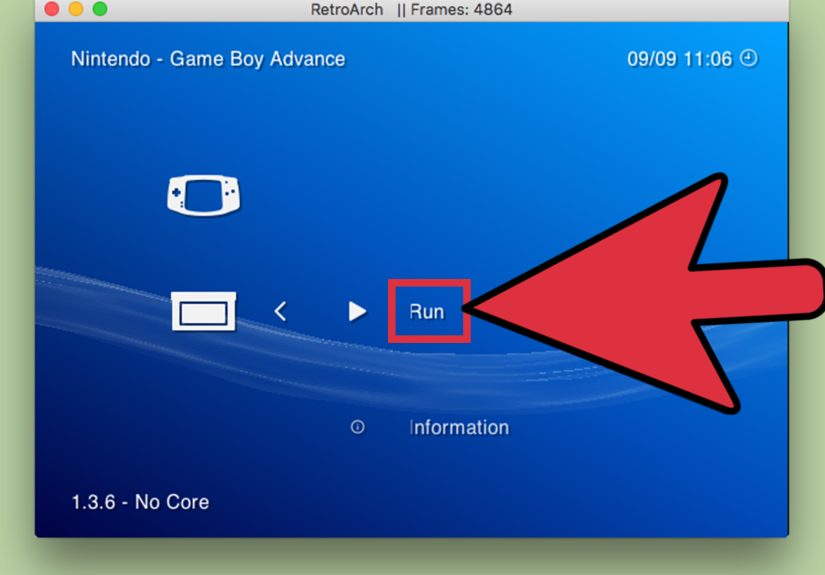
Mobile setup is a bit different. On iOS, VisualBoyAdvance-style play is commonly handled through the VBA-M core inside RetroArch rather than a traditional standalone VBA desktop app. Android users also have emulator-core and frontend options depending on how they want to organize games and settings.
Because this article is focused on a full Visual Boy Advance tutorial, the best beginner experience is still on Windows or Mac first. Once you understand the menus on desktop, mobile feels much less mysterious.
How to Load Games the Right Way
Before you load anything, keep this simple rule in mind: use lawful game files only. The emulator itself is not the problem. The problem starts when people treat “retro preservation” as code for “download everything with zero questions.” Do not do that.
To load a game in Visual Boy Advance:
- Launch VBA-M.
- Click File.
- Choose the correct option:
- Open for GBA files
- Open GB for original Game Boy files
- Open GBC for Game Boy Color files
- Browse to your game file and open it.
If everything is set up correctly, the game should boot right away. For most beginners, that first launch is the magical moment where you stop “setting up an emulator” and start hearing opening music from a handheld game you have not touched in years. Suddenly, you are ten again. Or thirteen. Or thirty-six and pretending not to grin.
First-Time Setup Checklist
Once the emulator launches, do not skip the setup pass. A few minutes here will save you a lot of frustration later.
Configure Input
Go to Options > Input > Configure. Pick the player you want to configure and map the buttons. If you are using a controller, connect it before opening the input settings. If the buttons feel wrong later, come back here first.
Check Video Settings
Go to the video configuration area and test filters, scaling, and fullscreen behavior. Visual Boy Advance supports display filters that can sharpen or smooth pixel art, depending on whether you like crisp pixels or a softer look.
Check Audio
If you have no sound, open the audio menu and make sure sound is enabled. In newer builds, you may also be able to change the audio API. When the game is silent for no good reason, this setting is often the culprit.
Choose a Comfortable Display Size
Some users want a tiny authentic-looking window. Others want the game stretched to a heroic size on a 27-inch monitor. Neither is morally superior. Pick the size that feels comfortable for the game you are playing.
Test Save Behavior Early
Do a quick save test before you sink an hour into a game. Make an in-game save if the game supports it, then test a save state too. Confirm both work. You do not want to learn about broken save habits after finishing a dungeon, grinding levels, or finally beating a boss that had no business being that smug.
Default Controls and How to Remap Them
VBA-M ships with default keyboard controls, but you should not feel obligated to love them. They are defaults, not commandments.
A common default layout for VBA-M is:
- A button: L
- B button: K
- L shoulder: I
- R shoulder: O
- Start: Enter
- Select: Backspace
- D-pad: W, A, S, D
- Speed up: Space
- Fullscreen toggle: F11
To change your controls:
- Open Options > Input > Configure.
- Select the player slot.
- Click each input field and press the key or controller button you want.
- Save your changes.
If your controller is detected but behaves strangely, disconnect extra input devices and re-map from scratch. Emulators sometimes get confused when multiple controllers, keyboards, or gamepad layers are all trying to be helpful at once. Helpful, in this case, is doing a lot of work.
How to Use Save Files and Save States
This is one of the most important parts of using Visual Boy Advance well.
In-Game Saves
These are the normal saves built into the game itself. If a game lets you save at an inn, on the pause screen, at a phone booth, or at some sacred glowing crystal, that is an in-game save. These are the most authentic and dependable for long-term progress.
Save States
Save states are emulator snapshots. They freeze the exact moment you are in and let you load it later. That means you can save anywhere, not just where the game intended. Very convenient. Also very easy to misuse.
Best practice is simple:
- Use in-game saves for your main progress.
- Use save states as a convenience or backup.
- Do not rely on only one save state slot forever.
- Keep more than one state if you are experimenting, using cheats, or testing patches.
Save states are wonderful until you overwrite the one good state you had with a bad state created right before disaster. Then they become a lesson in humility.
Graphics, Filters, and Performance Tweaks
One of the reasons people still like Visual Boy Advance is that it lets you shape the visual experience. Some players want a clean, modern look. Others want the game to feel a little closer to how it looked on original hardware. Filters help bridge that gap.
Inside the video settings, you can try scaling and filter options. Bilinear filtering is commonly recommended for a smoother appearance, but some players prefer sharper pixels because they want the art to stay crisp instead of getting softened into retro pudding.
A good rule of thumb:
- For pixel-perfect fans: use minimal smoothing.
- For larger fullscreen play: try bilinear or a scaling filter.
- For older or slower systems: keep enhancements modest.
If the game is running too fast or too slow, check frame throttling or speed-related options. Most users accidentally trigger the speed-up key at least once, then spend a full minute wondering why the intro music suddenly sounds like it is late for a flight.
How to Use Cheats in Visual Boy Advance
Visual Boy Advance supports cheats, including common formats associated with systems like GameShark and CodeBreaker. If you want to use cheats:
- Load your game first.
- Open Tools > Cheats > Enable Cheats.
- Then go to Tools > Cheats > List Cheats.
- Add your code, label it clearly, and test it.
Be warned: cheats can break games, corrupt saves, or create weird side effects. Infinite money sounds fun until the entire inventory logic collapses and your game begins behaving like a haunted calculator. Use them carefully, and never test unknown cheat codes on your only save.
Common Problems and How to Fix Them
White Screen on Launch
This usually points to an outdated emulator build, a bad game dump, or a compatibility issue with the file you are trying to open. Start by updating to the latest VBA-M version. If that does not fix it, test another known-good legal backup or homebrew file.
No Sound
Open the sound or audio settings and make sure sound is enabled. On newer builds, try switching the audio API. Also confirm your operating system did not reroute sound to another output.
Cannot Exit Fullscreen
On older builds, many users remember using Esc. On newer VBA-M builds, F11 is commonly used to toggle fullscreen. This is one of those tiny differences that causes outsized confusion.
Controller Not Working Properly
Reconnect the controller, restart the emulator, and re-map inputs manually. If you have multiple controllers connected, unplug the extras. This is especially helpful when one controller is quietly impersonating another behind the scenes.
Save Files Not Showing Up
Make sure you are loading the same game file and using the same emulator environment. Save data can get messy when users move ROMs, rename files casually, or switch between cores and standalone emulators without checking where saves are stored.
Best Practices for a Smooth Visual Boy Advance Experience
- Use the latest stable VBA-M build instead of outdated classic releases.
- Keep your legal game backups organized in clearly named folders.
- Use both in-game saves and save states.
- Test controller mapping before starting a long session.
- Do not overdo cheats, patches, and random settings all at once.
- Keep one “clean” save separate from experimental saves.
- Back up your save files if a game matters to you.
If you follow those habits, Visual Boy Advance becomes far less intimidating. It stops being “that emulator with too many menus” and starts feeling like a reliable retro toolbox.
Real-World Experiences Using and Setting Up Visual Boy Advance
The funny thing about setting up Visual Boy Advance is that the first hour is rarely about gaming. It is about tiny decisions that somehow feel enormous. Keyboard or controller? Smooth filter or raw pixels? Fullscreen or windowed? Save state slot one or slot two? Suddenly you are not just launching an emulator. You are negotiating with your past self about how nostalgia should look and feel.
For a lot of users, the first successful boot is the moment everything clicks. You hear the opening sound, see the title screen, and realize the emulator part was actually easier than expected. The harder part was trusting the process. Beginners often assume emulation is a dark art involving weird plugins, questionable downloads, and ten forum tabs from 2009. In reality, a clean VBA-M setup on a modern PC is pretty straightforward if you stick to the right version and do the setup in a logical order.
One common experience is that players spend more time fine-tuning controls than expected. The default keyboard layout works, but not everyone enjoys using W, A, S, D with L and K for the face buttons. Some people switch immediately to a USB controller because handheld-style games just feel better with a pad in your hands. Others surprisingly end up liking the keyboard once they move the buttons to something more natural. That is one of the strengths of Visual Boy Advance: it does not force one “correct” way to play.
Another very normal moment is discovering the difference between in-game saves and save states the hard way. Plenty of users start by relying only on save states because they are fast and magical. Then one day they load the wrong slot, overwrite progress, or test a cheat and realize they should have kept a clean in-game save too. It is a rite of passage, like forgetting to charge your wireless controller or confidently walking into the wrong dungeon with one potion and a dream.
Graphics settings are another part of the experience that becomes more interesting over time. At first, most people just want the game to run. Later, they start caring about whether the image feels too blurry, too sharp, too stretched, or too modern. Some players want a giant fullscreen picture with smoothing because it is easier on the eyes. Others want crisp, untouched pixels because anything else feels like putting sunglasses on a watercolor painting. There is no universal winner. The best setup is the one that makes you want to keep playing.
There is also a practical side to long-term use. Once players settle on a setup they like, Visual Boy Advance often becomes part of a small routine. Launch emulator. Load game. Quick audio check. Confirm controller. Make a backup save before trying something risky. It becomes muscle memory. And that is usually the sign of a good emulator experience: the software fades into the background and the game takes center stage.
In the end, the real experience of using Visual Boy Advance is not just technical. It is personal. It is part convenience, part customization, and part time machine. A careful setup turns a simple emulator into a comfortable place to revisit games you care about, test homebrew projects, or finally finish something you abandoned years ago because your batteries died at the worst possible moment.
Conclusion
Visual Boy Advance is still one of the easiest ways to enjoy Game Boy, Game Boy Color, and Game Boy Advance software on modern hardware, especially when you use the current VBA-M version. Once you understand the basic setup flow, download the right version, map your controls, test saves, and tweak the display, the emulator becomes simple to use and surprisingly comfortable for long sessions.
The big takeaway is this: keep your setup clean, use lawful game files, save smart, and do not panic when a setting looks unfamiliar. Most issues with Visual Boy Advance are easy to solve once you know where the important menus live. After that, the emulator stops feeling like software and starts feeling like an old handheld library that somehow moved into your laptop.