Table of Contents >> Show >> Hide
- The Big Upgrade: Display Tech That Makes Everything Look Expensive
- More Motion: Why High Refresh Rates Aren’t Just for Esports Anymore
- More Realism: HDR That’s Actually HDR (Not Just a Sticker)
- More Desk Magic: One-Cable Connectivity and Built-In Docking
- More Space: Ultrawide, Super-Ultrawide, and “I Didn’t Know My Desk Could Do This”
- More Comfort: Eye Care Features That Don’t Feel Like a Lecture
- More Intelligence: Smart Monitors, Built-In Streaming, and AI-Adjacent Tricks
- So… What Does “More” Mean When You’re Actually Buying a Monitor?
- What’s Next: The Monitor Becomes a Platform, Not a Periphery
- Experience Add-On: What “More Monitor” Feels Like in Real Life ()
For years, computer monitors have had one job: show you pixels and not embarrass themselves while doing it.
But lately, display makers have been acting like your monitor should be a full-time coworker, a part-time home theater,
and occasionally a personal assistant who remembers where your USB-C cable went. The result? A wave of innovations that
make monitors more: more beautiful, more comfortable, more connected, more immersive, and (finally) more useful
for how people actually work and play.
Tech reviewers and testing-focused outlets in the U.S.think PCMag, Tom’s Hardware, The Verge, Wired, CNET, Ars Technica,
AnandTech, Rtings, Wirecutter, Engadget, Digital Trends, and IEEE Spectrumhave been tracking the same shift:
modern monitors aren’t just chasing higher resolution anymore. They’re chasing better contrast,
smarter connectivity, truer HDR, smoother motion, and features that
make your desk setup feel less like cable spaghetti and more like a command center.
The Big Upgrade: Display Tech That Makes Everything Look Expensive
OLED and QD-OLED: “Infinite” contrast, real punch, and fewer compromises
If you’ve ever tried to edit a dark photo on an older LCD and watched the “black” areas glow like a haunted aquarium,
you already understand the OLED pitch: pixels that can turn off individually, producing deep blacks and dramatic contrast.
Newer OLED monitor generations have been improving brightness, text clarity, and burn-in protectionsthree pain points that
used to keep OLED mostly in the “TV only” corner.
QD-OLED (quantum dot OLED) adds another twist: it can boost color volume and perceived brightness in a way that often looks
extra vivid without turning everything into a neon smoothie. For gamers and creators, this can mean more lifelike highlights,
cleaner gradients, and less “gray haze” in dark scenesexactly the stuff your eyes notice first.
Mini-LED: LCD’s glow-up (with thousands of tiny lights)
Mini-LED is LCD technology doing crunches. Instead of a relatively small number of backlight zones, mini-LED designs can use
hundreds to thousands of local dimming zones. That means better HDR highlights and darker shadows than typical edge-lit LCDs,
especially in bright rooms. It’s often the sweet spot for people who want high brightness for daytime work, strong HDR for video,
and excellent clarity for textwithout committing to OLED.
MicroLED and “next-next-gen” panels: the future is bright (and expensive)
MicroLED is the unicorn: emissive pixels like OLED (great contrast), but with the promise of higher brightness and durability.
The catch is manufacturing complexity and cost, so microLED has mostly lived in demos and ultra-premium products so far.
Still, its development pushes the entire industry forwardbetter materials, better efficiency, and better control of how light is
produced at the pixel level.
More Motion: Why High Refresh Rates Aren’t Just for Esports Anymore
240Hz, 360Hz, even higher: smoother isn’t a gimmick when you feel it
High refresh rates used to be “for gamers.” Now they’re quietly becoming a comfort feature. Scrolling long documents, panning a
timeline in video editing, or dragging windows around a large desktop feels noticeably more fluid at 120Hz+ than at 60Hz.
And yes, for competitive gaming, the jump to 240Hz (and beyond) can reduce perceived blur and make fast motion easier to track.
Variable Refresh Rate (VRR): goodbye screen tearing, hello calm eyeballs
VRR technologies (often branded as Adaptive-Sync, FreeSync, or G-SYNC Compatible) let the monitor match its refresh rate to the
frame rate coming from your GPU. The practical benefit: fewer stutters and less tearing without needing to lock everything to a
single frame rate. In human terms: your game looks less “jumpy,” and your brain has fewer reasons to file a complaint.
More Realism: HDR That’s Actually HDR (Not Just a Sticker)
Brightness, local dimming, and contrast: the HDR triangle
HDR on a spec sheet is not the same thing as HDR in your eyeballs. The “real” HDR experience depends on a combination of peak
brightness, strong contrast, and the ability to control light precisely (local dimming for LCDs, per-pixel control for OLED).
When it’s done well, highlights look like highlightssun glints, explosions, reflectionswithout turning the rest of the scene
into a washed-out mess.
Color accuracy and wide gamut: when your reds stop lying to you
Better panels and better calibration options are making wide color gamuts more common, which matters for photographers, designers,
and anyone who’s ever sent a “perfectly normal” image to a friend only to discover it looks like a different planet on their device.
Higher-end monitors increasingly support deeper color and more precise tuning, often paired with factory calibration claims and
on-screen tools for creators.
More Desk Magic: One-Cable Connectivity and Built-In Docking
USB-C and Thunderbolt: the monitor becomes your hub
The modern dream setup looks like this: one cable from your laptop to your monitor. That cable carries video, audio, data for USB
peripherals, and sometimes power delivery that charges the laptop. In other words, your monitor becomes a docking station.
Suddenly, plugging in for work feels like snapping LEGO bricks together instead of performing a ritual sacrifice to the Cable Gods.
KVM switches and Picture-by-Picture: one monitor, two computers
Built-in KVM features are showing up more often, letting you control multiple computers with one keyboard and mouse while the monitor
handles input switching. Combine that with Picture-in-Picture (PiP) or Picture-by-Picture (PbP), and you can keep a work laptop and a
personal desktop visible at the same timeuseful for creators, streamers, IT folks, and anyone juggling devices like a circus act.
More Space: Ultrawide, Super-Ultrawide, and “I Didn’t Know My Desk Could Do This”
Ultrawide monitors: fewer bezels, fewer interruptions
Ultrawides aren’t just about being dramatic. A single wide panel can replace a dual-monitor setup without a seam down the middle.
For writing, coding, spreadsheets, and editing timelines, the continuous workspace is genuinely efficient. Curved ultrawides can also
keep edges within your natural viewing angle, reducing head turning during long sessions.
4K and high pixel density: crisp text is a productivity feature
Higher resolution isn’t new, but the way it’s being used is. A sharp 4K monitor at the right size can make text look more print-like,
reduce jagged edges, and improve clarity for detailed work. If you spend hours reading, writing, or designing, sharper text and smoother
UI elements can be a comfort upgradenot just a bragging rights upgrade.
More Comfort: Eye Care Features That Don’t Feel Like a Lecture
Flicker-free backlights and smarter dimming
Many modern monitors aim to reduce flicker and manage brightness more smoothly. That matters because long screen sessions can amplify
fatigue, especially at night. Better dimming behavior, improved coatings, and more stable backlight control can make a monitor feel
“easier” to look at, even if you can’t immediately explain why.
Ambient light sensors and “workday-aware” settings
Some monitors now include ambient light sensors and presets that adjust brightness and color temperature based on your room.
That’s not just a fancy add-on: matching screen brightness to your environment can reduce squinting and help your display feel less like
a spotlight aimed directly at your soul.
More Intelligence: Smart Monitors, Built-In Streaming, and AI-Adjacent Tricks
Smart monitor features: when your display moonlights as a TV
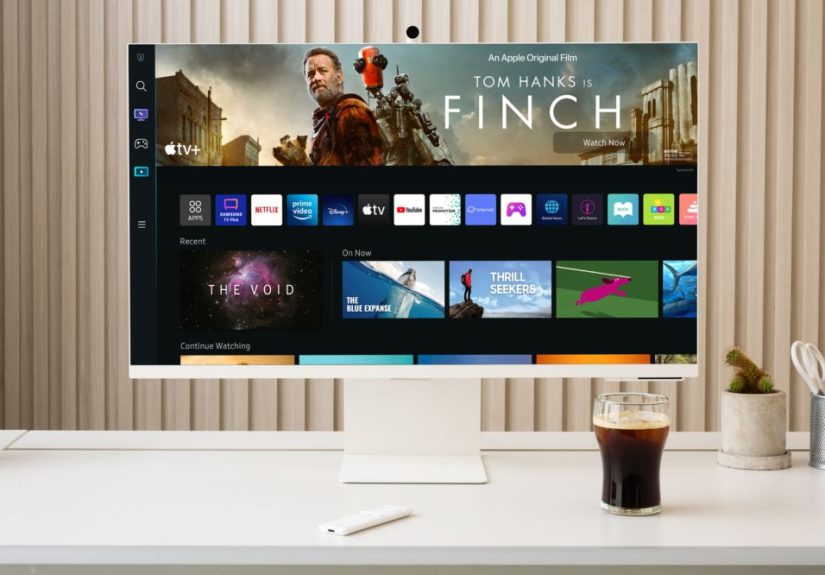
A growing category of “smart monitors” includes built-in streaming apps, remote controls, and lightweight operating systems.
For small apartments, dorms, or minimalist setups, that can be a legitimate win: work during the day, streaming at night, without
swapping cables or dedicating space to a second screen.
Adaptive picture modes: less fiddling, more doing
While “AI” gets overused in marketing, some automatic features are genuinely helpful: dynamic brightness tuning, content-aware color
modes, and quick switching among calibrated presets. The best versions of these features stay out of your way and just keep the image
looking consistent across different tasks.
So… What Does “More” Mean When You’re Actually Buying a Monitor?
The best monitor innovation is the one you notice every day. Here are three practical “more” upgrades that tend to pay off fast:
1) More clarity for work
If you read and write all day: prioritize comfortable text rendering, enough pixel density, and a size that fits your viewing distance.
A crisp 27–32-inch display (often 1440p or 4K) can make long sessions feel less tiring than a bargain panel that’s technically “fine”
but subtly annoying.
2) More contrast for entertainment and games
If you watch movies, play story-driven games, or care about cinematic visuals: OLED or mini-LED can feel like you upgraded your entire
computer, even though you “only” changed the monitor. Better blacks and highlights make content look richer and more dimensional.
3) More convenience for your desk
If you hate docking stations and dongles: look for USB-C/Thunderbolt connectivity, power delivery, and a built-in USB hub.
Bonus points for KVM features if you use multiple computers. The right monitor can reduce clutter and make your setup feel effortless.
What’s Next: The Monitor Becomes a Platform, Not a Periphery
The direction is clear: monitors are becoming platformshigh-performance displays with connectivity, comfort features, and smarter control.
In the near future, expect more experimentation with glasses-free 3D approaches, better anti-reflection coatings, more efficient backlights,
higher refresh rates paired with sharper resolution, and improved HDR consistency across price tiers.
In other words, your monitor is finally catching up to what it should’ve been all along: not just a rectangle that shows stuff, but a
centerpiece that makes everything else you do feel better.
Experience Add-On: What “More Monitor” Feels Like in Real Life ()
People don’t usually wake up and think, “Today I will be emotionally changed by a monitor.” And yetupgrade stories follow the same
pattern. The first day feels like a honeymoon. The second day feels like relief. By the third day, you’re quietly wondering why you
tolerated the old screen for so long.
One common experience: the “I can read again” moment. It happens when someone moves from a soft, low-contrast office monitor to a sharper
panel with better text clarity and more stable brightness. Suddenly, spreadsheets stop shimmering, small fonts stop looking fuzzy, and the
end of the workday doesn’t feel like your eyes ran a marathon. It’s not dramatic in the way a new graphics card is dramatic. It’s better:
it’s the kind of improvement that sticks around in the background and makes every task feel slightly easier.
Another frequent reaction comes from contrast upgradesespecially OLED and strong mini-LED implementations. The first time you open a dark
scene in a movie or a night level in a game, your brain does a double-take. Shadows have shape. Highlights look like light instead of
gray-white paint. And because the image has more depth, you may find yourself leaning back rather than leaning in. That tiny posture change
is the kind of “experience upgrade” no spec sheet can fully capture.
Then there’s the desk-life transformation: one-cable setups and built-in hubs. People who switch to a monitor that charges a laptop,
runs a webcam, connects a keyboard and mouse, and handles Ethernet through a single connection often describe it as “my desk finally
makes sense.” You stop hunting for ports. You stop unplugging things to plug in other things. Your workspace becomes calmer, which is a
surprisingly big deal when you’re working under deadlines or switching between school, work, and personal projects.
Ultrawide monitors create a different kind of experience: the “I have room to think” feeling. Instead of stacking windows like a chaotic
game of Tetris, you spread them out. Notes sit next to a browser. A timeline sits next to a preview. A chat window sits next to a doc.
People often say they multitask less frantically because they can see more at onceand that visibility reduces the mental load of constant
window switching.
The best part is that “more” doesn’t have to mean “most expensive.” For many people, the biggest quality-of-life jump comes from choosing
the right mix: comfortable text, reliable brightness, decent HDR behavior, and the connectivity that fits their daily routine. When a monitor
matches how you actually use your computer, it stops being a piece of equipment and starts feeling like an upgrade to your whole day.