Table of Contents >> Show >> Hide
- Composite vs. Component Video: The Quick Translation
- So What Is a Shared Composite/Component Video Input?
- How to Recognize a Shared Input on Your TV
- How to Connect Devices to a Shared Composite/Component Input
- Limitations and Gotchas of Shared Inputs
- When It Still Makes Sense to Use Composite or Component
- What If Your TV Has No Analog Inputs at All?
- Quick Troubleshooting Checklist
- Real-World Experiences With Shared Composite/Component Video Inputs
- Conclusion: The Green Jack That Does It All
If you’ve ever crouched behind a TV squinting at tiny green, blue, red, white, and yellow circles
and wondered why one jack has more slashes in its label than your average Wi-Fi password,
congratulations you’ve met the shared composite/component video input.
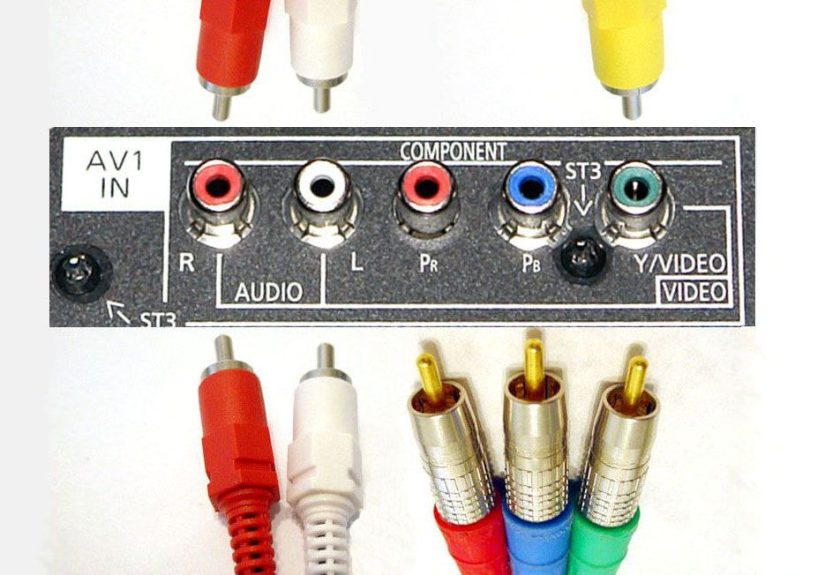
These “shared” inputs are TV manufacturers’ way of saying, “We’re running out of room on the
back panel, so the green jack is going to do double duty.” They let one physical video input
accept either composite or component video signals. That saves space, but it can also be
confusing if you’re trying to plug in older gear like a VCR, classic game console, or DVD player.
In this guide, we’ll unpack what composite and component video actually are, how a shared input
works, how to connect your devices correctly, and what limitations to expect when you’re mixing
old-school analog with newer TVs.
Composite vs. Component Video: The Quick Translation
What is composite video?
Composite video is the classic single yellow RCA plug you’ve seen on older TVs and devices.
It squeezes all picture information (brightness and color) into one analog signal carried over
one cable. Audio usually tags along as a separate red and white pair of RCA connectors.
A few key points about composite video:
- Uses one yellow RCA jack for video.
- Limited to standard definition (typically 480i/576i).
- Color and brightness are combined, so the picture can look soft, noisy, or a bit smeared.
- Perfectly fine for VCRs, older camcorders, and retro gaming consoles that never output HD anyway.
What is component video?
Component video (usually labeled Y Pb Pr or Y Cb Cr) splits the picture into
three separate analog signals carried on three cables with RCA ends, often color-coded:
- Green (Y): Luminance (brightness) and sync.
- Blue (Pb): Blue minus luminance color difference.
- Red (Pr): Red minus luminance color difference.
Because brightness and color are separated into multiple channels, component video can carry
much sharper images than composite and typically supports resolutions up to 1080i or 1080p on
devices that allow it. Just like composite, it’s video only you still need separate audio
connections (red and white RCA, optical, or HDMI for sound).
In short:
- Composite: One yellow cable, standard definition, “good enough” for old gear.
- Component: Three cables (green/blue/red), sharper image, supports HD.
So What Is a Shared Composite/Component Video Input?
On many modern TVs, instead of giving you separate jacks for composite and component, the
manufacturer combines them into one shared input. This is usually labeled something like:
- Y / Video
- Y/Video In
- Component/AV
The idea is simple: the green Y jack pulls double duty. It can accept:
- The Y signal from a component source, or
- The composite video signal that would usually go into a yellow jack.
In other words, the TV’s internal circuitry is smart enough to route that green jack either as
part of a three-cable component input or as a plain old composite input. You get one physical
cluster of jacks that can behave like two types of input just not at the same time.
That last part is important: you can’t use both composite and component on one shared input at
once. You choose one or the other for that set of jacks.
How to Recognize a Shared Input on Your TV
If you’re not sure whether your TV has a shared input, look closely at the label printed next to
the green jack and its neighbors. Typical signs include:
- The green jack labeled Y/Video instead of just Y.
- A printed note such as “Component/AV in” or “Shared Y/Video”.
- A diagram in the user manual showing both a three-cable (Y Pb Pr) hookup and a single-cable composite hookup using the same green jack.
Some TVs also include an adapter dongle that breaks out a weird multi-pin connector into RCA
jacks. Even there, the logic is the same: one “input group” can behave as either component or
composite depending on how you connect it and what you select in the TV’s settings.
How to Connect Devices to a Shared Composite/Component Input
Scenario 1: Connecting a component DVD player or set-top box
If your device has component outputs (Y, Pb, Pr), you’ll use three RCA cables for video plus
audio cables:
- Connect the green (Y) output on the device to the green Y/Video input on the TV.
- Connect the blue (Pb) output to the blue input.
- Connect the red (Pr) output to the red input in the same group.
- Connect the red and white audio outputs to the matching red and white audio inputs under the same label group.
- On the TV, select the input named “Component,” “YPbPr,” or whatever label matches that jack cluster.
If everything is wired correctly, you should get a color picture with a noticeably sharper image
than composite, especially on DVDs or cable boxes that output 480p or higher.
Scenario 2: Connecting a composite-only device (VCR, older game console, camcorder)
Many people get stuck here, because they look for a yellow jack and don’t see one. On a shared
input, that yellow video plug simply goes into the green jack instead:
- Plug the yellow composite video cable into the green Y/Video jack.
- Plug the red and white audio cables into the red and white audio inputs in the same group.
- On the TV, select the input labeled “AV,” “Video,” or “Composite,” if available in the menu.
Some TVs automatically detect that only the green jack is in use and treat it as composite.
Others require you to manually tell the TV via the settings menu whether that physical jack
should behave as “Component” or “Composite/AV.” If your image shows up in black and white,
that’s a classic sign the TV still thinks it’s getting a component signal instead of composite.
Scenario 3: Using an AV receiver as a hub
If you have multiple analog sources (like several consoles or a VCR plus a DVD player), you may
want to connect them all to an AV receiver and then run one cable to the TV. In that case:
- Connect each device to the receiver using either composite or component inputs as the receiver supports.
- From the receiver to the TV, use either component video or HDMI, depending on whether the receiver converts analog video to HDMI.
- On your TV’s shared input, follow the same rules above: component cables use all three jacks; composite uses only the green jack.
Not all receivers can “upconvert” composite to component or HDMI, so check the manual. Some
simply pass through whatever comes in, meaning composite in = composite out.
Limitations and Gotchas of Shared Inputs
You can’t use composite and component at the same time
This is the big one that trips people up. Because the green jack is doing double duty, you
can’t have a composite device and a component device wired to that same shared input group and
expect to switch between them. At any given time, the TV’s circuitry treats that input as
either composite or component, not both.
If you need multiple analog devices hooked up simultaneously, you’ll either need:
- A separate dedicated composite or component input on the TV, or
- An external AV switch box or receiver that lets you plug in several devices and select one output to feed the TV.
Resolution limits: composite vs. component
Shared input or not, the underlying format doesn’t change:
- Composite is capped at standard definition. On an HD or 4K TV, it will be upscaled, but you won’t magically get HD detail.
- Component can carry HD resolutions (720p, 1080i, and sometimes 1080p) if both the source and the TV support them.
For retro devices that only output composite, that’s totally fine they never generated HD to
begin with. For devices that offer both composite and component, always prefer component for
better sharpness and color.
Copy protection and the “analog sunset”
Some Blu-ray players and cable boxes limited HD output over component video due to copy
protection policies. In those cases, you might only get a downscaled image over component while
HDMI still shows full HD. If you notice your component connection is locked to 480p while HDMI
looks sharper, that’s probably why.
Common symptoms and what they mean
- Black-and-white picture: Often means a composite plug is connected, but the TV thinks it’s using component mode.
- Super weird colors (neon greens, purples): One or more component cables are in the wrong jacks, or a cable is loose.
- No picture at all, but sound works: The TV is on the wrong input, or the video cable is in a different input group than the audio.
- No sound, but picture looks fine: Audio is connected to the wrong input group, or the TV is set to use a different audio source (like HDMI ARC or optical).
When It Still Makes Sense to Use Composite or Component
It’s easy to assume HDMI has completely replaced analog connections, but composite and component
still matter for a few specific use cases:
- Retro gaming: Consoles like the NES, SNES, N64, PlayStation 2, and original Xbox were built around composite and component. For many of them, component is the best picture you’ll get without mods or scalers.
- Old camcorders and VCRs: Transferring home videos often means composite or S-Video, not HDMI.
- Older DVD players and cable boxes: Some early HD gear had component outputs alongside DVI or no HDMI at all.
- Security systems and specialty gear: Analog surveillance cameras and other niche devices may still rely on composite.
A shared composite/component input gives your modern TV one last bridge to this analog world
without dedicating half the back panel to ports most people will never touch.
What If Your TV Has No Analog Inputs at All?
On very new TVs, manufacturers have gone a step further and removed analog jacks entirely. If
your TV only has HDMI and maybe USB, you’ll need a converter:
- For composite devices, use a composite-to-HDMI converter (yellow/red/white in, HDMI out).
- For component devices, use a component-to-HDMI converter (Y/Pb/Pr and red/white audio in, HDMI out).
These converters digitize the analog signal and output HDMI so your TV sees it like any other
HDMI source. Quality depends on the converter, but for VCRs and older game systems, even
modest converters are often good enough.
Quick Troubleshooting Checklist
If your shared composite/component setup isn’t working the way you expect, run down this short list:
- Double-check that every cable color on the device matches the jack color on the TV or receiver.
- If using composite, confirm the yellow video plug is in the green Y/Video jack, not somewhere random.
- Make sure you selected the correct input in the TV’s menu (AV/Video vs. Component).
- Look in the TV’s settings for an option to choose whether that jack is “Component” or “Composite/AV.”
- Try a different cable if the picture is noisy, flickering, or dropping out.
- Test the device on another TV if possible, just to rule out a failing VCR or console.
Real-World Experiences With Shared Composite/Component Video Inputs
Shared composite/component inputs sound abstract until you’re halfway through movie night, knee
behind the TV, and someone shouts, “Why is Mario in black and white?” Let’s walk through what
this looks like in day-to-day use.
Imagine you’ve just brought home a slim new TV. It has four HDMI ports, one mysterious cluster
of green/blue/red video jacks, and two audio jacks, but not a single yellow input in sight.
You dig out your old Wii or PlayStation 2 the family favorite for party games and you’re
greeted with those familiar red, white, and yellow plugs. Panic. No yellow jack.
This is exactly where shared inputs shine. Once you realize that green jack is secretly doing
the yellow jack’s job, everything clicks. You plug yellow into green, red/white into audio, hit
“AV” on the remote, and suddenly your new TV behaves like it’s 2005 again. The picture isn’t
razor-sharp, but it’s fun, it works, and your stack of old games gets a second life.
Another common story: the black-and-white problem. A lot of people plug a composite cable into
the green jack, but the TV still thinks that jack is in “Component” mode. The TV is expecting
three separate signals (Y, Pb, Pr), but it’s only getting one. The result is a washed-out,
colorless image that looks like a late-night art film. The fix is wonderfully unglamorous:
open the TV’s settings, find the input configuration for that jack group, and change it from
“Component” to “AV/Composite.” Color instantly snaps back into place.
You’ll see similar stories on home theater and retro gaming forums: people juggling multiple
old consoles, a receiver, and one lonely shared input on a TV. A popular solution is to use a
small analog AV switch box basically a plastic “traffic controller” with several sets of
composite or component inputs and one output. All your consoles plug into the switch; the
switch feeds that single shared input on the TV. Press a button to swap between Super Nintendo,
original Xbox, and a DVD player without crawling on the floor each time.
Another real-world wrinkle is cable reuse. Because composite and component cables use the same
RCA connectors, you don’t actually need “special” cables for each format. A three-pack of
generic RCA cables can carry component just fine as long as you keep colors consistent at both
ends. The same is true for borrowing a yellow RCA cable to use as one leg of a component
connection in a pinch. Shared inputs make this flexibility even more useful since the TV
doesn’t care what color the plastic is; it cares which jack the cable goes into.
For many people, shared composite/component inputs have become quiet heroes of TV longevity.
They let you upgrade your display without throwing away every device that doesn’t speak HDMI.
You can still plug in that camcorder to show family videos, still dust off a GameCube, or still
hook up a DVD player in the guest room, all without a separate converter box as long as you
know the green jack’s little secret.
The biggest takeaway from real-world use is this: don’t be afraid of the labels. If your TV
says “Y/Video,” it’s inviting you to plug in either a component source (with three cables) or a
composite source (with one yellow cable) and then tell the TV which one you chose. Once you’ve
done it a couple of times, it stops feeling like a mysterious engineering trick and more like a
neat party trick you can use to instantly become “the tech person” in the room.
Conclusion: The Green Jack That Does It All
Shared composite/component video input connections are a clever compromise between old and new.
They save space on modern TVs while still giving you a bridge to older analog devices. Yes,
they’re a bit confusing at first especially when the yellow plug suddenly has to go into a
green jack but once you understand the logic, setup is straightforward.
Remember: composite equals one cable and standard definition; component equals three cables and
sharper video. The shared input simply lets your TV pretend to be either type of input using
the same physical jacks. Use it wisely, pair it with a simple AV switch or a receiver if you
have lots of analog gear, and your TV can happily live in both the HDMI age and the VHS era at
the same time.