Table of Contents >> Show >> Hide
- What Is a User Profile?
- Why User Profiles Matter (More Than People Admit)
- What Should a User Profile Include?
- How to Create a User Profile That Works
- Step 1: Define the purpose (aka “why does this profile exist?”)
- Step 2: Choose your minimum viable profile fields
- Step 3: Design the profile information architecture
- Step 4: Decide what’s public, private, and admin-only
- Step 5: Build for user control and accuracy
- Step 6: Add security guardrails (before you regret it)
- Step 7: Practice data minimization and retention sanity
- Step 8: Make the UI delightful (and not a scavenger hunt)
- Specific Examples of User Profiles (So It’s Not All Theory)
- Common Mistakes (And How to Avoid Them)
- How to Measure Whether Your User Profile Is “Good”
- Experiences From the Real World (The “I Learned This the Hard Way” Section)
- Wrapping Up
- SEO Tags
A “user profile” sounds like something you only worry about when you’re choosing a profile picture that doesn’t scream
“I haven’t slept since 2019.” But in digital products, a user profile is more than a selfie and a username. It’s the
structured set of information your product stores (and displays) about a person so the experience can be personalized,
permissions can be enforced, and support teams can understand what’s going on without playing 20 questions.
Whether you’re building a SaaS app, an e-commerce store, a patient portal, or a members-only newsletter, getting user profiles
right is one of those “quiet superpowers” that improves onboarding, reduces friction, and prevents avoidable security headaches.
The trick is doing it in a way that’s useful, respectful, and not a data-hoarding hobby.
What Is a User Profile?
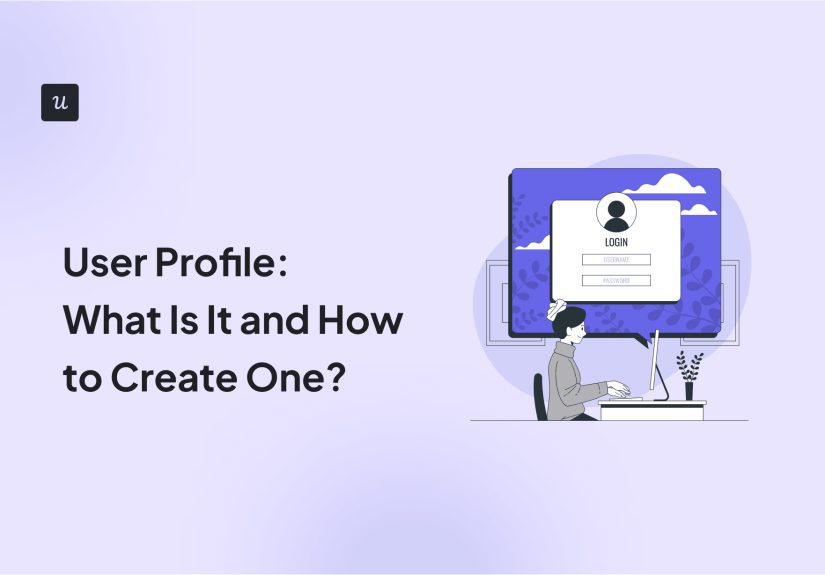
A user profile is the digital representation of a user inside a system. It usually includes identity basics (like name and
email), account settings (like language and notifications), preferences (like theme and content interests), and sometimes
role-based permissions (like admin vs. member). In many organizations, profile data also powers “where your name appears”
across tools, so people see consistent identity info in different places.
User profile vs. user account: are they the same thing?
Not quite. A user account is the container that lets someone sign in and be recognized (credentials, authentication
method, account status). A user profile is the descriptive data attached to that account (display name, photo,
preferences, settings, role, etc.).
Think of it like this: the account is the “key,” the profile is the “label on the keychain.” You can have an account with a tiny
profile (email only), or a richer profile that supports personalization, collaboration, and support workflows.
User profile vs. UX persona: don’t mix these up
A UX persona is a research artifact: a fictional-but-realistic description of a target user type used to guide
design decisions. A user profile is a real user’s stored data inside your product. One lives in your UX docs.
The other lives in your database. Confusing them leads to awkward meetings where someone says, “But our persona is named Maria,”
and someone else says, “Yes, and Maria just reset her password six times.”
Why User Profiles Matter (More Than People Admit)
1) Personalization that actually feels helpful
Good profiles let users pick preferences once and enjoy the benefits everywhere: language, time zone, accessibility settings,
dashboard layout, content interests, communication choices, and more. The goal isn’t “creepy personalization.”
The goal is “I don’t have to fix the same setting every time I log in.”
2) Permissions, security, and “who can do what”
Profiles often include roles (admin, editor, viewer) or attributes that help enforce access control. In business systems,
profile attributes can connect to group membership, licensing, and governance rules.
3) Better onboarding and less support chaos
When a support agent can see plan type, device, language, and key settings (with appropriate privacy controls), the user spends
less time repeating themselves and more time getting unstuck. Meanwhile, onboarding can adapt to a user’s goal (“I’m here to build
a portfolio”) instead of forcing everyone down the same tutorial tunnel.
4) Trust and compliance: the “don’t be weird” factor
A profile is also a promise: “This is what we store about you, and this is why.” Strong profiles minimize data collection,
explain usage clearly, and give users control. Weak profiles collect too much, document too little, and eventually star in a
post-incident blog post titled, “We Take Your Privacy Seriously.”
What Should a User Profile Include?
The best profile is not the biggest profile. It’s the profile that supports the user journey with the smallest, safest set of data.
Start with categories and pick the minimum fields that make each category work.
Core identity (baseline)
- User ID (internal, immutable)
- Display name (how the user wants to appear)
- Email (often used for login and communication)
- Profile photo/avatar (optional)
Account settings
- Language and locale
- Time zone
- Notification preferences (email, SMS, push)
- Security settings (MFA enabled, recovery methods)
Preferences and personalization
- Theme (light/dark/system)
- Accessibility settings (text size, contrast, motion reduction)
- Content interests (topics, categories)
- Default views (list vs. grid, dashboard widgets)
Roles and permissions
- Role (member, admin, editor)
- Team/workspace membership
- Feature access flags (based on plan or entitlements)
Optional: professional or contextual attributes
Some products need more: job title, organization, department, shipping addresses, billing details, or medical profile fields.
But be careful: sensitive data should be collected only when necessary, protected strongly, and treated as a high-stakes responsibility.
How to Create a User Profile That Works
Here’s a practical, step-by-step process that works for most products. If you’re a builder, you can treat this like a product spec.
If you’re a marketer or UX writer, you can treat it like a roadmap for what content and screens you’ll need.
Step 1: Define the purpose (aka “why does this profile exist?”)
Write down 3–5 specific outcomes your user profile should enable. Examples:
- Users can personalize language, time zone, and notifications.
- Admins can manage team roles and invitations.
- Support can verify the user’s plan tier and key settings without seeing sensitive data.
- The system can enforce access control and audit key actions.
Step 2: Choose your minimum viable profile fields
Start with a small set and earn the right to expand. A common MVP:
display name, email, avatar (optional), language, time zone, notifications, role.
If your product needs an address or birthday, be ready to justify it with a concrete use case.
Step 3: Design the profile information architecture
Most products benefit from splitting profile data into “tabs” or sections so users don’t feel like they’re filling out a tax form.
A clean structure might include:
- Profile (public-facing fields like name, avatar, bio)
- Account (email, password/MFA settings, connected accounts)
- Preferences (language, time zone, theme, notifications)
- Security (sessions, devices, recovery methods)
- Teams & roles (if applicable)
Step 4: Decide what’s public, private, and admin-only
A profile often includes fields that appear to other users (display name, avatar, job title) and fields that should never be public
(email, phone, address, internal IDs). Label these clearly in your data model and your UI. Bonus points if you let users preview what
others can see.
Step 5: Build for user control and accuracy
People change jobs, move time zones, and regret usernames. Make it easy to edit profile fields that should be editable, and be explicit
about what can’t be changed (like internal IDs) and why. If you show a legal name anywhere, provide a “preferred name” field when possible.
Step 6: Add security guardrails (before you regret it)
User profiles touch identity data, so secure them like you mean it:
- Access control: only authorized users and systems can read/write specific fields.
- Input validation: prevent injection, unsafe uploads, and malformed data.
- Rate limits: protect profile update endpoints from abuse.
- Audit trails: log sensitive changes (email changes, role changes, MFA changes).
- Session management: consider re-auth for high-risk edits (like changing email or password).
Step 7: Practice data minimization and retention sanity
Collect only what you need, keep it only as long as you need, and protect it during its entire lifecycle. If you don’t need a field,
don’t collect it “just in case.” “Just in case” is how databases turn into attics.
Step 8: Make the UI delightful (and not a scavenger hunt)
The best profile pages share a few traits:
- Clear section headings and simple language
- Inline help text (“We use your time zone for reminders and scheduling.”)
- Smart defaults (auto-detect locale/time zone, allow “system theme”)
- Good error messages (tell users how to fix an issue)
- Instant feedback (saved state, last updated time, undo when possible)
Specific Examples of User Profiles (So It’s Not All Theory)
Example 1: E-commerce profile
A retail profile might include shipping addresses, saved payment methods (often tokenized via a payment processor), wish lists,
sizes, and communication preferences. The key is separating “shopping convenience” from “sensitive information” and using secure
patterns for payments and account recovery.
Example 2: SaaS / B2B workspace profile
A B2B product typically needs role + workspace membership, plus profile info used in collaboration: display name, avatar, job title,
team, and sometimes pronouns (optional). Admins may also need a separate “admin view” that includes account status, license assignment,
and security posturewithout exposing unnecessary personal details.
Example 3: Healthcare or wellness app profile
If your profile includes sensitive health data, your bar for security, permissions, and transparency gets much higher.
Many apps keep a strict separation between identity fields (name, email) and health fields (conditions, medications, measurements),
often storing them in different systems or applying stricter access rules. The UX should explain exactly why data is requested and how it’s used.
Common Mistakes (And How to Avoid Them)
Collecting too much too soon
Long sign-up forms are where motivation goes to die. Start minimal, then progressively request info when it provides obvious value
(“Add your time zone so reminders fire at the right time.”).
Making users guess what’s visible to others
If your product has any social or team component, label visibility. “Public,” “Team,” “Only me,” and “Admins only” are your friends.
No plan for change
People change names. Companies merge. Emails get retired. Build flows for updates and verification, and treat identity changes as
higher-risk actions where appropriate.
Weak governance on roles
Role changes should be auditable, limited to authorized admins, and reversible. A single accidental “Make everyone an admin” click
is the kind of excitement nobody needs.
How to Measure Whether Your User Profile Is “Good”
You can evaluate profile quality with both UX and system metrics:
- Completion rate: do users finish setting up key fields?
- Time to value: does profile setup accelerate meaningful actions?
- Support tickets: do profile-related issues drop over time?
- Security indicators: MFA adoption, suspicious change attempts, recovery success rate
- Data quality: fewer bounced emails, fewer duplicates, fewer stale fields
Experiences From the Real World (The “I Learned This the Hard Way” Section)
If you’ve ever shipped a user profile feature, you know it starts out innocent: “We just need name and email.” Then the requests arrive.
Marketing wants preferences. Support wants plan history. Security wants MFA status. Sales wants company size. Product wants segmentation.
Suddenly you’re one stakeholder meeting away from collecting the user’s favorite dinosaur (for “personalization”).
One of the most common experiences teams report is how quickly profile scope expands unless someone owns a clear boundary.
The best teams treat the profile like a product within the product: it has requirements, guardrails, and a roadmap. They build an MVP
profile, launch it, learn what users actually edit, and only then add fields that earn their keep.
Another very real experience: users hate “mystery fields.” If you ask for a phone number, users assume you’ll call them at dinner.
If you ask for a birthday, users assume you’ll sell it to a coupon gremlin. Even when your intent is honest, the perception matters.
Teams that add small helper text (“Used for account recovery only”) and offer alternative methods (like authenticator apps)
often see higher completion rates and fewer fake entries like 555-555-5555.
On the UX side, profile edits are where you learn whether your product respects people’s time. If updating time zone takes four clicks,
users will simply live with broken reminders and quietly resent you. If changing notification preferences is clear and immediate,
users feel in control. That feeling of control is underrated: it’s a trust builder. The profile page is one of the few places where
the user can say, “This is how I want this product to treat me.” Good systems listen.
Teams also discover that “public vs. private” is not a technical detailit’s a relationship detail. In collaborative products,
users need confidence that their email won’t be exposed to strangers, but their display name will help teammates recognize them.
Many successful products keep a small “public card” (name, avatar, optional title) and a larger private profile (email, settings,
security, preferences). This separation reduces anxiety and avoids accidental oversharing.
From a security and operations perspective, the most valuable experience is learning which profile changes should trigger extra protections.
Updating a bio? Fine. Changing an email address, adding a recovery method, or modifying roles? That’s higher risk. Teams that introduce
step-up authentication or re-authentication for these actions often reduce account takeovers and “how did this happen?” incidents.
They also add audit trails earlybecause once the product grows, retrofitting “who changed what and when” is a painful archaeology project.
Finally, there’s the experience nobody advertises: profile data gets stale fast. Job titles, teams, and even names change.
The best practice in the wild is to keep optional fields truly optional, prompt users gently when something is needed,
and avoid building core functionality that depends on fragile profile fields. In other words: treat user profiles as living data,
not a one-time form you fill out and forget.
Wrapping Up
A user profile is the backbone of personalization, identity representation, and account governance. Build it with intention:
start small, separate public vs. private, prioritize security and user control, and only collect what you can justify with real value.
If you do it right, your product feels smoother, your users feel respected, and your future self sends you a thank-you note
(or at least stops sending angry late-night Slack messages).